
Consider you are an organization based in the USA with offices in different countries like Russia, France, India and Germany. Say you are trying to deploy SharePoint in your entire company. It is highly inappropriate to force all your employees to work in English. In many parts of the world, language is as sensitive as gender, race or religion. Luckily, SharePoint has multilingual features.
There are essentially two multilingual features:
Multiple Language User Interface (MUI)
With the MUI feature, you can choose the desired language you want to make available for a site's user interface.
Variations (Enhanced translation workflow and machine translation services)
The variations feature enables you to create a source publishing website. Copies of the website can then be translated into different languages.
PS. This feature only works with publishing sites.
The MUI feature works with a site’s user interface whereas the variations feature works with the site’s content.
Site's User Interface
User interface refers to the elements on the screen that a user can interact with. Below is a list of elements that can be displayed in different languages
- Web Parts
- Site title and description
- SharePoint default menus and actions
- Default columns
- Custom columns (list or site)
- Navigation bar links
- Managed metadata services
Site's Content
When it comes to the variation feature, it works with the site content i.e. the information stored on a site. The different content elements include
- Page
- Document libraries
- Announcement List
- Image Libraries
Once a source site is published, all publishing pages from the Pages library are automatically copied to the targets and queued up for translation and publishing
How to choose display language for sites?
There are two prerequisites in order to choose language settings for a site:
1. You must be signed in as a site collection administrator
2. Language Packs must be deployed in your SharePoint Server first by SharePoint Server farm administrator
- Click on Settings
 →Site Settings( in case you don't see site settings click on site contents then Site Settings )
 - In the Site Administration section, click on Language Settings
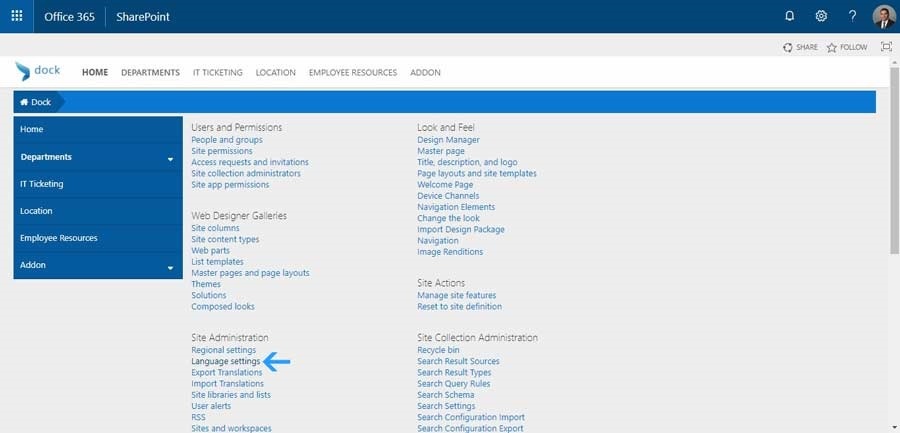
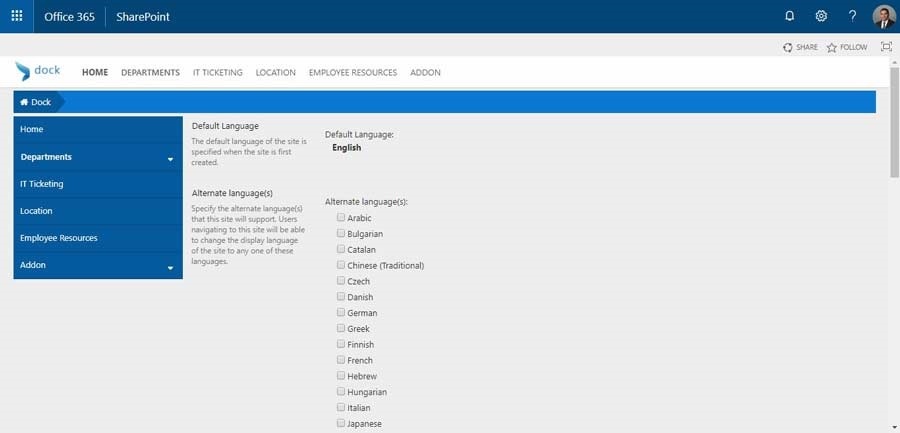
- In the Alternate Language section, check the checkbox corresponding to the language you want to display the user interface in.
When to use Variations, MUI or both?
Using MUI
It is recommended to use MUI feature when you have a site with a default language that the user cannot work in and you want to allow them to switch between the personal view of the site even after it has been created in the default language.
Using Variations
This feature can be utilized when you want a website that offers tailored content to users depending on factors like geographic locations, culture, markets, etc.
PS. In case you don't have any language packs installed then you will not be able to use MUI feature but you can still utilize variations feature.
Using both MUI and Variations
In a situation when you publish content to be translated and also you have users that don't work in the same language that the site was created, then you can leverage both the features together. This way the content and UI of the sites will be available in multiple languages.
Wish to know more about SharePoint, Office 365 , SharePoint Multilingual Features or a SharePoint based intranet portal?
Schedule a FREE Demo now