
Just in case if you haven’t heard about Microsoft Office Lens, Office Lens trims, enhances and makes pictures of whiteboards and docs readable. You can use Office Lens to convert images to PDF, Word and PowerPoint files, and you can even save images to OneNote or OneDrive. Office Lens is like having a scanner in your pocket. Like magic, it will digitize notes from whiteboards or blackboards. You can always find important documents or business cards. Sketch your ideas and snap a picture for later. Don't lose receipts or stray sticky notes again!
It looks great, doesn’t it? We have been trying this out for a while and trust me, it’s awesome! I had been using Office Lens on my phone to take pictures of my bills (I have been travelling quite often for client engagements) for fuel reimbursements, which automatically stores on the OneDrive. Also, you can search text which is on the receipt and look for it on the OneDrive app (both phone and web).
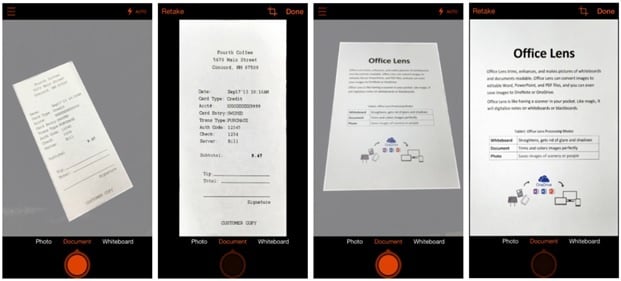
The OCR capabilities in OneDrive is something you should be checking out. Try flipping your phone and open the Office Lens App. Snap the whiteboard pics, documents or even business cards that needs to go into the OneDrive App. You might need to wait for couple of minutes for the search to work.
We faced some issues with the business card and got the error below:
“The user credentials are needed to obtain access token. Please call non-silent acquireTokenWithResource methods.” The call log shows that we need to remove and add OneDrive access again to resolve this issue. However, it didn’t work for us.
Saving the image
Once you are done with the perfect snap/edits, choose where to save the image:
When taken in document, photo or whiteboard mode, the images get saved to OneDrive, OneNote as Microsoft Word, PowerPoint or even as PDF format. Save it to your local photo gallery and edit the titles (optional).
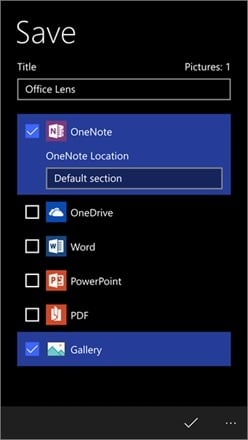
You will be prompted to sign in using your Office 365 Account if you need to save images to OneDrive, OneNote, PDF, Word or PowerPoint. You can always sign in from Settings> Accounts tab as shown below:
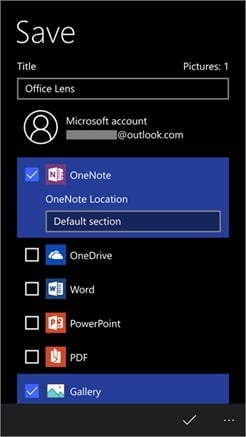
If you are already signed in, the account information will be displayed, and you can save the images to your desired applications as mentioned earlier.
Adding Titles
When images are saved as other file formats to your Folders in OneDrive/OneDrive for business, it is easier to access the files from any device. It’s not all about importing an image into Word/PowerPoint file, you get the final Word/PowerPoint files (Your real Office files).
Let us explain this further:
- Microsoft Word can recognize the handwritten information, text or print along with the document layout. The layout, text and formatting styles will turn to be in an editable version – It’s more like you worked on it from scratch!
- Microsoft PowerPoint transforms the document layout, handwritten information, text or prints into PowerPoint drawing objects that can be resized, recolored and of course, edited. Take out the existing backgrounds with your desired designs, which has become much easier to reuse the drawings for your future presentations.
- PDF files, Office Lens grabs the text information and you will be able to search file content within the text and you will be able to highlight/copy part of the document with the PDF reader app.
Sync OneDrive with your SharePoint Library
So, now you have all your Office Lens captured images to your OneDrive. Did we forget about SharePoint? Well, instead of getting stuck with OneDrive, you can easily integrate OneDrive with SharePoint in matter for few minutes. This can be achieved using Microsoft Flow (flow.microsoft.com).
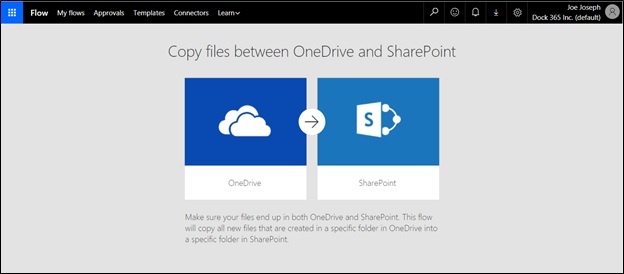
Just search for OneDrive and SharePoint in the Templates section.