
Microsoft has come with an all-new experimental feature to enhance Group control in canvas apps. With new update, grouping is no longer a Studio only grouping concept but a real grouping control in the player.
The update is undoubtedly the result of numerous requests in the PowerApps Ideas forum to improve the current Group behavior. Further, there was also a need to enable more control over keyboard interaction to match the visual structure of the page.
Microsoft is starting this as an experimental feature since it is a change to an existing concept. Thus, it requires opt-in for each app to use it. Depending on the feedback, it will be moved to be a preview feature that will default to on for new apps.
PS.To use enhanced Group control "Improved app rendering" preview feature needs to be enabled.
Steps to enable enhanced groups
To get started with the new behavior
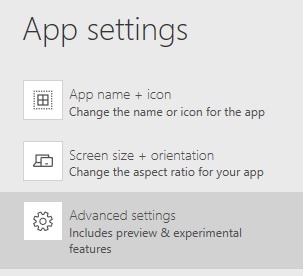
- Open App settings > Advanced settings
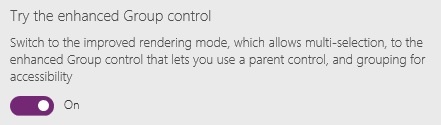
- Under the Experimental features section, you must toggle the "Try the enhanced Group control" switch.
- Once this is done, new groups added are enhanced group rather than classic group.
How to group multiple controls?
- On selecting multiple controls existing Ctrl+G keyboard will add the enhanced Group control and move the selected controls as children.
- Ungroup the child controls with a subsequent Ctrl+G
- You can also find the group and ungroup commands under the Home > Group menu.
- Use the Ungroup and Group commands, to convert an existing classic Group into an enhanced Group control. Image below has multiple controls selected
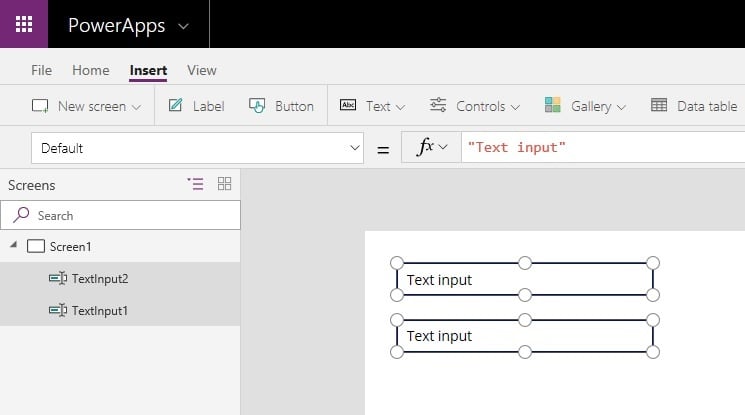
- Controls are grouped with Ctrl+G or the menu commands
How to add group controls and move children?
- Use Insert to add an empty group
- Use cut and paste to move controls in or out from group
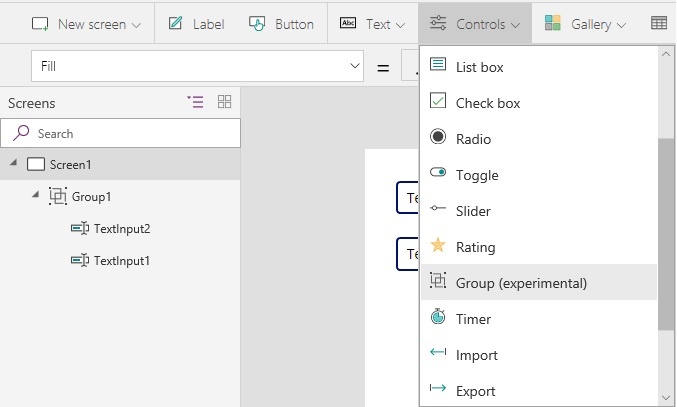
With the new enhanced Group control, player has an actual control. Owing to group control, it ensures that grouping has impact on the keyboarding in the app. Thus, keyboard behavior can be aligned with the visual structure of the screen. Microsoft will be using this to update their sample apps to achieve the right keyboard order.
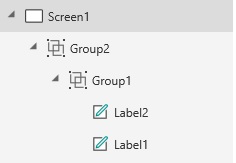
Nesting groups
In case you want more complex layout and keyboard interactions, try the enhanced Group control nested within another Group.
Get in touch with our experts to learn more about PowerApps or our intuitive and intelligent company intranet portal -Dock 365. Schedule a free demo today and take your business to the next level.!