The SharePoint app bar makes it easy to navigate to your sites, files, lists, and news posts. Global navigation is a key highlight of the SharePoint app bar that allows users to configure common navigation to the most important and commonly-used resources and content in your organization’s SharePoint environment. In this blog, we will show you how to set up the Global navigation facility in your SharePoint app bar.
Let’s go straight into the step-by-step instructions.
Tutorial: Configure Global Navigation in SharePoint App Bar
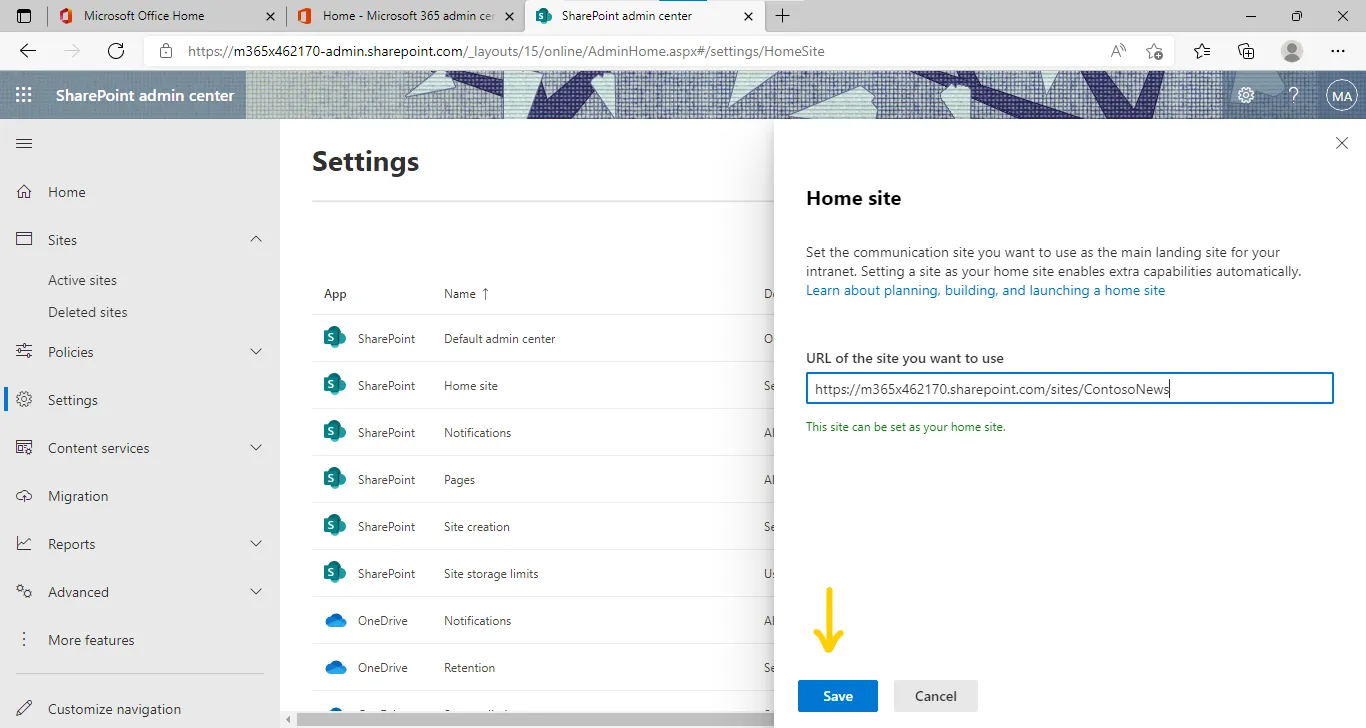
The Global navigation will show up only if you have enabled it from your SharePoint home site.
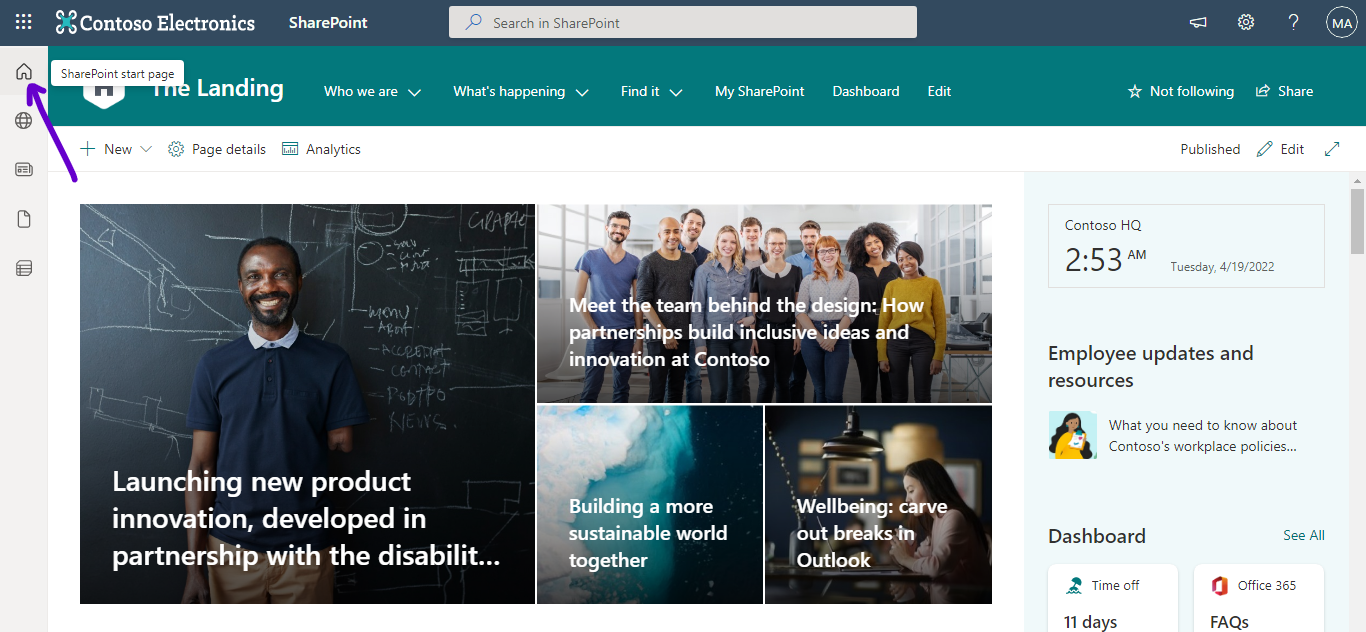
- Go to your SharePoint home site.
- If the Global navigation option is disabled, the home icon in the SharePoint app bar will be linked to the SharePoint start page by default.
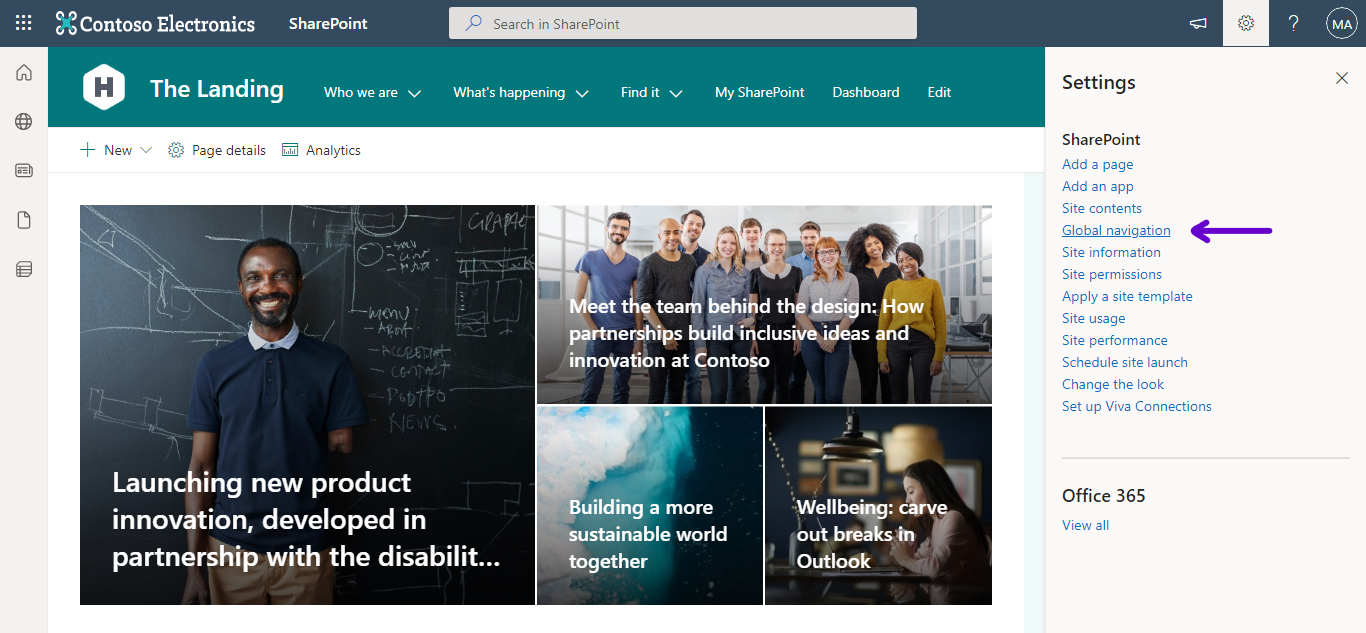
- Click on the settings icon at the top right part of the page and choose Global navigation.
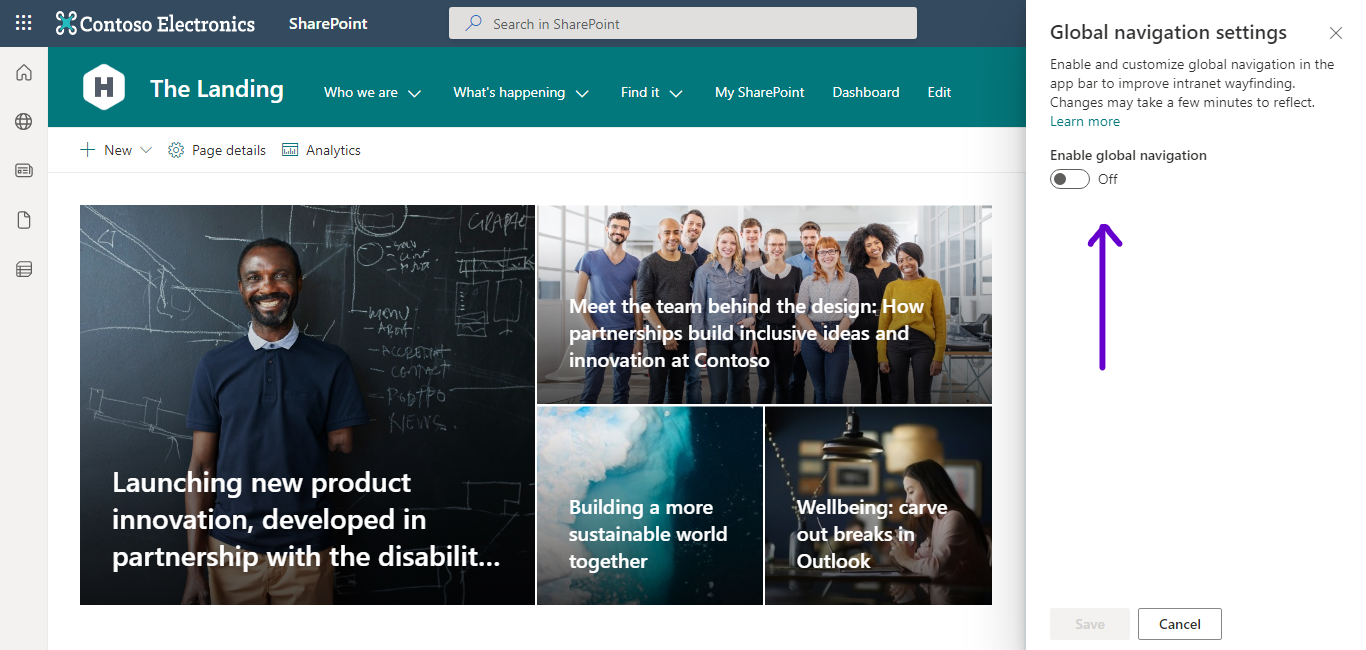
- Click the Enable global navigation option on the next page.
- You will now gain access to configure options like logo, title, and navigation source of the global navigation.
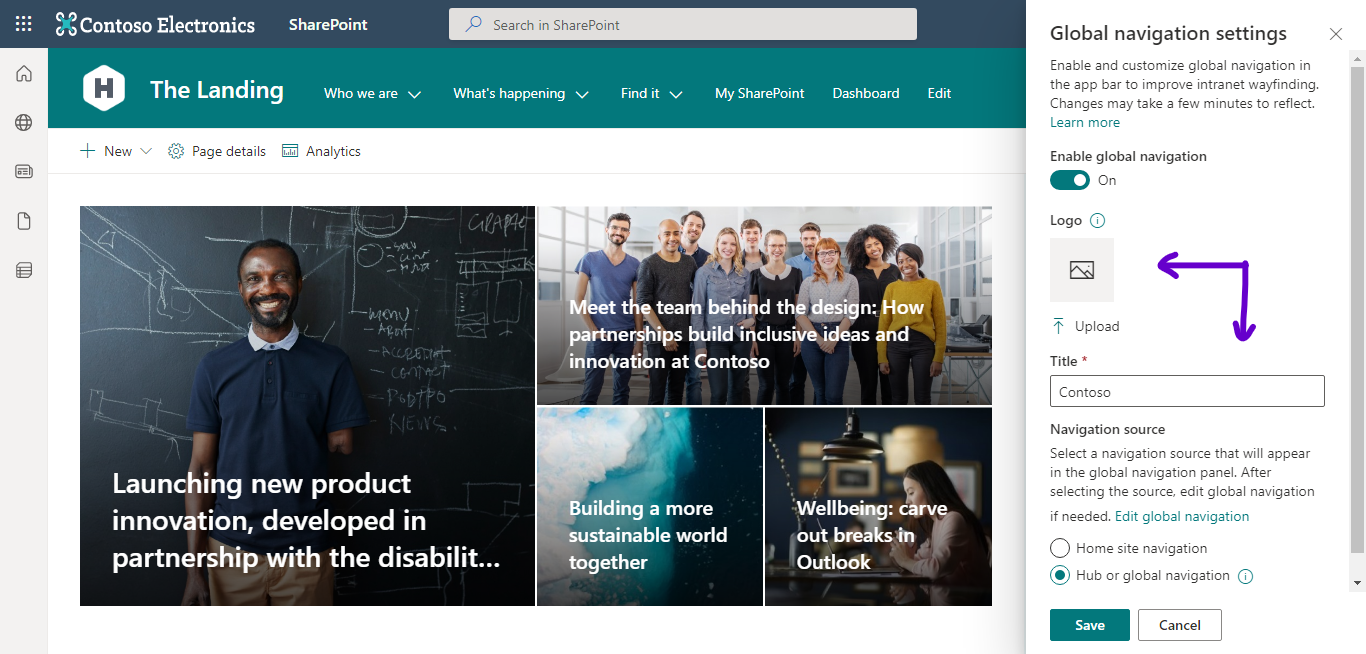
- Add necessary details.
- Navigation source can be set as Home site navigation or Hub or global navigation.
- Click on Edit global navigation.
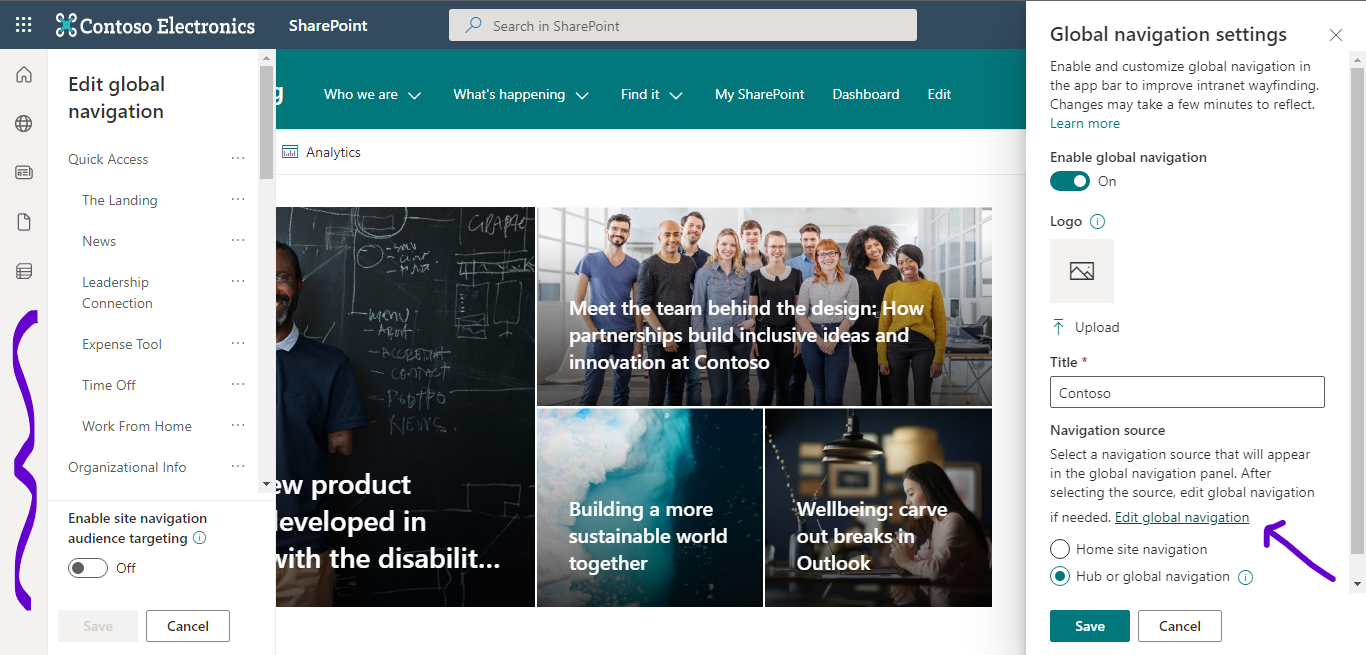
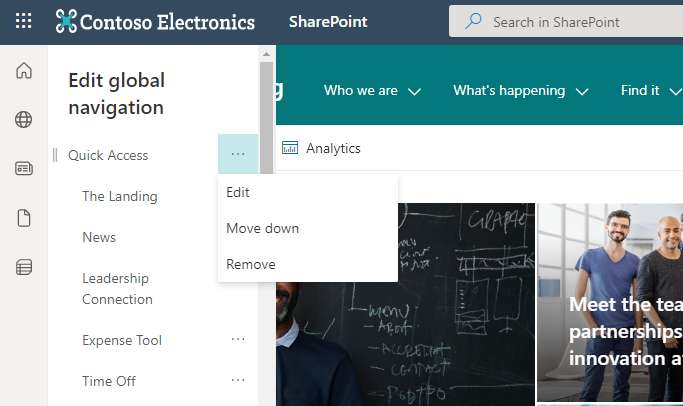
- From the left pane that appears, you can edit labels, move the menu options up and down, etc.
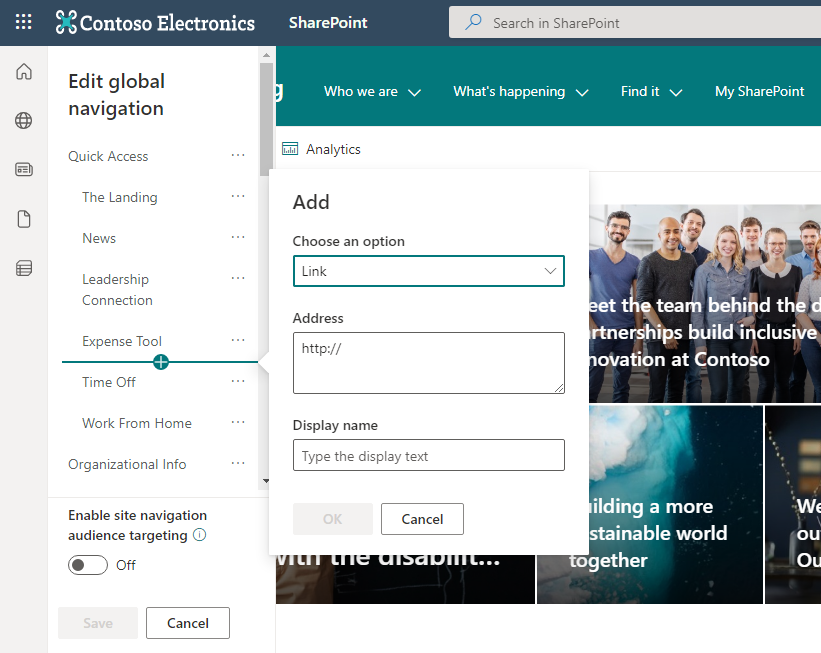
- You can also add new items to the navigation if required.
- There is also an option to Enable site navigation audience targeting.
- After making changes, click on both Save buttons to publish the changes.
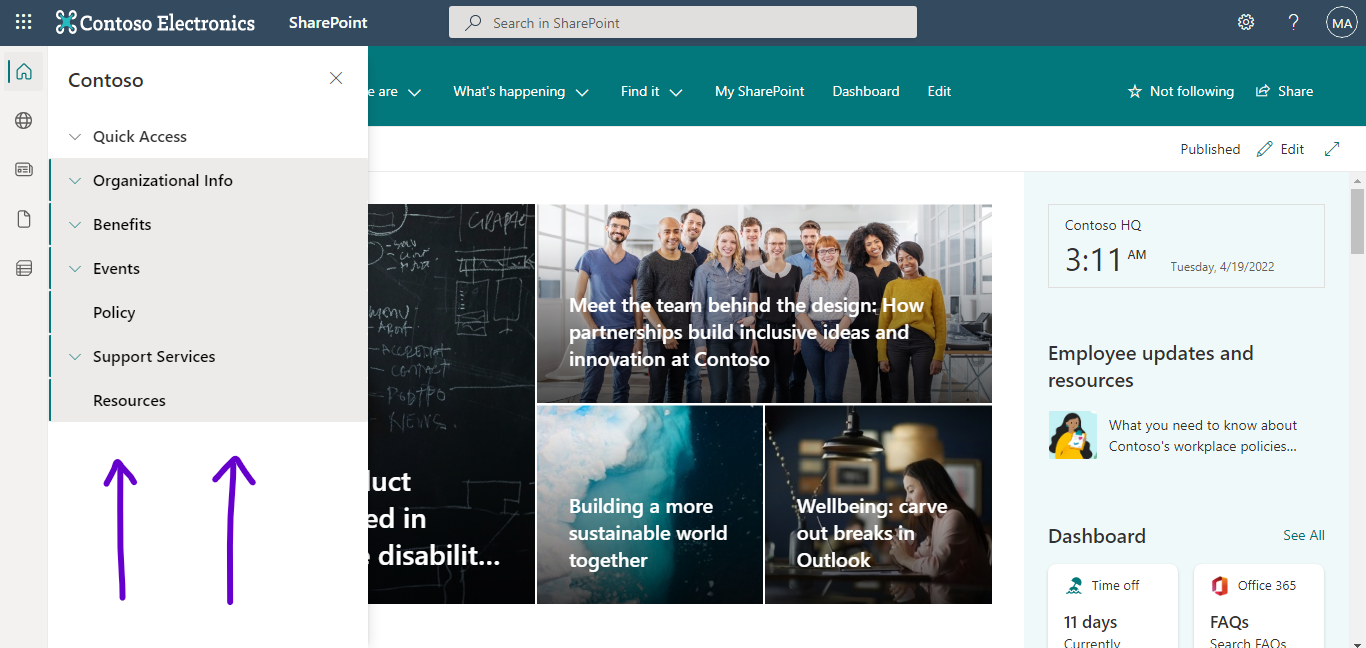
Tips to Maximize Your Use of Global Navigation
- As you might have noticed, the Global navigation is the only option available for customizing in the SharePoint app bar. You can make the most of this feature by making custom changes periodically.
- You won’t be able to disable or edit any of the other options in the app bar.
- The SharePoint app bar and the global navigation will not be shown to external and guest users. Those are set exclusively for users in your organization.
- If you wish to provide more time for users to prepare for this innovative update, you can disable the app bar from today until September 30th, 2022. Until then, this feature update will not roll out for your organization.
- However, it is recommended to start using the SharePoint app bar and Global navigation feature to ensure the ultimate intranet experience for your users.
- It may take up to 24 hours to completely implement the Global navigation update throughout your organization.
- Note: Users must have read access to the home site or more to view the global navigation.