Microsoft SharePoint offers efficient file management and accessibility. Today, leading businesses and organizations use SharePoint to enhance document sharing and collaboration. In this blog, we will discuss a lesser-known feature of SharePoint: SharePoint file insights. This feature may be familiar to you if you are a regular SharePoint user. The purpose of this feature is to provide a quick overview of files and content before opening them.
By simply hovering your cursor above the file, your file insights are presented, displaying vital information. In this way, you can easily determine which file content you need. Information like views and content inside are readily available, allowing you to rapidly assess the contents of your files. Now, let's gain a better understanding of the SharePoint file insights here.
Types of Insights Available
The file card window that appears with the associated file insights contains relevant content for each user, meaning that each user will be presented with personalized data. Let's learn about some of the data views you will see while accessing the SharePoint file insights.
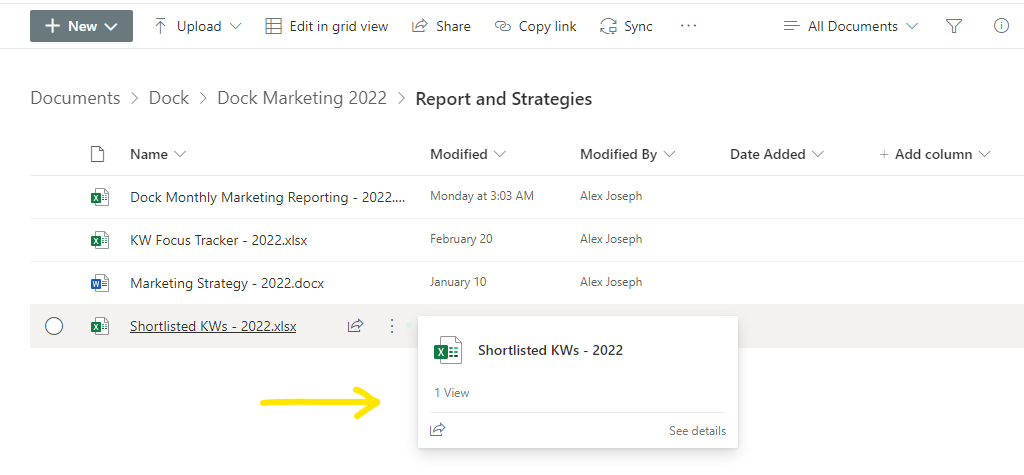
Condensed form
In the condensed view you will see a minimal file card that shows the file name and the total number of views for the file. This view is shown for documents with less data or activity. Most of the new files in your document library are presented with this view.
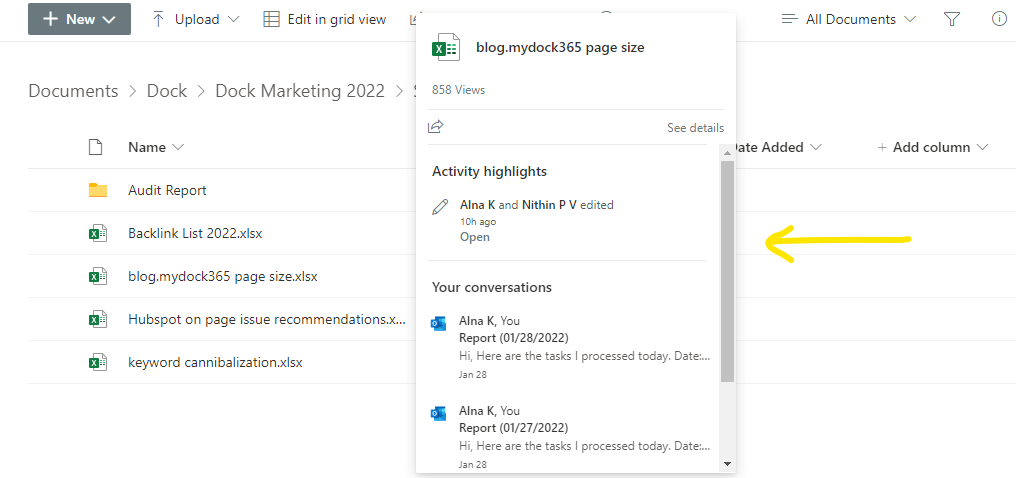
Expanded form
Even though the condensed form view is shown first, after half a second of delay, an expanded form of the file card will load. This view highlights all other details of the file.
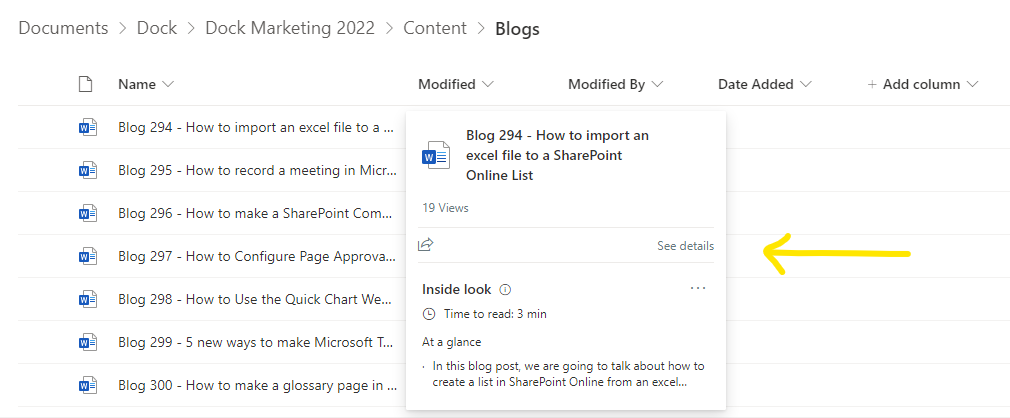
Inside look
The inside look is a section available only in certain file cards. This section includes details like the main content pieces in the document and the time taken for reading the entire document. You will also get the option to edit the At a glance section by clicking the ellipses next to it.
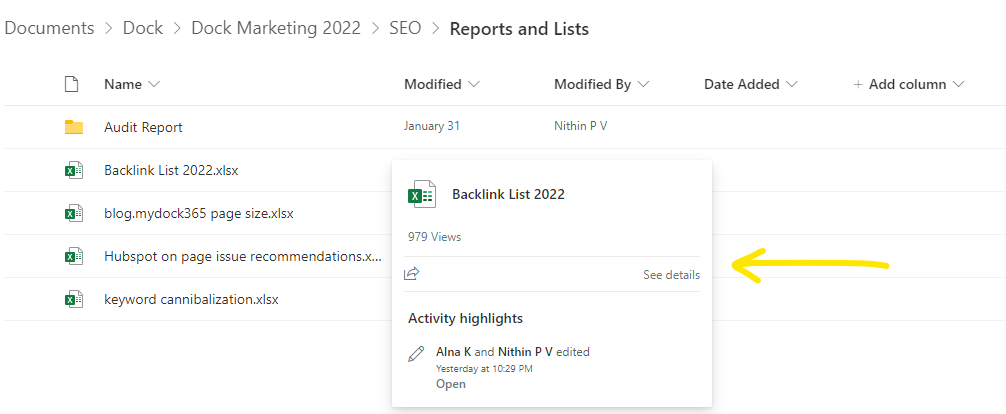
Activity highlights
Activity highlights provides in-depth information regarding the recent major activities in the document. It shows who edited the document recently as well as other relevant processes related to the file.
Conversations
The conversation view is presented when the file is shared as part of a discussions or other communication method. This includes Microsoft Teams chats and Outlook messages.
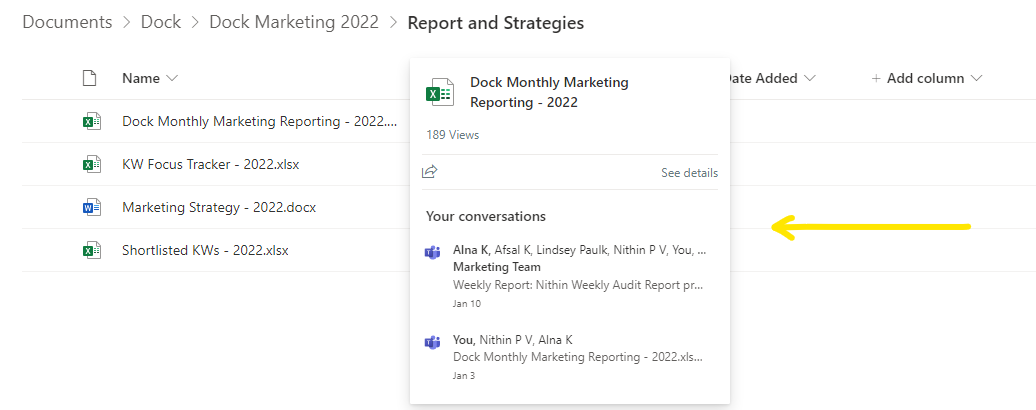
Viewers and Views
Based on the preferences of your system admin, you can configure SharePoint File insights to see who viewed the documents as well as with the total number of views.
In short, SharePoint File insights is an excellent resource for improving your team’s overall productivity and document management. We recommend familiarizing yourself with this feature in your day-to-day SharePoint activities, and you'll certainly experience improvements in your team's productivity.