
You know what apps do in Microsoft Teams. Now let us talk about how they can be added to your Teams platform. As they can be added and accessed in many ways, it is important to know what type of approach or method gives you more value. In this blog post, we would like to talk about everything you should know about Apps in Microsoft Teams, and we will also show you how to add an app to Microsoft teams, in a way that benefits your business processes and workflows better. Let us get into details right away and show you how to use apps in Microsoft Teams.
What Are the Different Ways in Which You Can Utilize Apps in Microsoft Teams
Understanding what you are expecting from apps to do in Microsoft Teams is critical to achieve your goals effortlessly. In this section, we would like to tell you popular ways in which you can add and use apps in Teams.
Adding Apps to Tabs
In your organization, you might want to collaborate and communicate with different people and teams. The kind of process involved in each interaction/workflow will be different, so you will need different tools and information to make each process effective. Apps can make that happen easily.
You can easily add apps to any Teams conversation as tabs. Files can also be added to tabs similarly.
Advanced Messaging with Apps
While typing in a message in your text area, click on the ellipses, and choose an app from which you want to share some data. Some apps allow you to simply share data directly to the text area, or you can use this option to easily pin an app to the chat.
Work with bots
You can easily find answers, articles, or get things done with bots in Microsoft Teams. They might not be as effective as working with your colleagues, but they can surely provide you with some quick assistance and data without leaving the platform.
Add Apps to The Left Bar
For some applications, there is an option to pin them to the left sidebar of Teams. Apps with a personalized view can be added this way. Planner and Wiki apps are examples.
Set Up App Notifications
While adding an app do not forget to configure the app notifications so that the right people will not miss any new updates and activities they should know. Connectors will help you to get this configured.
With this information, you can easily learn how to use apps in Microsoft Teams.
Adding Apps from Appstore Home Page
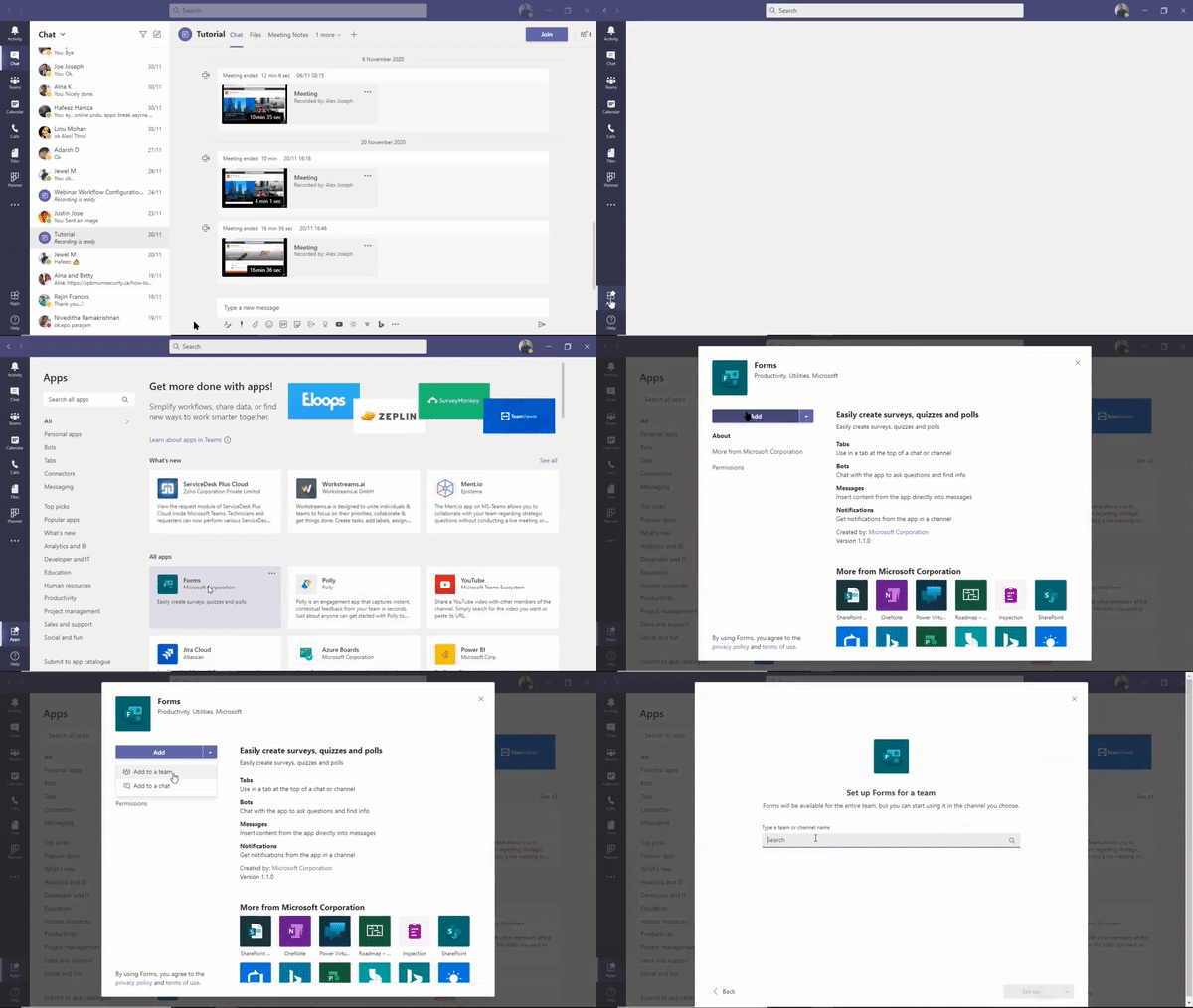
The easiest and basic method to add an app to Microsoft Teams is to click on the ‘Apps’ option present at the left bottom corner. Click on Apps and choose the desired app from the Apps home page. You can either use a search option or browse through the categories and subsections carefully. Read the description section carefully and make an understanding of how the app shows up and click on Add button.
How to add app notifications to a channel using a Connector
You can display or add app notifications to any of your relevant channels in Microsoft Teams using a connector. To get this done, just visit the channel, click on the More options ellipsis at the top and choose Connectors. By default, you will be provided with a Configure option for all apps you have already added. You can also choose Add option against any app you desire to show notifications in your channel.

How to add apps as a tab in channels or individual chats
You can add an app as a tab in any of your channels, group chat, or individual chat conversation boards. All you need is to click on the + icon seen at the top bar and choose the desired app.

Steps to add apps from the messaging area
Some apps let you add content and data directly into your chats in Microsoft Teams. You can do that by clicking on the ellipses at the bottom of the text area and choose an appropriate app.

You can also do this by entering @ in the text area (as you do to mention someone in the messages) and choosing Get bots. Bots are ideal to get assistance, information, or any updates while chatting in the channel or individual conversations.
Hope you now have a clear picture of how to add an app to Microsoft Teams to make collaboration and work easier. By learning how to use apps in Microsoft Teams, you can make work more productive, and get more things done. If you have more queries, let us know in the comment section at the bottom.