
Document library in SharePoint plays a great role when it comes to solving document storage and collaboration woes. With a document library, you can not only securely store files but also enables you and your team members to easily find them, work on them together, and access them irrespective of device type, location or time.
For instance, you can make use of a document library to store files related to a specific project or client. Easily move files between folders with simple drag and drop. What's more ? You can actually do a lot of things in a document library.
- Add, edit, delete, co-author, and download documents
- Control who can access a library, a folder within the library, or even a specific file within the library.
- Easily track activities pertaining to a file such as last modified
- Create a custom view of a document library
Let's get started and explore how to create a document library.
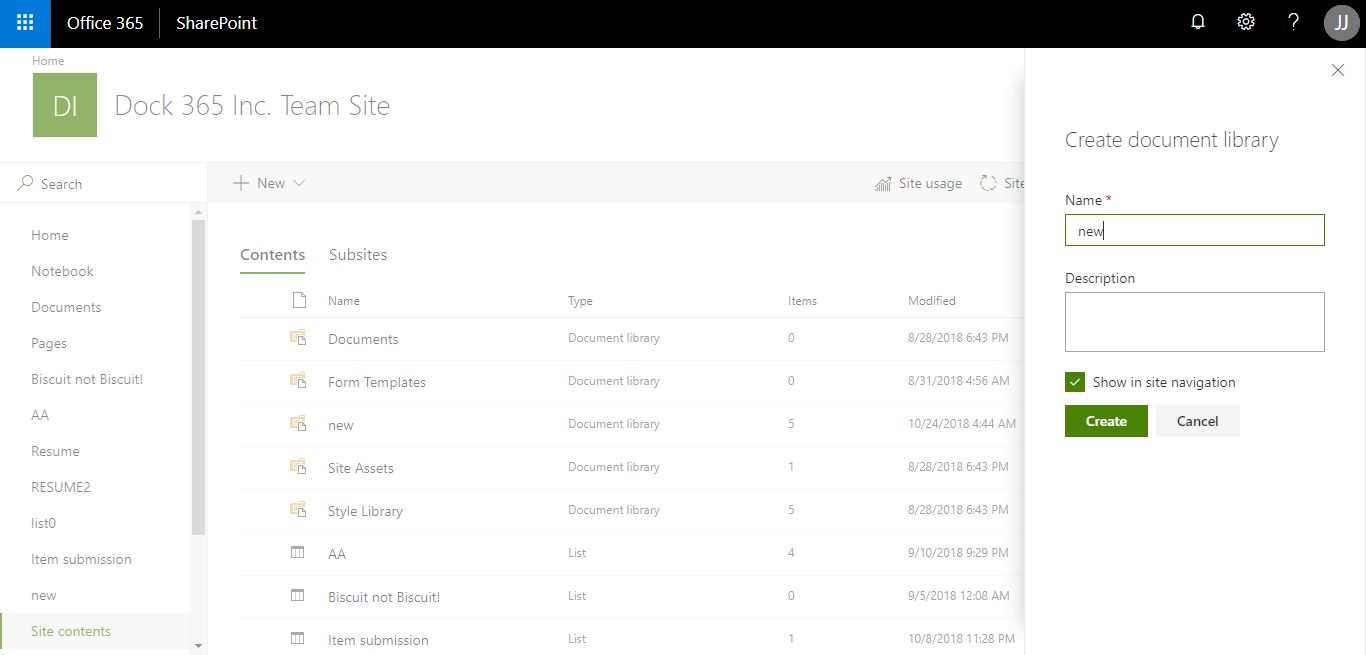
- Go to site contents⇒click new button⇒choose document library⇒give a name to your document library⇒click create
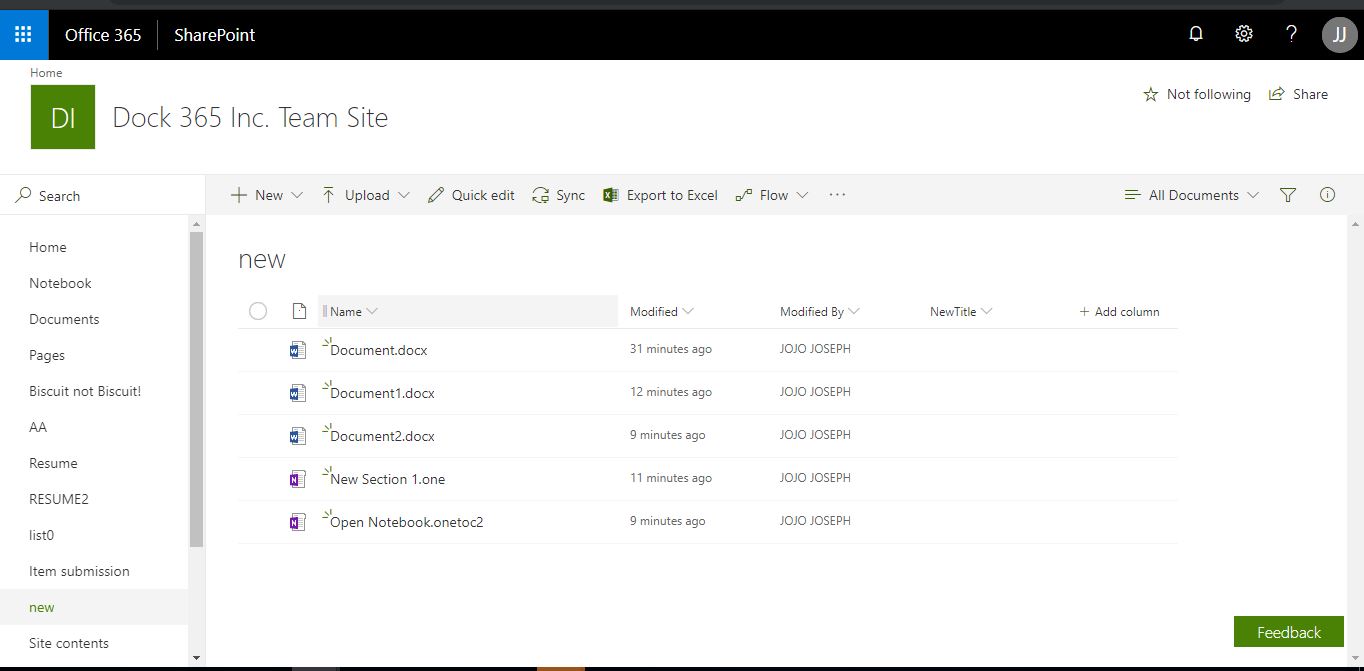
- Below shown is the document library
Create a custom view
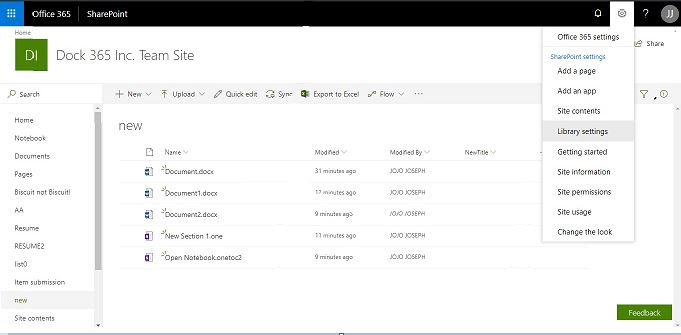
- If you want to create a specific view, go to settings ⇒Library settings
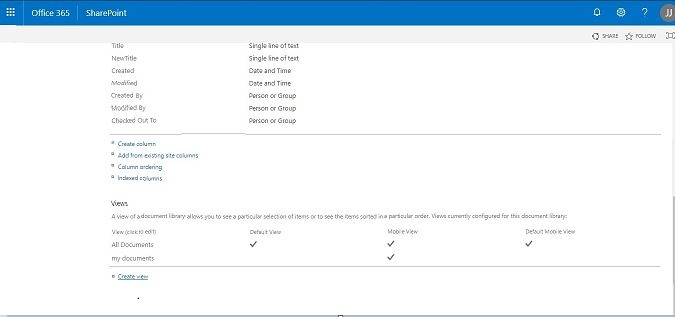
- You have to scroll down through general settings, columns and you get to a section called views.
- Click on create view
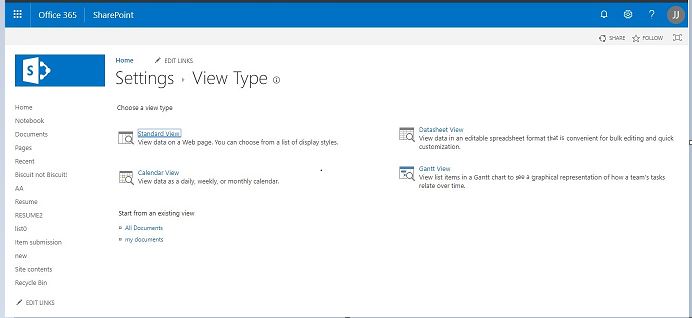
- Click on standard view
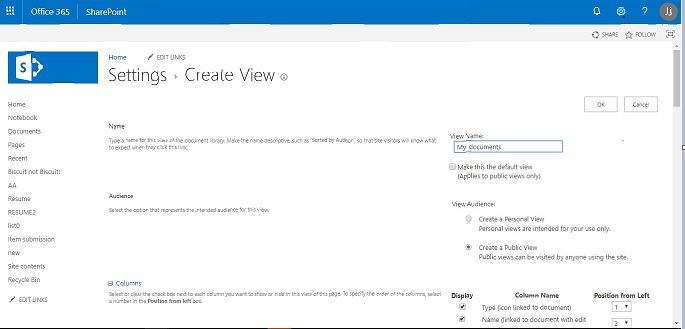
- Assign a name to the view as as shown in the image below
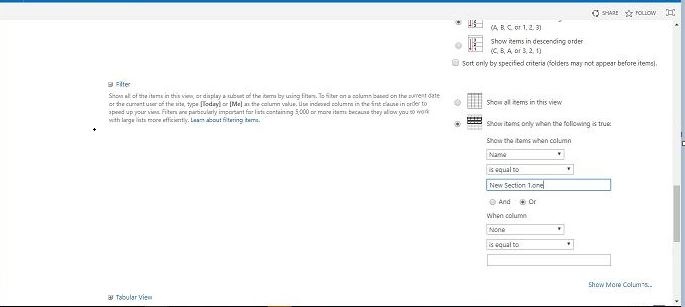
- Scroll down to reach filters
- As of now, it is showing all the items in this view, we don't want that
- So, choose the second option i.e. show items only when the following is true
- In the drop down menu below Show the items when column, is choose Name and when is equal to as New Section 1.one
- Scroll down, click OK
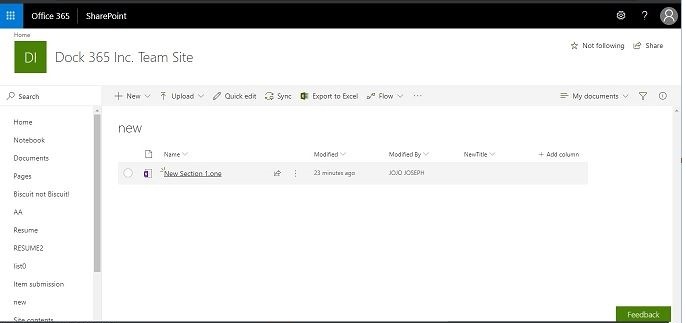
- As shown in the screenshot below, it will only show the documents with the Name New Section 1.one
Get in touch with our experts to know more about SharePoint or our cutomizable intranet portal powered by SharePoint and Office 365.
Schedule a Free Demo Now!


.webp)