
SharePoint lists are used by teams around the world to access, share, and collaborate around structured data. Enhancing the capability further, Microsoft has endowed users with a powerful capability to build apps utilizing SharePoint lists as a data source using PowerApps.
PowerApps has radically transformed the way organizations connect, build and share custom business apps with other employees and stakeholders in minutes across devices.
Let's explore how to create a PowerApp using a SharePoint List:
- To begin with navigate to the list where you want to create a PowerApp
- One way to do that is to click the Settings
 → Site Contents.
 - Now you can see all the contents of your SharePoint site, including all of the lists.
- Click on the desired list you want to use as a data source for your PowerApp
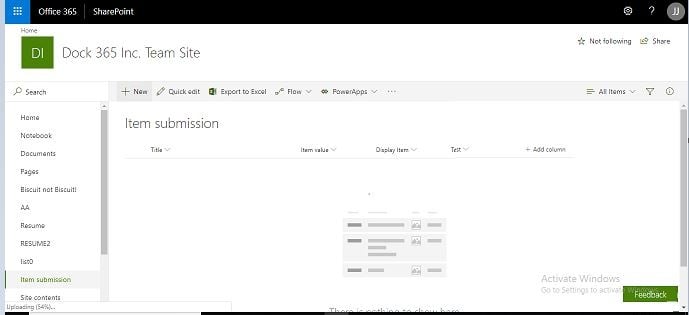
An example of SharePoint List
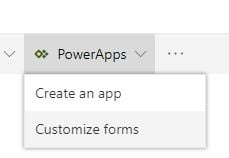
- Next Click on PowerApps →Customize Forms
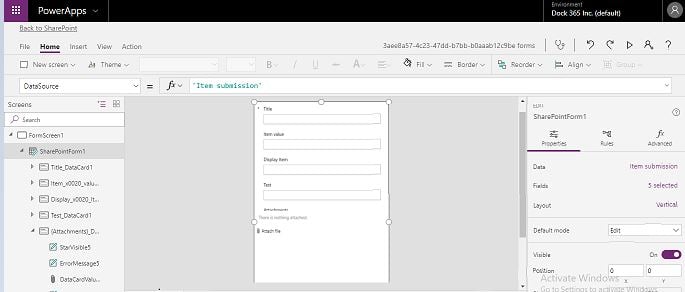
- You will be redirected to PowerApps Studio and you can see the form as shown in the screenshot below
- As depicted in the screenshot below, you can see the data source.
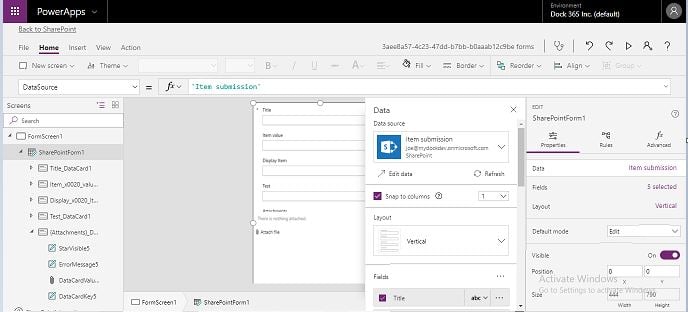
- Moving ahead, on the left-hand side , you can edit and add different fields in the form as per your requirements
- Click on Properties →Fields
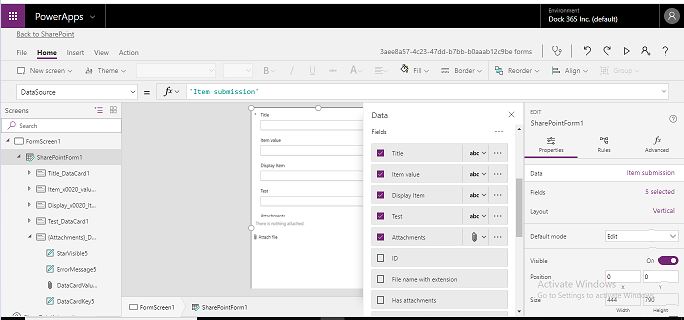
- Check or uncheck any of the fields to add or remove them. You can even drag and drop the required fields.
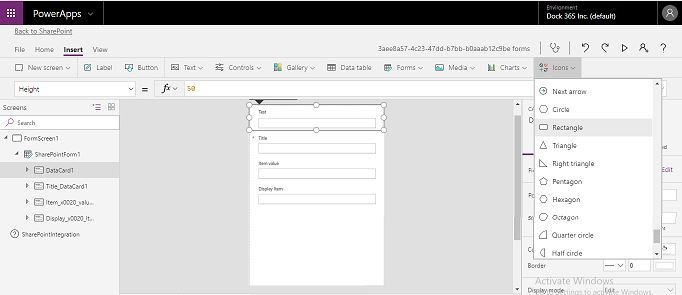
- Going forward, let's add a tile bar to the form, Click on Icons and grab a rectangle
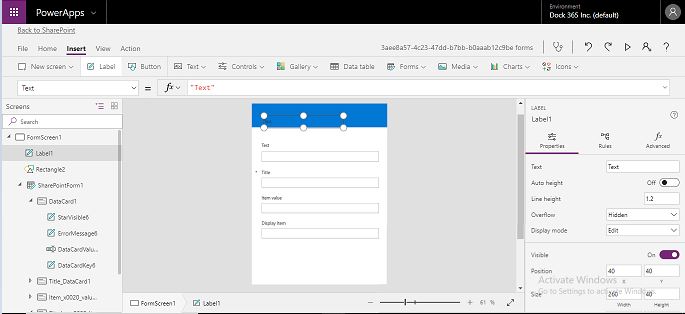
- Click on Text in the upper pane to add text in the title bar
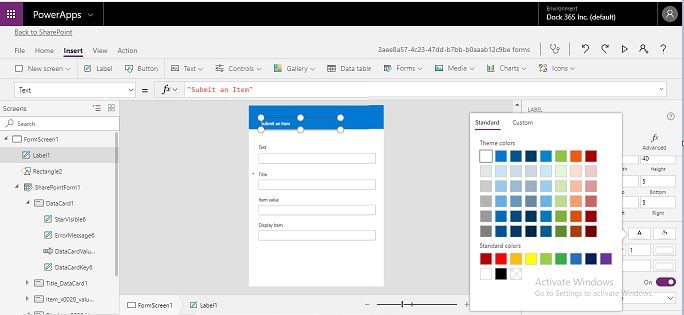
- Once you are done, Click File → Save→Publish to SharePoint and confirm the same
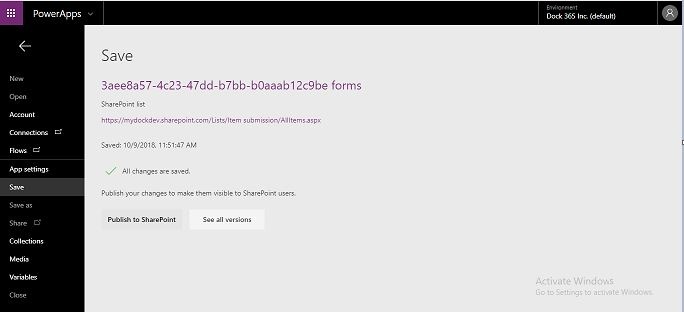
- Now, refresh the page, click on the New Button and ta-da you see the form!
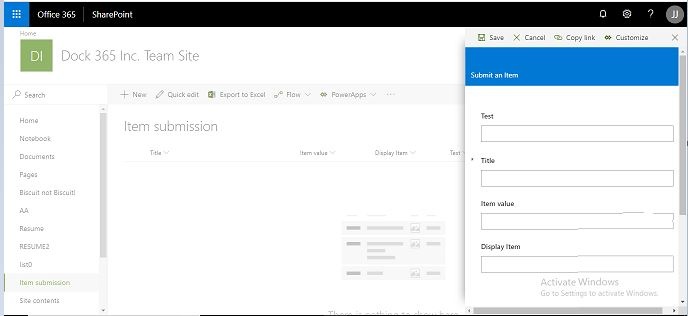
Easy to use, It is a nice way for the users to have a better experience with their lists and when submitting things to a list.
To know more SharePoint, PowerApps or an intelligent SharePoint Intranet Portal, get in touch with our team now.
Schedule a free demo!!