

The Microsoft Teams platform offers several apps that can double productivity and help your team reach objectives. The App store in Teams lets you find hundreds of apps to help communicate, automate, consolidate, and collaborate in different ways. This App store is home to all apps available for you to integrate into your software.
There are several popular apps available in the App store. By using the search function, easily filter through various apps, select an app, install it, then use it within Teams effortlessly.
To learn how to customize apps in Microsoft Teams, click here.
The Teams Apps store is customizable, so you can design it to match your company's branding.
Let's discuss how to customize the App store in Microsoft Teams.
3 Reasons to Customize Your Teams App Store
Here are 3 reasons why customizing the Teams App store is a great idea:
1. Encourages users to take advantage of Teams more
Office 365 subscription holders have access to specialized tools and services. Microsoft Teams is a major communication and collaboration platform among such tools and services. By customizing the app store with your organization’s branding, it subtly encourage users to put the platform to use more.
2. Expands company branding
Applying your company branding to as many areas allows you to deliver a personalized look and feel for users.
3. The Apps Store functions as an extension of your productivity platform
Without any company branding, the App store will look like a normal App store, just like Google Play Store or The App Store by Apple Inc. By customizing the App store with your organization’s branding, it appears as an extension to your digital workplace.
Customizable Options in the Microsoft Teams App Store
The following options are customizable within the Microsoft Teams App store:
- Organization logo
- Small logo
- Background color
- Text color of the organization name
How to Prepare for Efficient Customizations
To make quick and efficient customizations, let's discuss how to effectively prepare. The most important step is to have specific images on hand for customizing in exact dimensions and formats.
Measurement Suggestions
Organization logo: 240x60 dimension.
Small logo: 32x32 pixels.
Background image: 1212x100 pixels.
These images work optimally in the .svg, .png, or .jpg formats. Ensure that the overall size of each image does not exceed the 5 MB limit.
Steps to Customize the App Store in Microsoft Teams
Complete the following steps to effortlessly customize the App store in Microsoft Teams:
- Login to your Microsoft 365 account
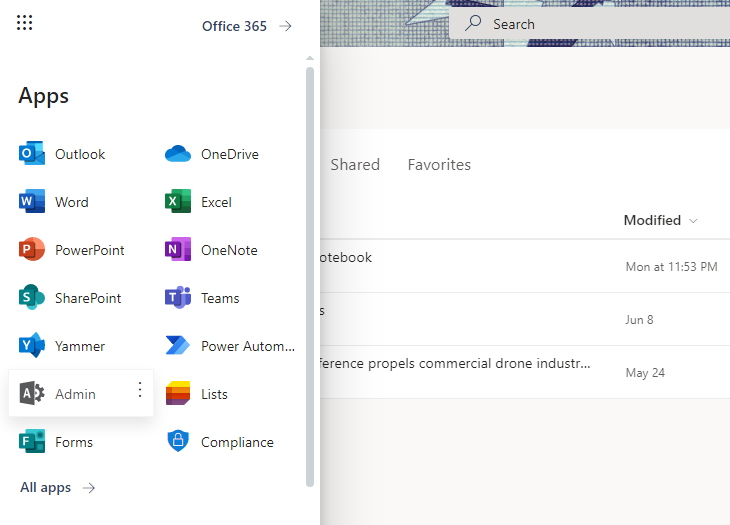
- Click on the app launcher icon from the top left corner
- Choose Admin to open the Microsoft 365 Admin Center
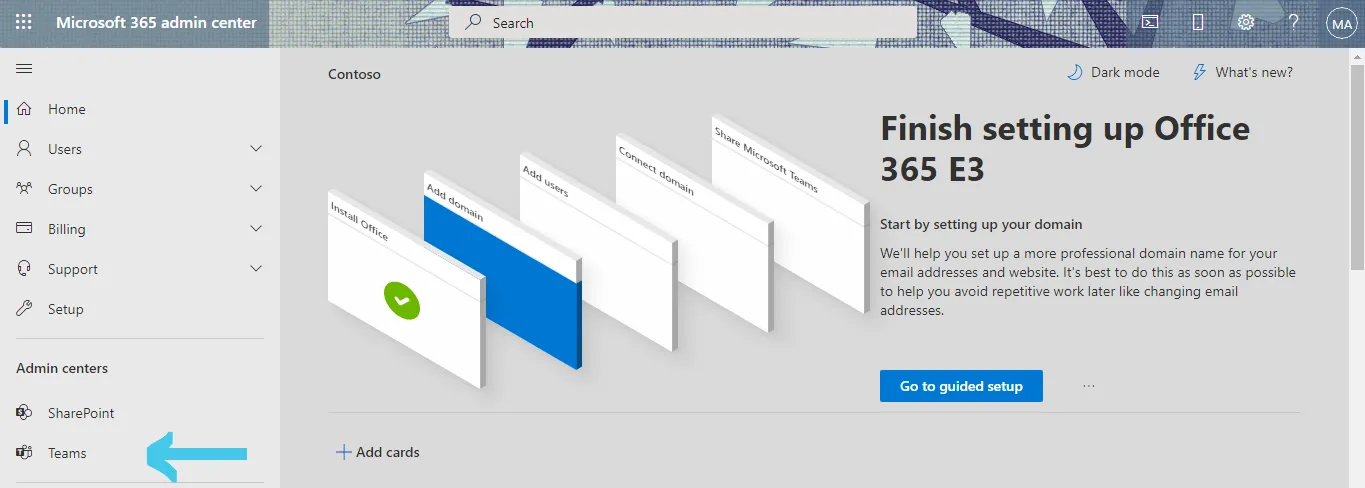
- From the Microsoft 365 Admin Center, click Teams located under the Admin centers section
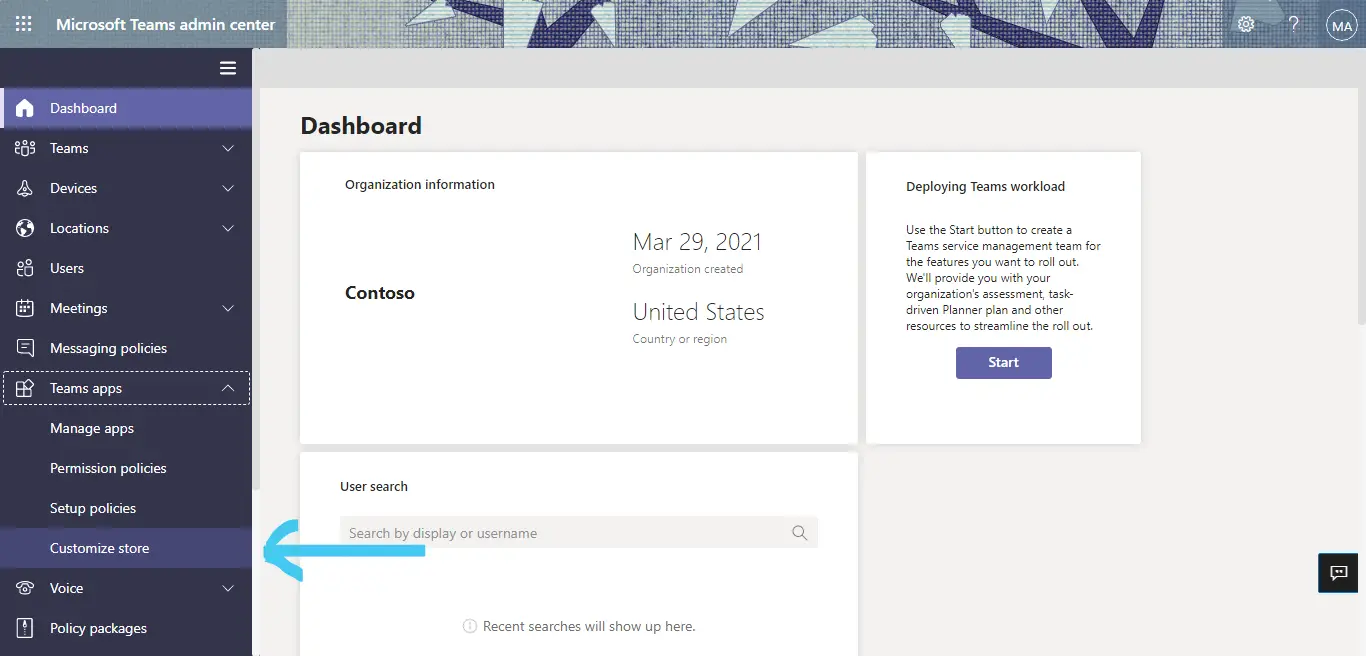
- Click Teams apps located on the left
- Choose Customize store
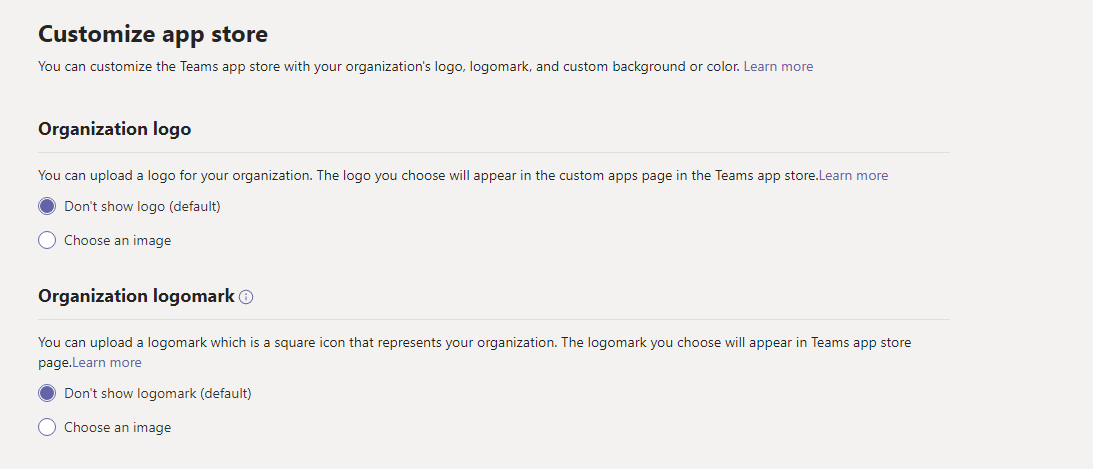
- Choose the Organization logo and Organization logomark options
- Upload images with measurement specifications as mentioned above
- To customize the background, you can either choose an image or a color
- Choose the text color for your organization’s name
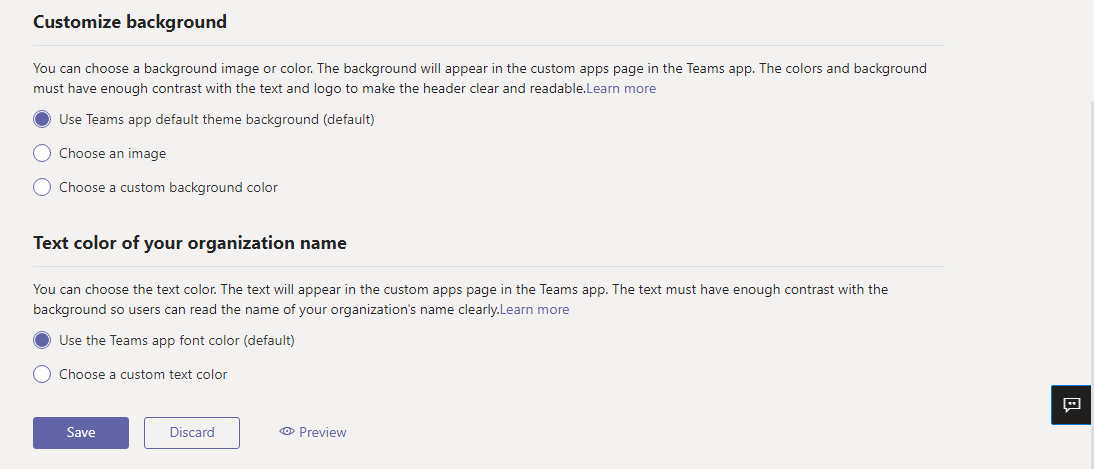
- When complete, click Preview to see the final product
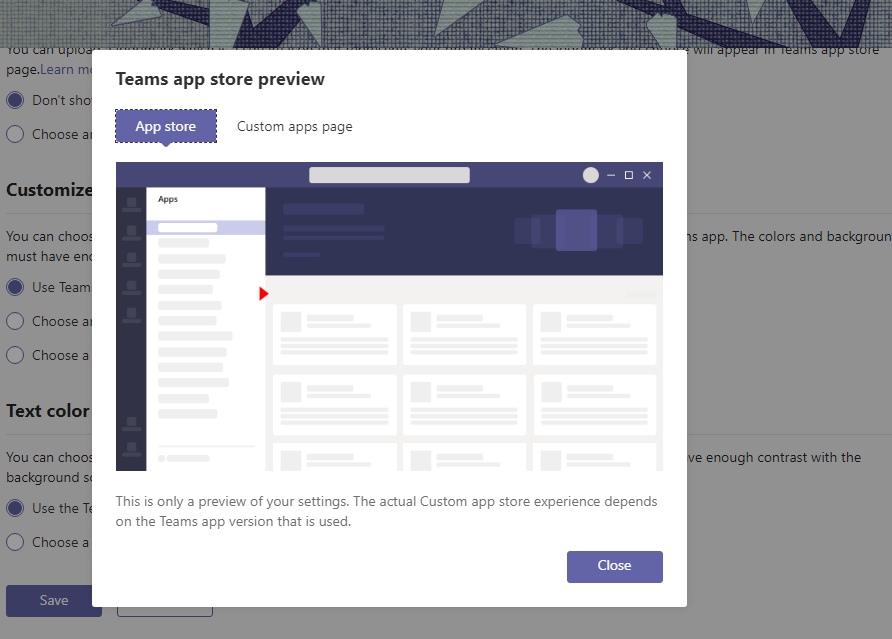
- Click Save to confirm changes
- Click Discard to discard changes

Helpful Tips to Customize the Microsoft Teams App Store
App store customizations may take up to 24 hours to display in Teams. We recommend developing an understanding of your branding guide prior to making any customizations to the Teams App store. If you would like to return to a default display, there is an option available to do so.
To undo all changes, you can easily change the settings to revert any modifications made. Before implementing such changes, be sure to discuss the features with your team. To create a more inviting, on-brand platform, utilize this feature so you can make the most of Microsoft Teams.


.webp)


