| In SharePoint Online, deleted items will remain in the Recycle Bin for up to 93 days before being permanently deleted. For the restoration of a file, you should visit the SharePoint site, navigate to the Recycle Bin on the left-hand pane, choose the item from there, and then click on Restore. For the restoration of a site, you need to log into the SharePoint Admin Center as a SharePoint or Global administrator, navigate to the Deleted sites section under the Sites section, choose the site, and click Restore. |
What Happens When Files or Sites Are Deleted in SharePoint?
The files will not be deleted instantly. There is a Two-Stage Recycle Bin feature in SharePoint, which enables users and administrators to restore the deleted content.
|
Stage |
What happens |
Who can restore |
Duration |
|
File deleted by user |
Moves to Site Recycle Bin (first stage) |
Site users and owners |
Up to 93 days |
|
Deleted from first stage |
Moves to Site Collection Recycle Bin (second stage) |
Site collection admins |
Remainder of 93-day window |
|
Deleted from second stage / 93 days pass |
Permanently deleted |
No one |
Permanent |
|
Site deleted by admin |
Moves to Admin Center Deleted sites |
SharePoint or Global admin |
Up to 93 days |
After 93 days from the moment when the deleted site expired, all document libraries, lists, site settings, and sub-sites will be irretrievably deleted.
How Do You Restore an Individual Deleted File in SharePoint Online?
Individual file restoration is done directly from the Recycle Bin on the site, without requiring admin rights.
- Navigate to the SharePoint site where the file was located.
- Select Recycle Bin in the left pane (under Site contents if it does not show up).
- Locate the file by sorting the files in Name, Deleted by, or Deleted Date order.
- Check the checkbox beside the file name.
- Click Restore. The file gets restored to its original location instantly.
If a file has already been removed from the first-level bin, then the file can be restored by the site collection administrator from the second-level bin within the 93-day period using Site Settings -> Recycle Bin -> Second-stage recycle bin.
How Do You Restore a Deleted Site in the New SharePoint Admin Center?
Both SharePoint or Global Administrators can restore their deleted sites along with all the data stored in them from Deleted sites.
- Login to the admin.microsoft.com portal as a Global Administrator/SharePoint Administrator.
- From the Admin Centers, choose SharePoint (choose Show all if SharePoint isn't visible).
- In case the old admin center appears, choose Try it now to access the new one.
- Choose the "Deleted sites" from the "Sites" section in the left-hand panel.
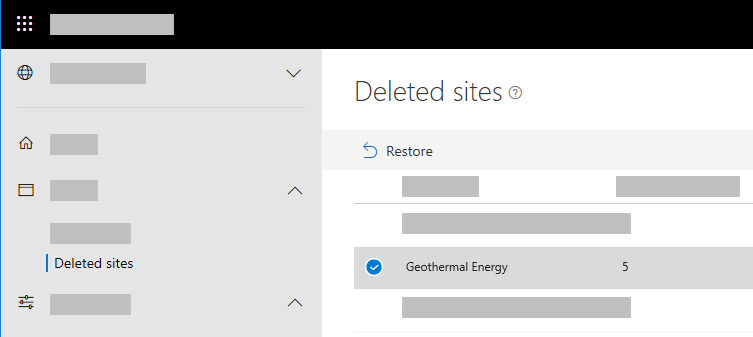
- Choose the site which you want to restore.
- Click Restore. (If there is no Restore option, ensure that only one site is selected.)
The site will be restored back to its initial URL with all the data and configurations.
How Do You Restore a Deleted Site in the Classic SharePoint Admin Center?
- Sign in to admin.microsoft.com as a Global or SharePoint admin.
- Under Admin centers, select SharePoint.
- If the new admin center opens, click Classic SharePoint Admin Center.
- On the site collection page, click Recycle Bin.
- Check the box next to the site collection to restore.
- Click Restore Deleted Items on the ribbon.
What Are the Limits and Conditions for SharePoint File Recovery?
|
Scenario |
Recoverable? |
Who Can Recover |
Time Limit |
|
File deleted by user |
Yes |
Any user with edit access |
93 days |
|
File deleted from Recycle Bin |
Yes |
Site collection admin |
Within 93-day window |
|
File permanently deleted (second stage cleared) |
No |
No one |
N/A |
|
Site deleted by admin |
Yes |
SharePoint or Global admin |
93 days |
|
Site expired from Deleted sites |
No |
No one |
N/A |
|
OneDrive files |
Yes |
User or admin |
93 days |
Microsoft suggests not to depend only on the 93-day window for sensitive information. Microsoft 365 Backup, wherever it is available, or third-party solutions offer an alternative. The recycle bin windows serve as insurance, but they are not a replacement for understanding where your agreements are stored.