
To stay refreshed when your SharePoint documents or lists on your site change, you can setup “Alerts”. Alerts in SharePoint can be setup via email or SMS (Text Messages). This depends on how your SharePoint Admin has setup the environment. If you have SharePoint Online, alerts are setup when your site has been created for the first time. If you are using SharePoint Server, your organization manages alerts and emails by its own.
The SharePoint Server admin needs to configure the outgoing emails using SharePoint Central Administration before users to receive email alerts. Also, getting alerts as text messages can be enabled by configuring the SMS or MMS service settings on Central Administration.
An alternative is to use RSS feeds to facilitate notifications.
Alerts can be setup for SharePoint List, Document Libraries, file or even list item. For e.g. you have the option to configure alerts for a specific folder/file in a document library and avoiding alerts when changes takes place outside the specified files/folders.
Setting up an Alert for your file or folder in a Document Library
You can setup alerts when a file/link or folder has got changes in a document library. Depending on the type, you will get to see various options when setting an alert.
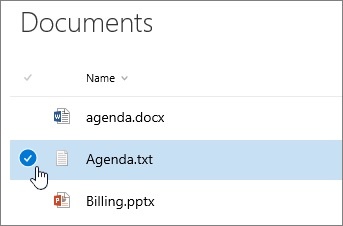
- Open the SharePoint document library and hover over the link, file or folders for which you need to get an alert. Select the check mark next to the name of the file or folder.
2. Select the ellipses button and click on Alert me.
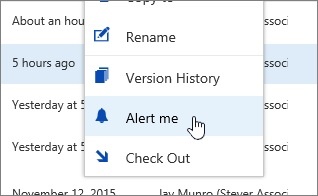
- You will get a pop-up screen where you can change the settings you wish to.
- Select OK when done.
Alert Settings
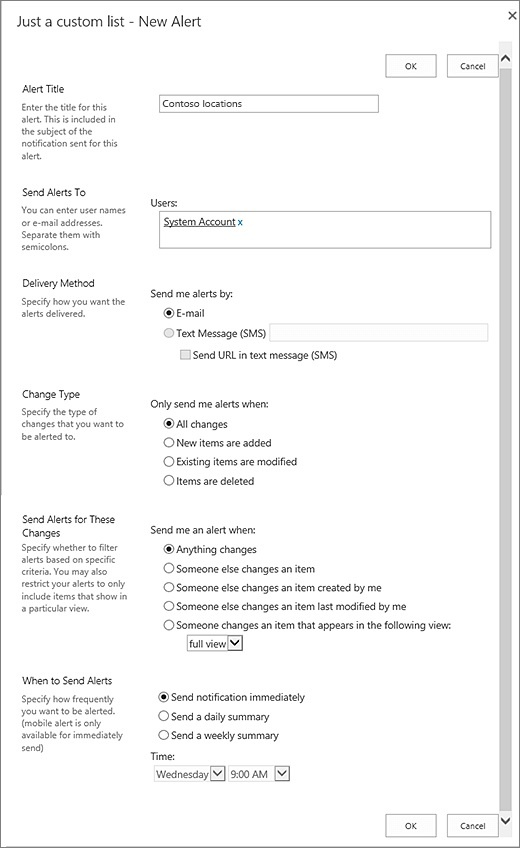
In the Alert me when items change dialog, the following settings are available for alerts on an item, file, link (where supported) or folder.
- Alert title
This is the subject for the email or text message. It's pre-filled with the name of the document library and item name, but you can change it.
- Send Alerts To
This is the user name or email you want the alert sent to. To enter more than one, separate the addresses with semicolons.
- Delivery Method
Choose email or a text message for alerts. For text messages, add the phone number and check the box if you want the URL of the item to be sent. If you want SMS and it's grayed out, talk to your SharePoint admin or IT dept.
- Change Type
Choose to receive alerts for all changes, when new items are added, or existing items are modified or deleted. No alert is sent when an item is deleted from a view.
- Send Alerts for These Changes
This lets you pick the type of changes for which you receive alerts. You can pick when someone changes any file, link, or folder, or when someone changes a file, link, or folder you created or last modified.
- When to Send Alerts
This specifies how frequently you get alerts. You can get notifications immediately when changes happen, or a daily or weekly summary. For daily summaries, you can set the time of day to send. On weekly notifications, you can set the day and time to send. The default is to send notifications immediately, but if your site is active or you don't need to know right away, you might want to choose daily or weekly summaries.
Setting up an Alert for your entire Document Library
This is pretty much easy. Instead of selecting the file, click on the toolbar and select the ellipses button (…). Select Alert me. Please make sure that you haven’t selected any items.
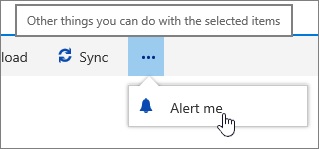
- Follow the same steps and explained above.
- Select OK when done.
How to cancel/manage the Alerts?
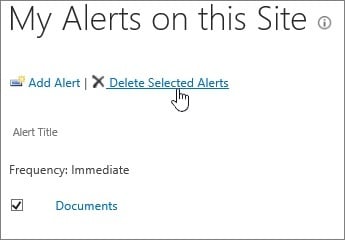
- Go to the toolbar and select “Manage my alerts”.
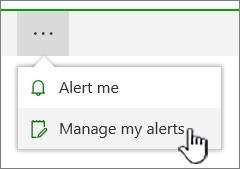
- You will receive a list of alerts that was created earlier.
- Select the checkbox next to name of the alert (you had created earlier) to delete.
- Select Delete Selected Alerts, and then press OK.
Configuring SMS Services for SharePoint
You have the provision to configure SMS services in SharePoint too! See Configure outgoing email for SharePoint or Configure mobile accounts in SharePoint to learn more about the configuration part.
Hope you got a handful of useful information from the the blog.
Have a good day.