
Does your business activity involve collaborating directly with clients, vendors or customers? Do you need to give them access to certain areas of your web site or to specific documents? If yes, then external sharing features of SharePoint Online is something you must know about it.
In this blog post, let's explore how to configure sharing in SharePoint Online.
PS. A user must be a global or SharePoint admin in Office 365 to do this.
External sharing is controlled at two levels:
- Organization level (global settings that affect all of SharePoint Online)
- Site collection level
What are the external sharing features of SharePoint Online?
Global (organization-wide) and site collection settings both are available for external sharing in SharePoint Online. When it comes to the organization-level settings, they override any settings at the site collection level, and also affect OneDrive.
Understanding basic sharing options:
- Sharing only with external users in your directory
Using this feature, you can share sites, folders, and documents with external users who are already in your Office 365 user directory.
- Sharing with authenticated external users
This option allows you to share sites, folders or documents with external users who have a Microsoft account or a work or school account from another Office 365 subscription or an Azure Active Directory subscription. While sharing sites or documents with a user, he/she doesn't require to log in using a Microsoft Account/Work/School Account instead they are sent a one-time code that is used to verify their identity.
- Sharing with anonymous users
Share documents and folders (but not sites) using an anonymous link. Anyone with the link can view or edit the document, or upload to the folder.
- No external sharing
If you choose this option then sites and documents can only be shared with internal users in your Office 365 subscription.
How to Turn external sharing on or off globally for SharePoint Online?
By turning external sharing on at the organization level, site collections can then be enabled for sharing. In turn, sites and documents contained in a site collection enabled for sharing can be shared.
Steps
- As a global admin or SharePoint admin, sign in to Office 365
- Click on the app launcher icon
 in the upper-left
 - To open the Microsoft 365 admin center, choose Admin (If you don't see the Admin tile, you don't have Office 365 administrator permissions in your organization.)
- Choose Admin centers > SharePoint
- Click sharing in the left pane
- Select one of the options as depicted in the image below
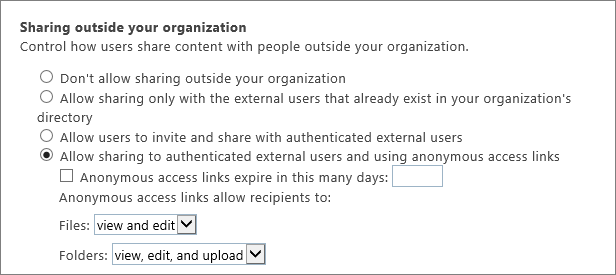
Additional settings
Specifying who can share outside your organization
Limit sharing to members of a specified security group and easily manage who can send sharing invitations to external users. Select Let only users in selected security groups share with authenticated external users or Let only users in selected security groups share with authenticated external users and using anonymous links and specify the security group that you want to use.

It is very important to plan for external sharing as part of the overall permissions planning for SharePoint Online.
Have a good day!