
While creating modern SharePoint pages, you might have used Connector web parts. Connector web parts increase the functionality of your pages and can help you access more data first-hand. You will get a long SharePoint Connector web parts list to choose from when adding one to your page. Text, embed, quick links, and news are some of the most commonly used web parts. We will discuss how to use the Connector web part in your SharePoint pages.
What Are Connector Web Parts?
The basic purpose of Connector web parts is to display data and information from external services onto group-connected team site pages. Several external services can be connected from categories like Analytics, CRM, and Project Management. Examples of services available to be connected through this web part include Google Analytics, Bing News, and Trello, allowing you to extract data to display on your group-connected SharePoint team site pages.
Each service provides a specific function and purpose. For example, if you are connecting your Trello account through the Connector web part, it can be used for getting all data about Trello activities as notifications. This lets you manage Trello cards and tasks effectively.
Who Are Microsoft 365 Connectors Best Suited For?
There is a wide range of external services you can connect using this Connector web part, as it covers all categories and departments in an organization. From developers, HR executives, marketers, and standard users, everyone can find at least a few services they can utilize. Moreover, new external services are getting added to the list frequently to make the feature more useful.
How to Add a Connector Web Part to Your Page
Here is how to add a Connector web part to your page and to set up the service. In this demo, we are adding the Google Analytics service.
- Go to the SharePoint page that you wish to add the Connector web part to.
- Enable edit mode by clicking on the Edit option in the top right corner.
- Hover the mouse pointer to the bottom part of any web part and click on the plus icon.

- From the web part window that opens, search for "connector" and choose Office 365 Connectors.
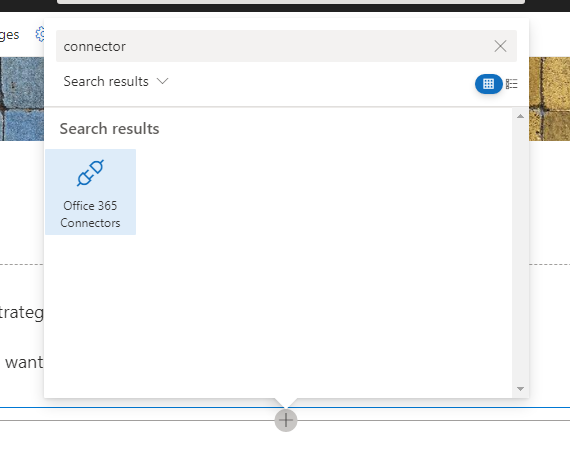
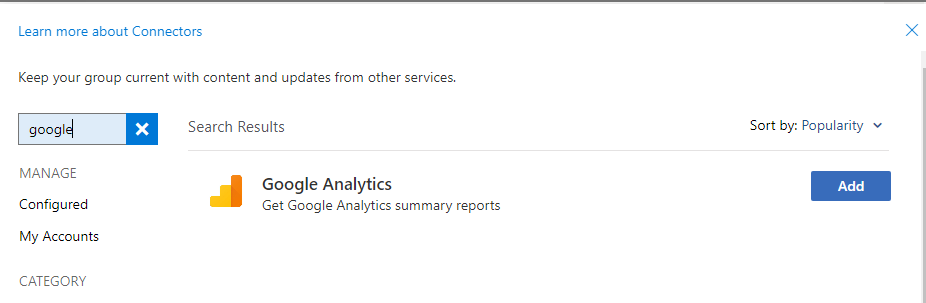
- From the Connectors web part window, we are choosing the Google Analytics service to retrieve and display data on the page.
- Click Add.
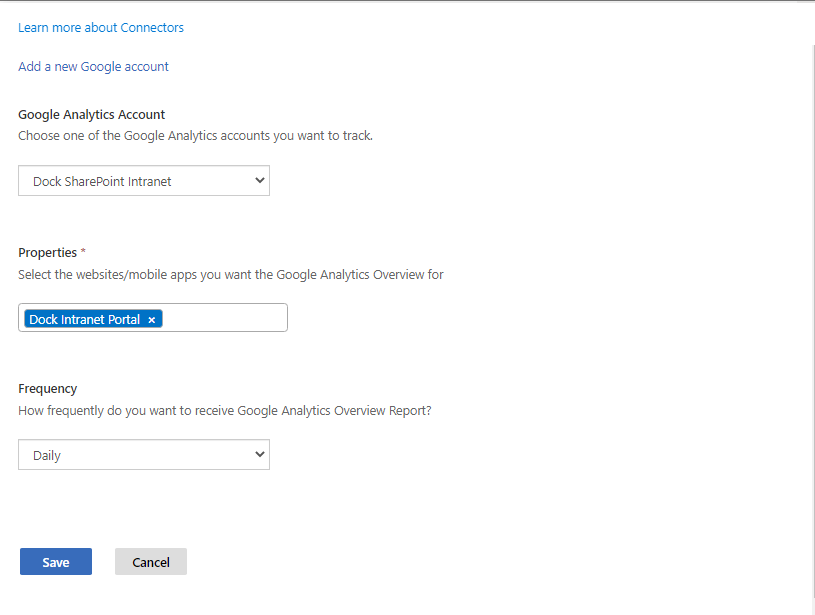
- Provide necessary details to connect the web part with your Google Analytics account.
- Click Save.
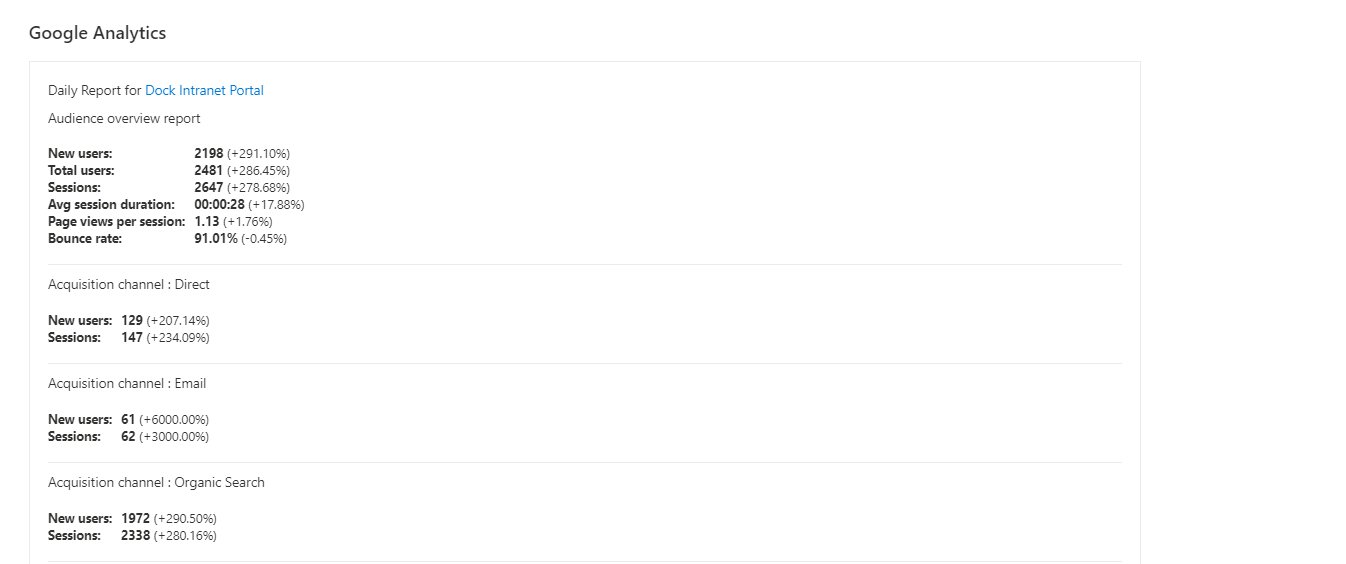
- You can now see a daily overview report of your Google Analytics on the page.
- To remove the web part, use Edit mode and click the delete icon next to the web part section after selecting the desired web part.
Make the Most of SharePoint Web Parts
There's no doubt that web parts can make your SharePoint pages more informative and functional. All you need is to choose the desired external service, connect with the Connector web part, and update the desired web pages. The purpose of these SharePoint web parts is to keep your team informed with messages, notifications, updates, news, and more.
We welcome you to read our previous blog, How to connect web parts in SharePoint Online. It is a two-part blog series that gives you a better idea about how to connect different web parts to make them more practical and resourceful.