There are four options for notifying users after uploading a file in SharePoint Online. The quickest method is the Notify your team option, which is available at the end of the upload confirmation banner directly after the upload of one file, where users have the ability to select specific users or groups (maximum 100 members) to receive an email notification with a direct link to the file. The other options include Sharing to create a direct link, copying the link to the file into Teams or email, or creating a Power Automate flow on file upload events. Power Automate is the ideal choice when automation is desired.
Why is Notifying Users After a SharePoint File Upload Important?
SharePoint Online is designed for document storage, but uploading a document does not mean that it notifies your colleagues about its existence. In remote and hybrid environments, notification helps keep projects going: team members check out new documents instantly; no draft contract will be overlooked, and uploads will be responded to immediately rather than being noticed after days.
There are four options that SharePoint provides for this task – from a simple built-in feature to an automated flow using Power Automate.
How Do You Upload Files to a SharePoint Document Library?
Users can upload files to SharePoint document libraries to ensure their access by the whole team, anywhere and anytime.
What Are the Standard Methods to Notify Users of a New SharePoint File Upload?
There are multiple ways to notify people when a new file is uploaded to a SharePoint document library. Here are some of the methods we follow:
Technique 1:
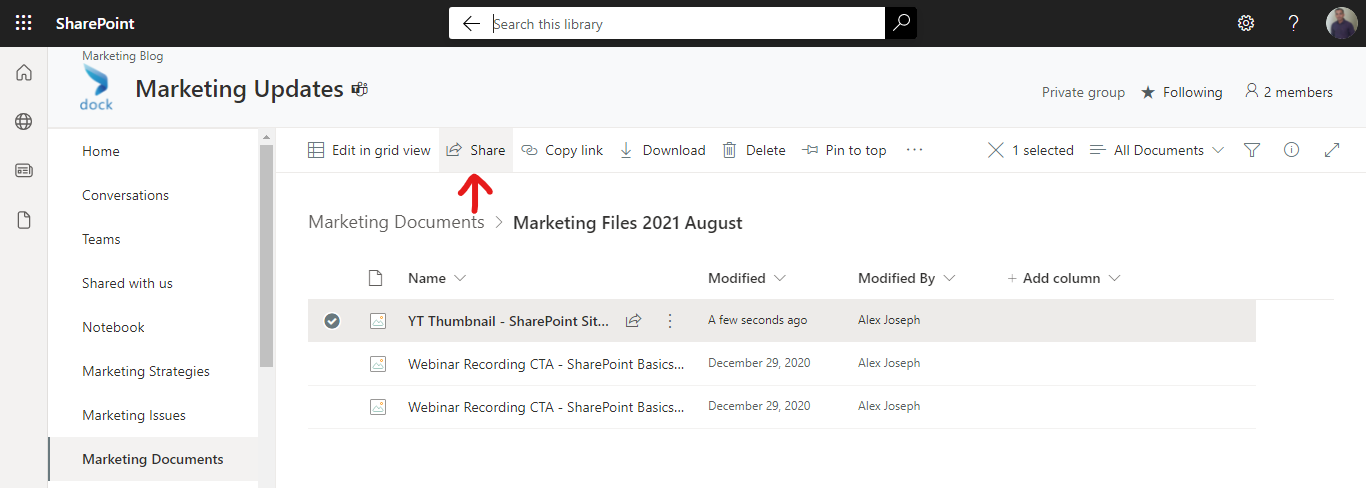
- Use the Share option in the top menu to share the document with users in your organization.
- There are options to choose the users, group, or email as you prefer.
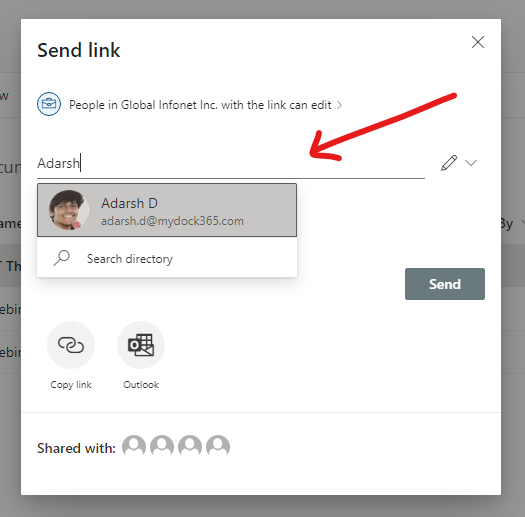
- Enter a message for the users to have some insight regarding what the document is about. You can also share any instructions with them.
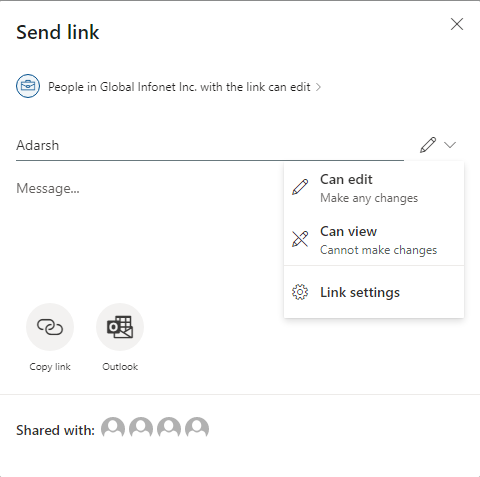
- You can also assign the permissions along with this.
Technique 2:
- Use the Copy link option in the top menu to immediately generate a link to the document and copy it.
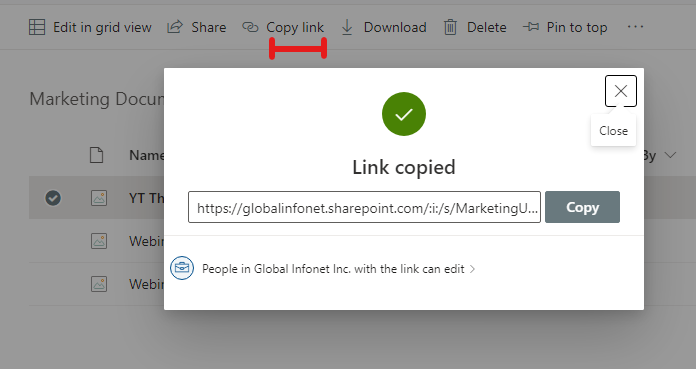
- Use this link in chats, emails, and other text so that others can easily find this document.
Technique 3:
- Use the Pin to top option to highlight the document and display it at the top. This will not send any notification. However, anyone visiting the document library will easily notice it.
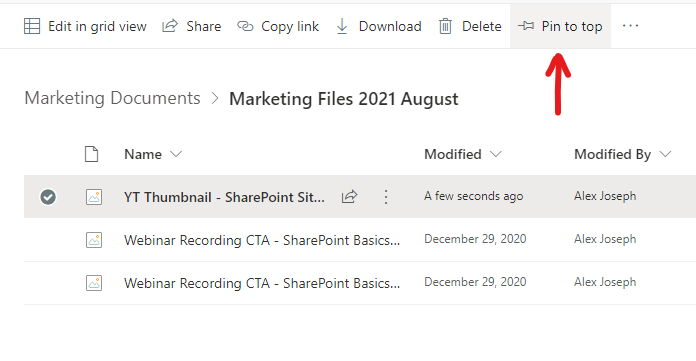
- You can unpin documents later if required.
Technique 4:
- Another great method is to configure a Power Automate flow to notify a Team when a new file is uploaded to a Document Library.
- Check out our blog, 5 Ways to Boost Collaboration in Microsoft Teams Using Power Automate to learn more about this strategy.
We found all these techniques useful in their own unique ways. However, the easiest way to notify users about a newly added document is to use the Notify your team option. Let’s see how to access this option and make the most of it.
The Easiest Way To Notify Others Of A New Document Upload
Complete the following steps:
- Go to the document library that you wish to upload the document.
- Click Upload from the top.
- Choose File.
- Choose the file you want to upload from your desktop and click Open to complete the upload.
- On the left side, along with the file uploaded confirmation, you will see an option Notify your team. Click on it.
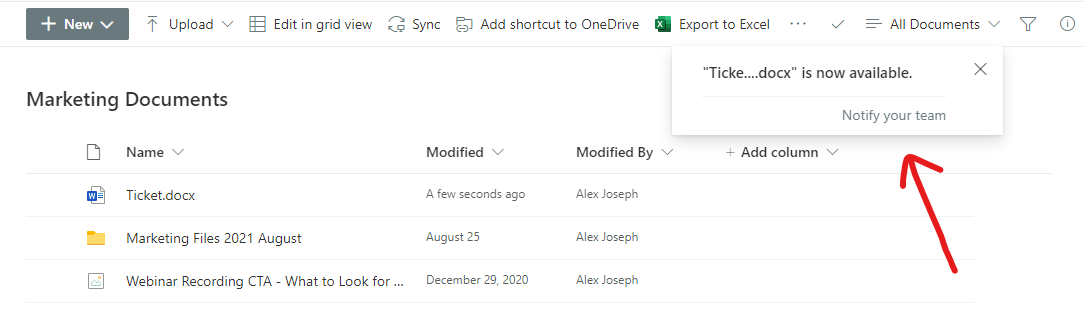
- Choose a group or users you wish to notify of this new document upload and click on Notify.
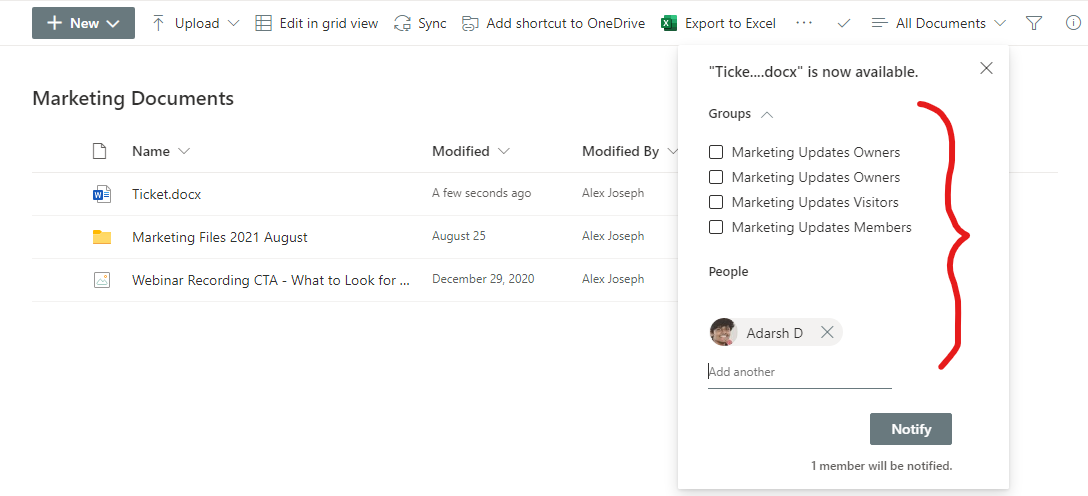
- You will see a confirmation that says a "Link is sent to the listed users."

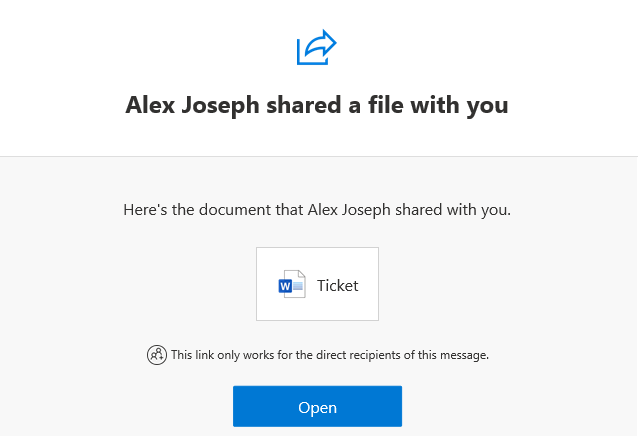
- The users will now receive an email notification regarding the new file uploaded.
Tips To Maximize Your Use Of This Feature
Even though the "Notify your team" feature is the fastest and simplest method to let users know about a new document upload, there are a few limitations to it. You can only notify people who already have access to the SharePoint site. This option is only visible with the "document upload completed notification" that appears soon after you upload new files. This option is only available when you are upload a single file. In addition, it does not allow users to select groups with more than 100 users.
Even with these limitations, this option is perfect for communicating with your team of any newly added file or document. Try this feature and let us know if you have any queries.
How Do You Create a Power Automate Flow to Notify Users of New SharePoint File Uploads?
- Log in to flow.microsoft.com with your Microsoft 365 account.
- Click on Create > Automated cloud flow and provide a name for your flow.
- In the "Find triggers" box, enter "SharePoint" and choose the When a file is created in a folder.
- Specify the Site Address and Folder ID to watch out for.
- Add a new step and select Send an email (V2) (Outlook) or Post message in a chat or channel (Teams).
- Provide the details like recipients, subject, and message body by making use of dynamic content from the trigger for file name and file link.
- Click on Save and Test it.
Now, this flow runs on every new file uploaded automatically.
What Are the Limitations of the "Notify Your Team" Feature in SharePoint?
As mentioned above, it is limited to users with site access, supports sending notifications for single files only and limits the number of recipients to 100 per group. Nevertheless, it remains the quickest way to send a notification one-time. If it is something repetitive, use Power Automate instead.
Having notified your team on when a new file appears, the final step will be ensuring that the contract won't get stored in a folder somewhere