|
Yes, it is possible to create a functional contract tracker with just the native capabilities of SharePoint. Just make a list, make an intake form, a Rules-based notification for expiration dates, an approval workflow, and secure the list and items with proper permissions for sensitive contracts. The approach works very well for low volumes. Over a few thousand contracts or when you need more advanced features like dynamic permissions, obligations tracking, or integration with e-signatures, you will have to move beyond native SharePoint capabilities. All organizations start their contract tracking from the same place: a common folder in the network, a spreadsheet managed by a single person, and PDF documents in someone's email inbox. The system is fine until there is a missed expiration date or your legal department discovers a vendor contract that has been automatically renewed. In case your organization uses Microsoft 365, you already have all required tools to change this situation. Here is how you do it. |
Step 1: Create Your Site and List
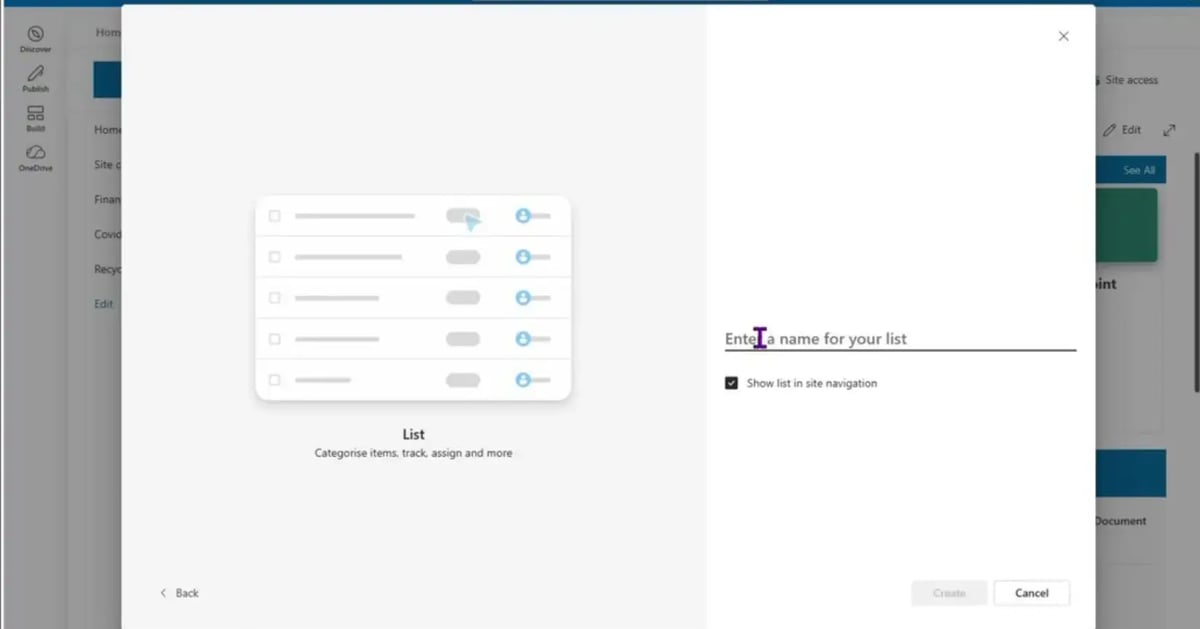
Take any existing site to which your team has access, be it the legal site, accounting site, or wherever it is that you are storing the contracts. Click "New," select "List," "Blank list," give it a name, e.g., "Contracts," and enable site navigation.


Step 2: Build the Intake Form
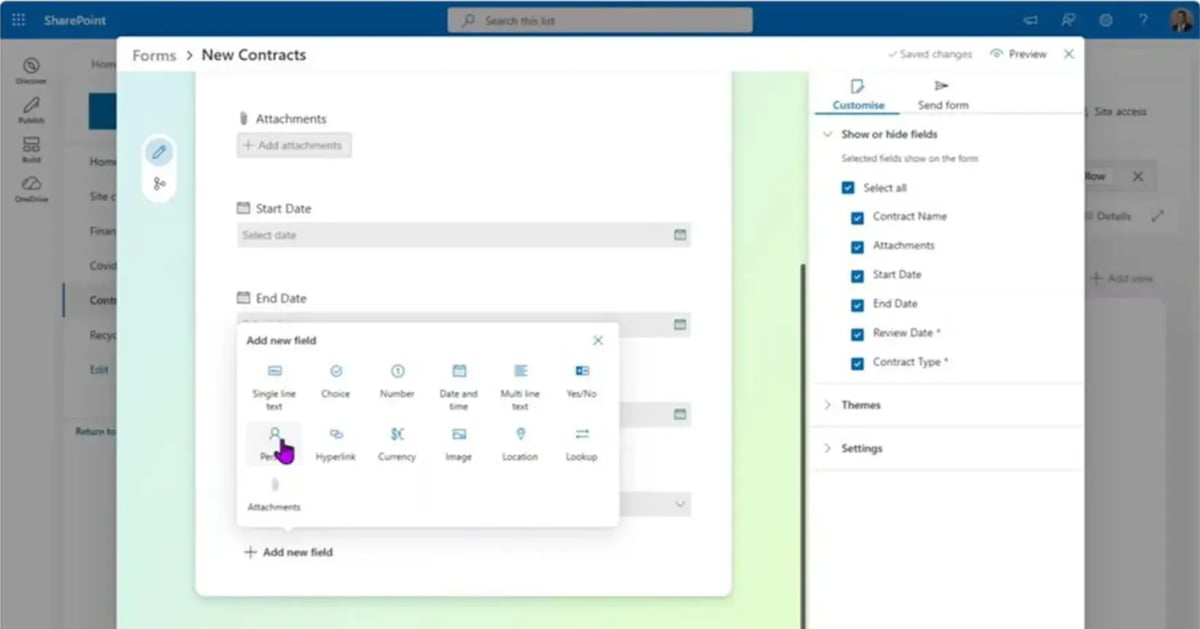
Change the default Title column title to something more meaningful like "Contract Name," enable attachments, and create metadata fields such as Start Date, End Date, required Review Date, Contract Type (choice field, options: NDA, SOW, MSA, BAA, Work Order), Contract Manager (person field), and Notes field.
.webp?width=1200&length=1200&name=Step%202_%20Build%20the%20Intake%20Form%20(2).webp)
.webp?width=1200&length=1200&name=Step%202_%20Build%20the%20Intake%20Form%20(4).webp)
.webp?width=1200&length=1200&name=Step%202_%20Build%20the%20Intake%20Form%20(6).webp)
Step 3: Share It and Collect Submissions
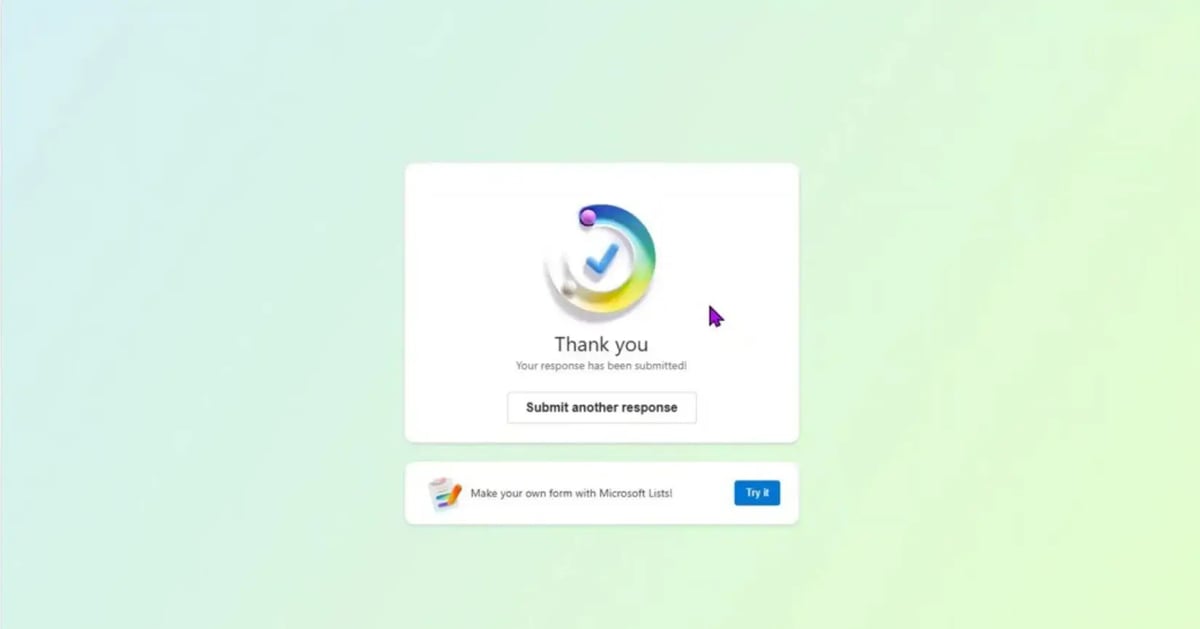
Email the form link to your team so that everyone can submit contracts to this form instead of sending emails back and forth. New submissions appear in the list at once, including attachments.
.webp?width=1200&length=1200&name=Step%203_%20Share%20It%20and%20Collect%20Submissions%20(2).webp)
.webp?width=1200&length=1200&name=Step%203_%20Share%20It%20and%20Collect%20Submissions%20(3).webp)
.webp?width=1200&length=1200&name=Step%203_%20Share%20It%20and%20Collect%20Submissions%20(4).webp)
Step 4: Set Up Expiration Notifications
From Rules, configure the "When a date approaches" action on the Review Date field, make it 14 days before the due date, and use the Contract Manager field value as the basis for sending the email.
.webp?width=1200&length=1200&name=Step%20(1).webp)
Step 5: Add Approval Workflows
In the Workflows section of the list you can configure an action for when a new item is created, an approval process, a Teams message, or an email. Decide whether you want the task assigned to a team, whether it requires a single approval or all of them, and whether you can include dynamic content such as the item title and the link. For any more complex workflow, the route lies in Power Automate, although make sure to allow yourself some time to master it.
.webp?width=1200&length=1200&name=Step%20(2).webp)
.webp?width=1200&length=1200&name=Step%20(3).webp)
.webp?width=1200&length=1200&name=Step%20(4).webp)
.webp?width=1200&length=1200&name=Step%20(5).webp)
.webp?width=1200&length=1200&name=Step%20(6).webp)
.webp?width=1200&length=1200&name=Step%20(7).webp)
Step 6: Lock Down Permissions
The nature of contract data makes it more sensitive than the standard list data; hence, you should remove the inheritance of permissions from the site and remove the default groups in order to apply permissions to individual users or Active Directory groups. The contribution permissions allow users to create a new item, and, at the same time, they will have access to other items in the list as well; it cannot be avoided.
.webp?width=1200&length=1200&name=Step%20(14).webp)
.webp?width=1200&length=1200&name=Step%20(15).webp)
.webp?width=1200&length=1200&name=Step%20(17).webp)
.webp?width=1200&length=1200&name=Step%20(18).webp)
.webp?width=1200&length=1200&name=Step%20(19).webp)
Where This Approach Hits a Wall
The above solution is real, available, and free in the license of the Microsoft 365 you already own. It comes with its limitations:
- Dynamic permissions (automatic restriction of access by department/status) require the use of Power Automate, which is not trivial.
- There is no obligation tracking mechanism – it requires building and maintenance of separate lists.
- Audit history is present but not easy to retrieve and report.
- Reports across contract types and obligations require manual filtering and/or exporting.
- Integration with DocuSign, Adobe Sign, Salesforce, or Dynamics requires separate integration tools.
- Scaling to 5,000 items becomes problematic due to indexing and searching difficulties.
Development of a custom full-fledged solution that does all of the above usually requires dedicated IT team effort and a year of development, followed by periodic maintenance due to Microsoft changes to the underlying platform.
Skip the Development Effort, Keep the Familiar Tools
Dock 365 is a contract management platform built natively on SharePoint and offers dynamic permissions, obligation tracking, e-signature integrations, and reporting, right where this guide ends – in the Microsoft 365 environment.