
Today, businesses around the world have made the transition to a hybrid work model. This is the most promising workplace model of the modern day. As businesses adopt the hybrid work model, the quantity of employees working remote globally significantly increased. Virtual meetings are now a common and regular occurrence in the majority of today's leading businesses. For seamless online meetings, it often requires continued fine-tuning and a proper understanding of the meeting platform.
Following over a year of adjusting workplace conditions due to the pandemic, many companies realized that overbooking meetings and online events can actually inhibit productivity and increase stress. Microsoft consistently enhances and improves its technology solutions to override various hurdles while ensuring ideal work experiences for users. Microsoft now offers an option to set designated break times between meetings.
Let's discuss how to shorten the duration of your events in Microsoft Outlook and how to set-up breaks between meetings.
Why is it important to have sufficient breaks between meetings?
Before discussing the technical aspects of shortening event times and setting up breaks, let's talk about why having breaks is so important.
Back-to-back online sessions can definitely be taxing on the brain, making us feel tired and stressed at times. While we might be working from the comfort of our own homes, it's still important to have some time to pause. Then when we resume, we can work productively.
A recent study by Microsoft found that short breaks can help employees feel both refreshed and destressed in a matter of a few minutes. Taking adequate breaks can help increase positivity and productivity while reducing the tendency of feeling burnt-out and exhausted by the end of the workday.
When you are less exhausted, your brain is able to be more engaged in your work and in your team. Keep this universal need for breaktime in mind when you utilize the "Shorten duration for all events" option in Microsoft Outlook. This is a key tip for your future Microsoft Outlook use that will certainly increase productivity and reduce employee burn-out.
Let's explore how to use this helpful tool.
Steps to Reduce Event Duration in Microsoft Outlook Web
- Login to Microsoft 365
- Select Outlook
- Choose the Settings icon from the right side of the top bar
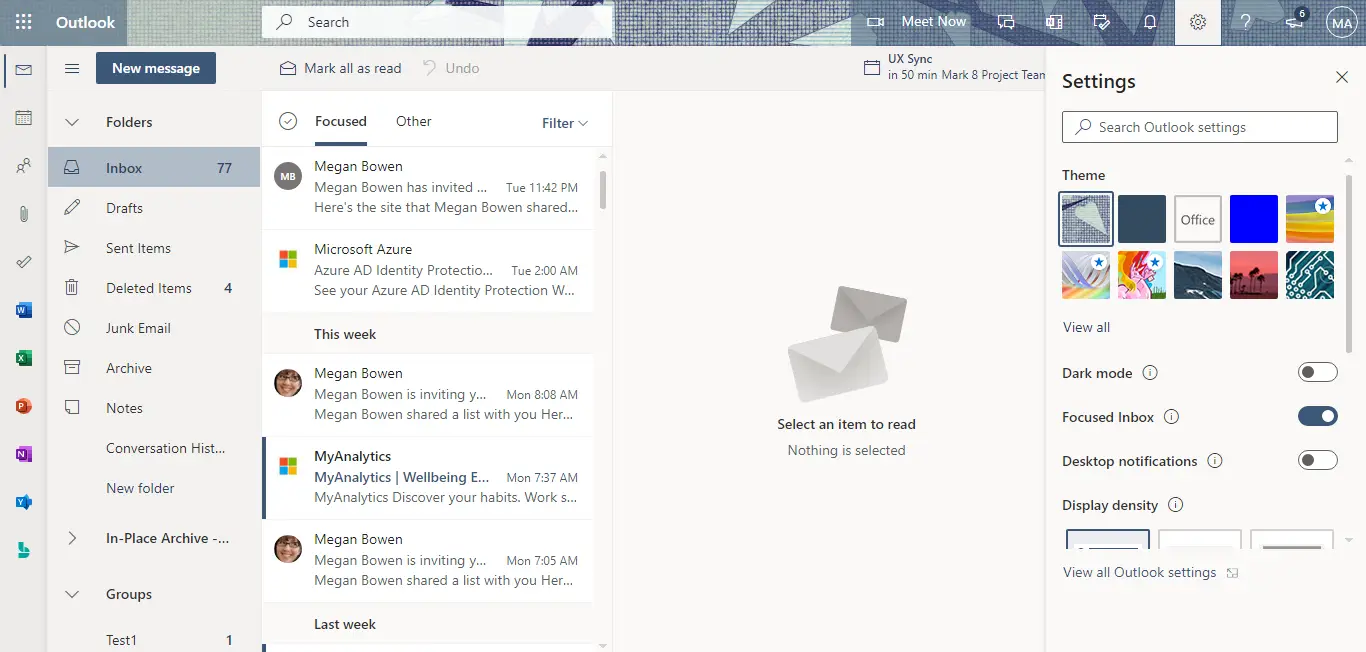
- From the pane that opens, click View all Outlook settings
- From the Settings window, click Calendar section and Events and invitations
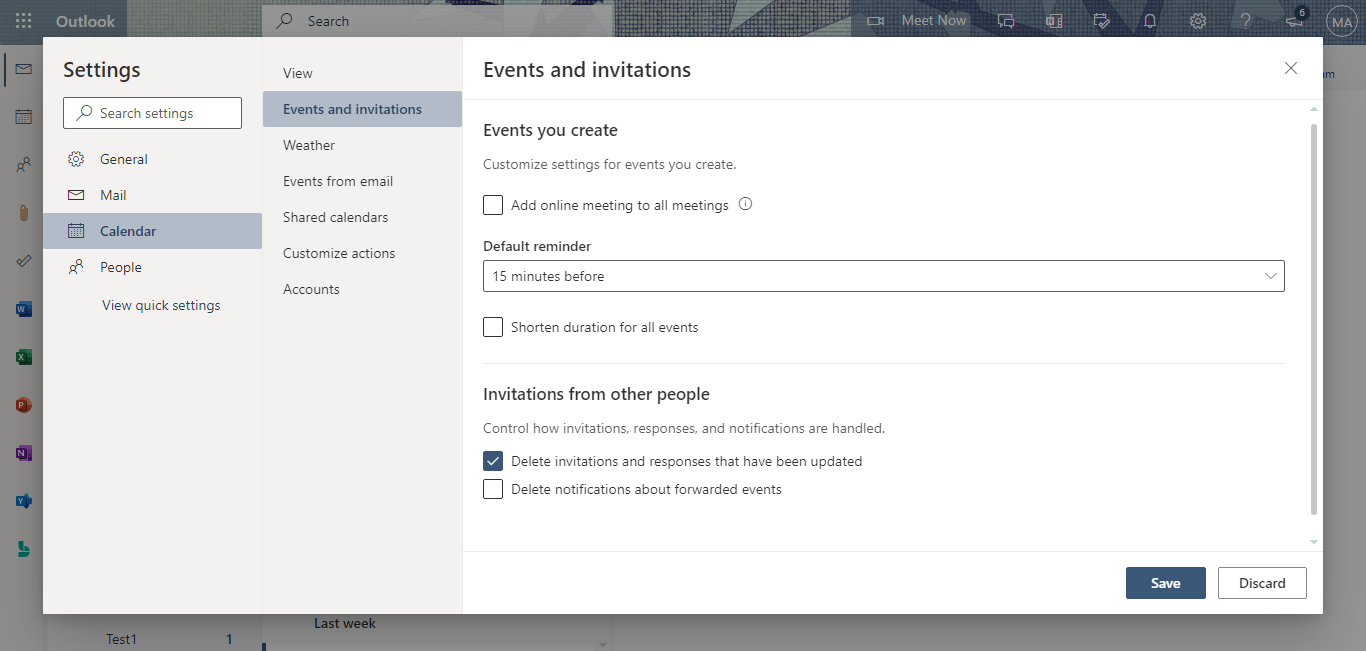
- Check the option Shorten duration for all events
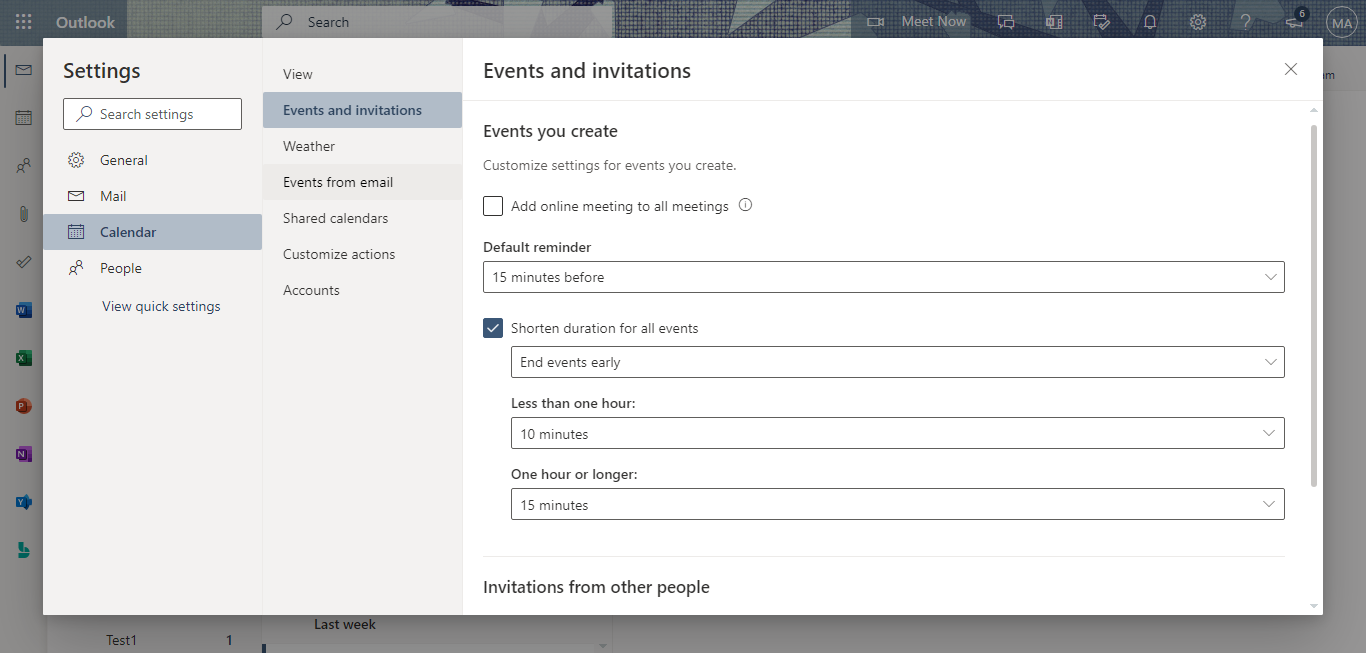
- Choose End events early or Start events late according to your preference

- Choose the preferred break time for events that are more than 1 hour and less than one hour
- After making the desired changes, click Save
Why This Setting Helps Your Business
After configuring the above setting, it is put into effect in all versions of Outlook (Outlook web, Outlook for Windows, Outlook for Mac, Outlook for iOS, and Outlook for Android.)
There are two options your business can select from to leverage this productivity-boosting feature. The first option is to set organization-wide default schedules. The second option is to give specific employees the ability to set default schedules. Either option will reduce meeting times and create breaks between meetings. After making changes to these settings, every time a meeting is scheduled, the meeting's start and end time will be adjusted accordingly.
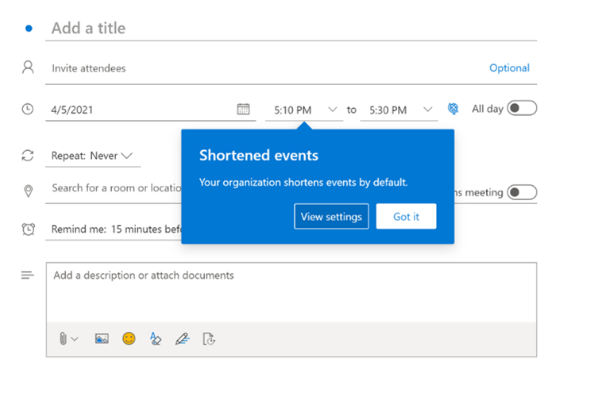
Once the "Shorten duration for all events" setting is enabled for your organization, individual users can easily customize meeting times. To increase organizational awareness of the automatic adjustment, the system sends a notification informing users of the company-wide change and configuration.
We suggest using these options so you can increase productivity and make the most out of Microsoft Outlook. Stay tuned for upcoming blogs with more tips and tricks so you can become an expert in Microsoft Outlook.