People always ask for more features and facilities to make collaboration and communication easier. Microsoft 365 has accomplished these expectations completely. It is Microsoft’s specialty to always deliver solutions that are beyond the expectations of users. Microsoft solutions also ensure that organizations have complete control over this communication and collaboration among users. In some cases, organizations might need to restrict some of their groups from communicating or collaborating.
Have you experienced such a requirement to restrict access from specific users in your company? Microsoft is introducing a platform, "Information Barriers", to make that possible. With Information Barrier policies, organizations can restrict communication and collaboration among specific groups and users. In this blog post, we will tell you what Information Barriers in Microsoft 365 are and how they work. You can also know about information barriers in the Microsoft Teams platform.
The Information Barriers feature is supported by Microsoft Teams, OneDrive, and SharePoint Online platforms. Users choose which data can be shared, and which data is to remain private. This is done with information sharing between specific groups.
Effective Information Barrier Example
You do not want your Finance Team to communicate with the Marketing Team. Use Information Barrier policies. Users working in Finance and Contract departments will be usually handling confidential information. Restrict the ability of such groups to collaborate and communicate with other groups. You can also utilize the information barriers policy to ensure that users in your internal team with access to your trade secrets and other confidential data are not sharing files or other data with specific groups within your organization. If you think that your Sales team is supposed to collaborate with the Marketing team, you can configure the information barrier accordingly.
Furthermore, you can ensure that a site created for a particular group is not getting accessed by anyone from outside that group.
How Information Barrier Policies Work
What Information Barrier policies offer is a two-way restriction facility. You will not be able to restrict the Marketing team from sharing and communicating with Finance team, and at the same time allow the Finance team to collaborate and communicate with the Marketing team. By restricting collaboration and communication capabilities by setting up an Information Barriers policy, you will restrict access in both ways.
These policies effectively control chats, calls, and collaboration between people in certain groups through Microsoft Teams, SharePoint Online, and OneDrive. When these policies are defined and activated, these platforms will prevent communication and collaboration between users/groups that come under the cover of these policies. Want to know how information barriers in Microsoft Teams platform work?
What are the Unauthorized Activities that these Policies Restrict?
When an Information Barriers policy is activated in Microsoft Teams, certain activities or actions will come under unauthorized communications. Unauthorized activities will be restricted both in chats and channels. You will not be able to perform the following actions in such a scenario:
- Use "search" field to find a user
- Start conversations
- Add users to a team
- Start group chats
- Share screen and inviting a user to the meeting
- Make call and sharing file
- Access files using sharing link
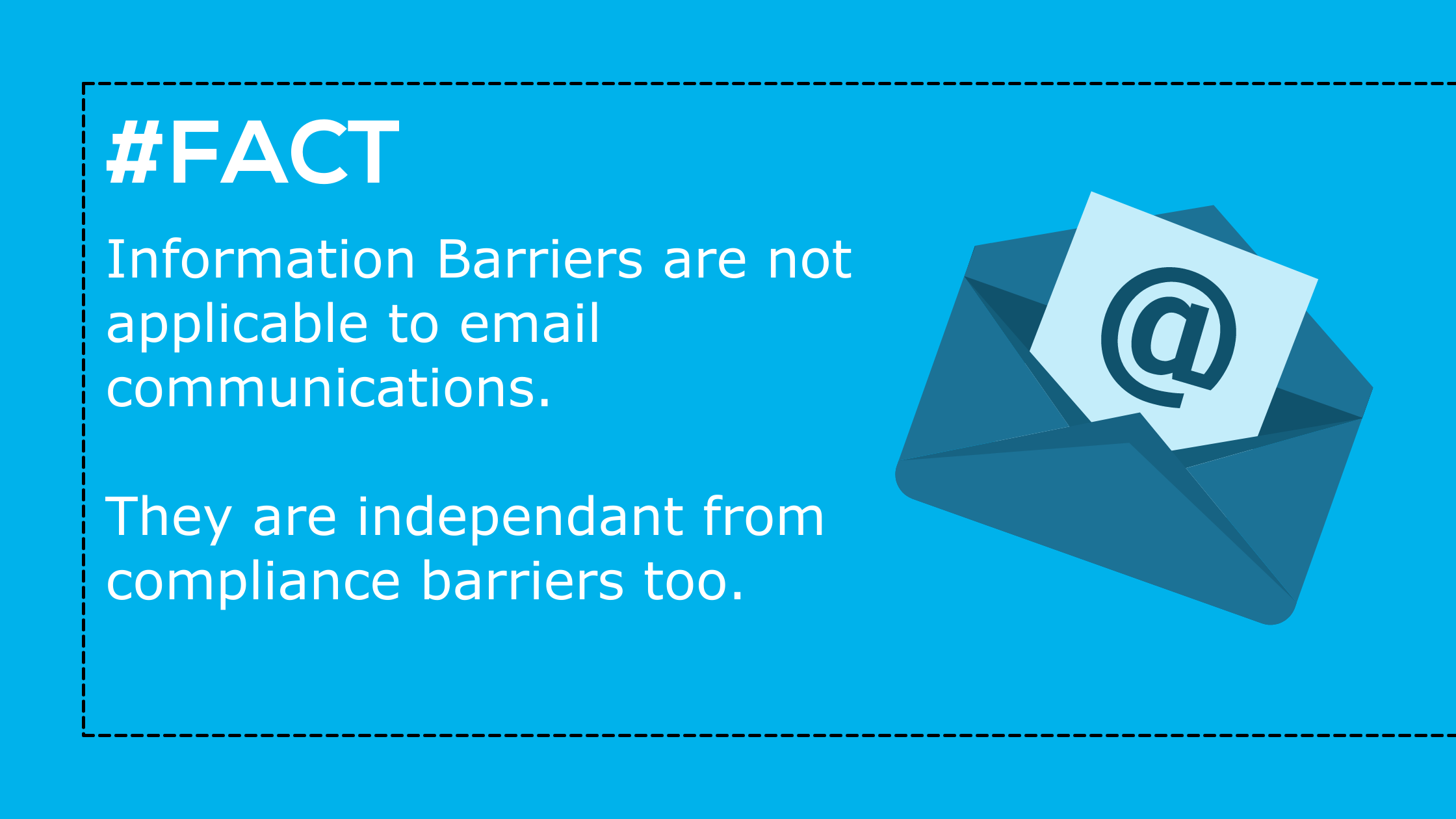
Whenever an Information Barriers policy is setup, these actions are restricted. When it comes to SharePoint Online and OneDrive, there are some similar unauthorized activities too. Here are those:
- Add users to a site
- Use search to find a site
- Access content or site by a user
- Share content or site with another user
Admin Roles to Define Information Barrier Policies
The ability to edit and design Information Barrier policies is provided to specific admin roles. Here is the list of roles that can configure the Information Barrier effectively:
- Office 365 Global Administrator
- Microsoft 365 Global Administrator
- IB (Information Barrier) Compliance Management
- Compliance Administrator
The Information Barrier capability is provided with specific Microsoft 365 subscriptions. Here are the required licenses to make the most of this functionality:
- Microsoft 365 E5/A5
- Office 365 E5/A5
- Microsoft 365 Compliance E5/A5
- Microsoft 365 Insider Risk Management
- Office 365 Advanced Compliance
We hope you now have a clear picture of Information Barriers in Microsoft 365. Learn more about how to make the most of the possibilities and opportunities offered by these features in Microsoft 365. Have a good day!