
Modern-day businesses use automation for various tasks and processes to get work done efficiently. Based on our experience with Microsoft Power Automate, we have learned that this brilliant tool provides a lot of perks within your workplace. “Microsoft Power Automate” is the new name for what was formerly Microsoft Flow. Along with saving time from repetitive tasks, Power Automate ensures that your organization gains efficiency by maintaining various business processes. Power Automate helps you set up flows that effortlessly process multiple tasks and processes. Let us explain the different types of automation available.
In Microsoft Power Automate, you can choose from three types of flows to create:
- Cloud flows
- Desktop flows
- Business process flows
Cloud Flows
This is the most used type of flow. In a Cloud flow, you can trigger automation processes automatically, scheduled, or instantly. Let’s discuss the characteristics of the following types of Cloud flows:
Characteristics of Automated Flows
An Automated flow triggers a Flow on the arrival of an email or when your company is mentioned on a social platform. You can use several connectors to establish the communication between your accounts and Cloud or on-premises services.
Characteristics of Instant Flows
Instant flows are an effective option for initiating automation with a single click of a button. Use Instant flows to automate tasks or processes from your desktop and mobile devices. An example of an Instant flow in action is when notifications are sent to your whole team from your mobile device with a single click. Typically, proceeding with an approval process as well as actions in Teams and SharePoint are general examples of activities that can be triggered with Instant flows.
Characteristics of Scheduled Flows
If there are tasks that need to be processed daily, you can use a Scheduled flow to increase efficiency. For example, uploading data to SharePoint or any other database at the end of each day can be scheduled for automation with the help of Scheduled Flows.
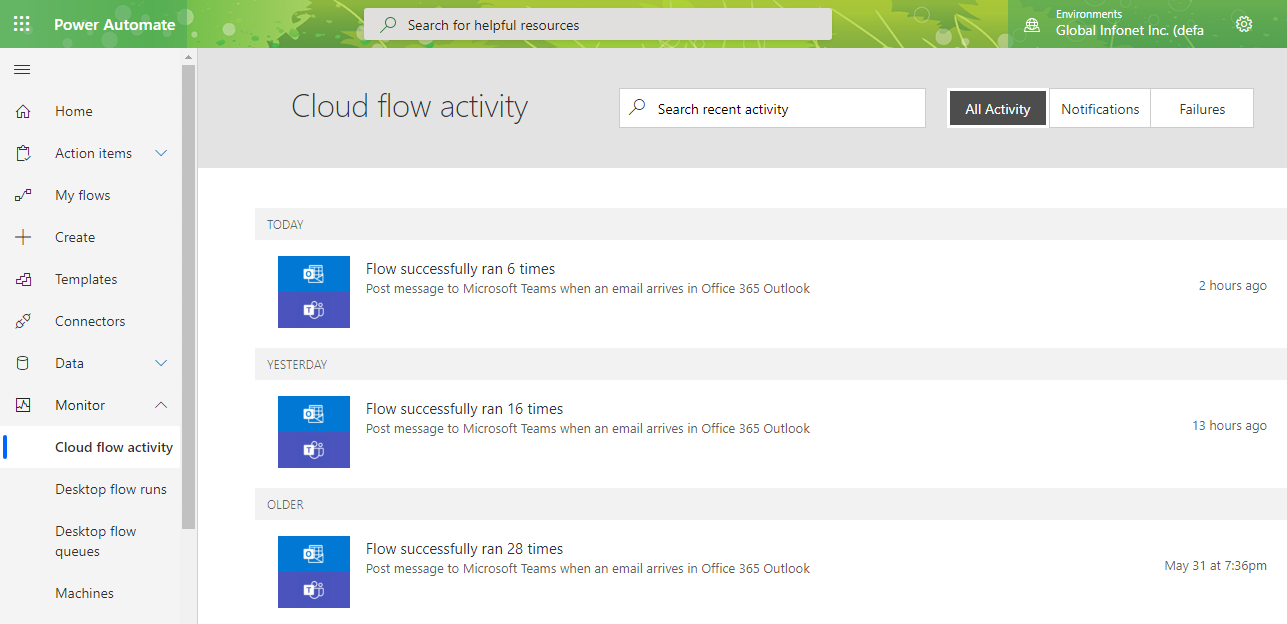
The image below shows the Cloud flow activities.
Business Process Flows
Business process flows are ideal for streamlining tasks and processes for your organization. These flows are utilized to assure that everyone carries out specific tasks in a similar way with consistent data entry. With a nicely configured Business Process flow, you guarantee that all employees are treating customer processes in the same manner. This flow allows you to define the right path for various business processes and workflows. It can be further customized to match the security roles assigned to each user.
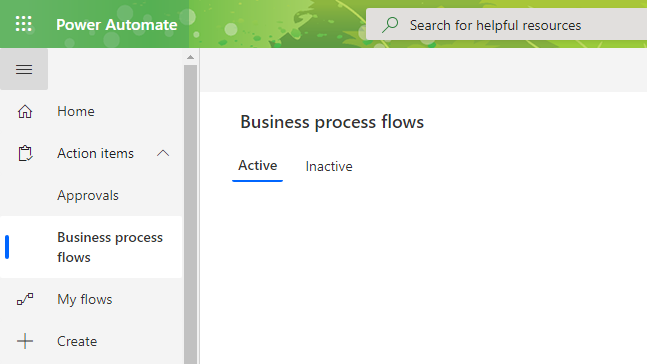
You can check out business process flows by going to Action items > Business Process Flows.
Desktop Flows
Desktop flows are used for automating tasks on the desktop and web through Power Automate Desktop. There are two other ways to create desktop flows: Windows recorder (V1) and Selenium IDE.
Power Automate is the new Microsoft Flow. A popular internet is a comparison of “Power Automate vs. Microsoft Flow.” However, they are the same thing. Power Automate is more powerful and smart than ever. Learn more about Power Automate, and make the most of its capabilities to increase efficiency and productivity in your organization.
We recently published a blog titled, “5 Ways to Boost Collaboration in Microsoft Teams Using Power Automate.” We recommend reviewing it to learn more about getting started with Power Automate and templates. Stay tuned for upcoming Microsoft Power Automate tutorial videos.
Have a good day!