Bid adieu to the conventional document sharing methods and associated overhead costs. Co-authoring functionality is here. SharePoint offers excellent co-authoring capabilities thus making it possible for multiple users to work on a document without interfering with each other's changes. They can access the document at any time from anywhere using any device.
Epitomizing "Wisdom of the Crowds", the results of co-authoring are way better than what a single individual can achieve. Co-authoring comes with plethora of benefits not just in terms of quality and quantity of work but also reduction in time and cost. It plays a great role in promoting collaboration and social interaction.
In SharePoint Online, co-authoring is enabled by default.
Co-authoring Word documents
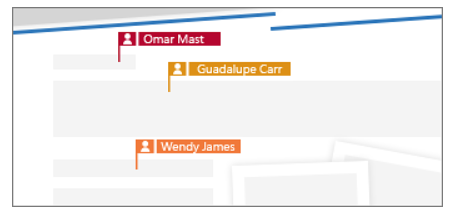
Co-authoring works bit differently in Word Online and native Word Application. But the good news is that it works! All thanks to the co-authoring feature, when multiple users work on the same document, they get to see each other's presence and changes they are making.
Co-authoring PowerPoint Presentations
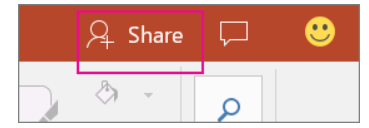
Ready to collaborate on the presentation at the same time?Open PowerPoint presentation, and click Share in the top-right corner.
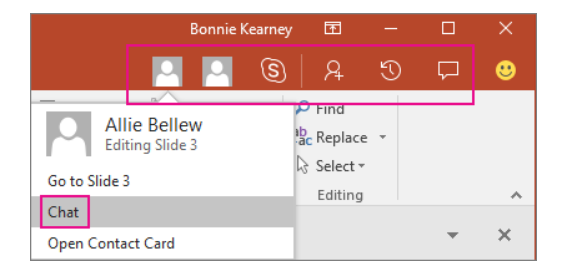
Once you start working on the presentation and if someone else starts working or viewing the presentation then their thumbnail picture appears in the top-right corner .You will receive alerts as and when people enter or leave the presentation. Further, you can also see the name of the person editing or viewing your presentation.
Co-authoring Excel
Now work on the Excel workbook without any limitations. Similar to Word, you will be notified of the presence of another person in the upper-right hand corner and also see each other's changes.
Get in touch with our experts to know more about co-authoring, SharePoint. Are you in search of a clean and intelligent intranet portal? Meet Dock 365-a pre-built intranet portal powered by Office 365 and SharePoint.
Schedule a no-obligation Demo Now!