
We imagine you’re using SharePoint Intranet Portal – Department Site and you’re seeking answers to quick launch menu items. Let’s say you’re browsing through the Sales Portal and found the quick launch menus to be different from the Sales Portal. What to do? Don’t worry, you can get this fixed quickly! Just follow these steps as mentioned in this blog and watch my video for additional guidance.
The quick launch menu in SharePoint Server 2016 gives you quick access to Sites and Pages. It’s the list of links located to the left side of your SharePoint Site interface. The quick launch menu in SharePoint Server 2016 gives you quick access to Sites and Pages. It is the list of links located to the left side of your SharePoint Site interface.
By default, the menu displays links to lists, libraries, and five recent items. To determine which Pages and Sites to have quick access to, you’ll need to modify this menu. To do so, you’re required to be a Site owner or have the required permissions.
If you don’t have permission to edit a Site navigation, you won’t see the link named “EDIT LINKS”. In this case, contact the Site owner.
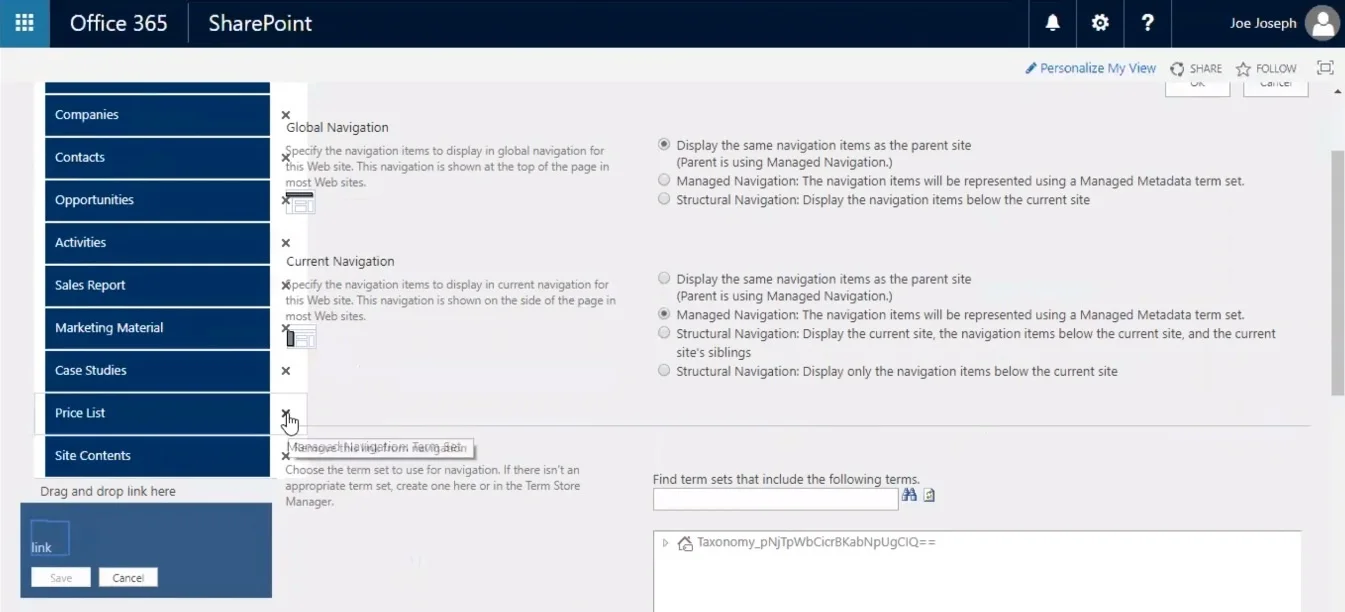
- You can add a new link to the menu by dragging an app from Site Contents or by copy-pasting a URL in the field below the name field in the dialogue box.
- The drag and drop capability also allows you to rearrange the menu links in a desired order.
- Removing and renaming menu items are simple and intuitive.
The quick launch pane appears on the left of the page. Now these same links are presented no matter which page a user navigates to. A site owner has a responsibility to manage this links. It is a good practice to keep only the relevant links in the quick launch page.
Let me show you how you can edit these links. So, if you are a site owner, you have the capability to click on the edit links here. It also gives you the capability to delete any of these. For example, if I want to delete a X link, it is possible. You can add the departments link in the quick launch pane so it appears all the time and not just currently when it’s a recently created list.
Here’s the video tutorial for the same:
Let me go ahead and click on open a new tab so I have the link to it. Next, I’ll right click on it and press copy. Back in the quick launch pane, I’ll click on add a link. Then I’ll put the URL on Address Box and the text to display. Click OK and that’s it! The link has now been saved.

.webp)