
| In order to change the SharePoint site address, one must be a SharePoint administrator or Global administrator. Navigate to the SharePoint Admin Center, click on Active sites, choose the site, click Edit in the ribbon, and click Edit below the URL field. Type the new URL, click Save, and confirm. It will take up to 10 minutes for the change to be applied. During that time, the site is read-only. File permissions and sharing won’t be changed. Automatic redirects from the old URL will be created. |
What Types of SharePoint Sites Allow a Site Address Change?
The following SharePoint sites allow a site address change:
- All communication sites and Classic team sites
- Team sites associated with a Microsoft 365 group
- Modern team sites without association with a Microsoft 365 Group
You have to be a SharePoint administrator or Global administrator to do it, and you can only change the URL path, not the domain or the managed path (e.g., /sites/).
What Should You Do Before Changing a SharePoint Site URL?
This process takes about 10 minutes based on the site's size, and the site will be in read-only mode while the URL is being changed.
Things to do prior to renaming:
- Inform your users about the change and the new URL beforehand
- Ensure all files are closed by users before renaming
- Request users to clean their recycle bin first in case there are any files that they will need
- Check whether there is no other URL change ongoing
- Prepare for updating your bookmarks and hard-coded links after renaming
- No further action required on permissions, as it transfers automatically
SharePoint sets up redirections from the old URL to the new one automatically for most workloads.
How to Change a SharePoint Site Address: Step-by-Step Tutorial
- Access your Microsoft 365 portal.
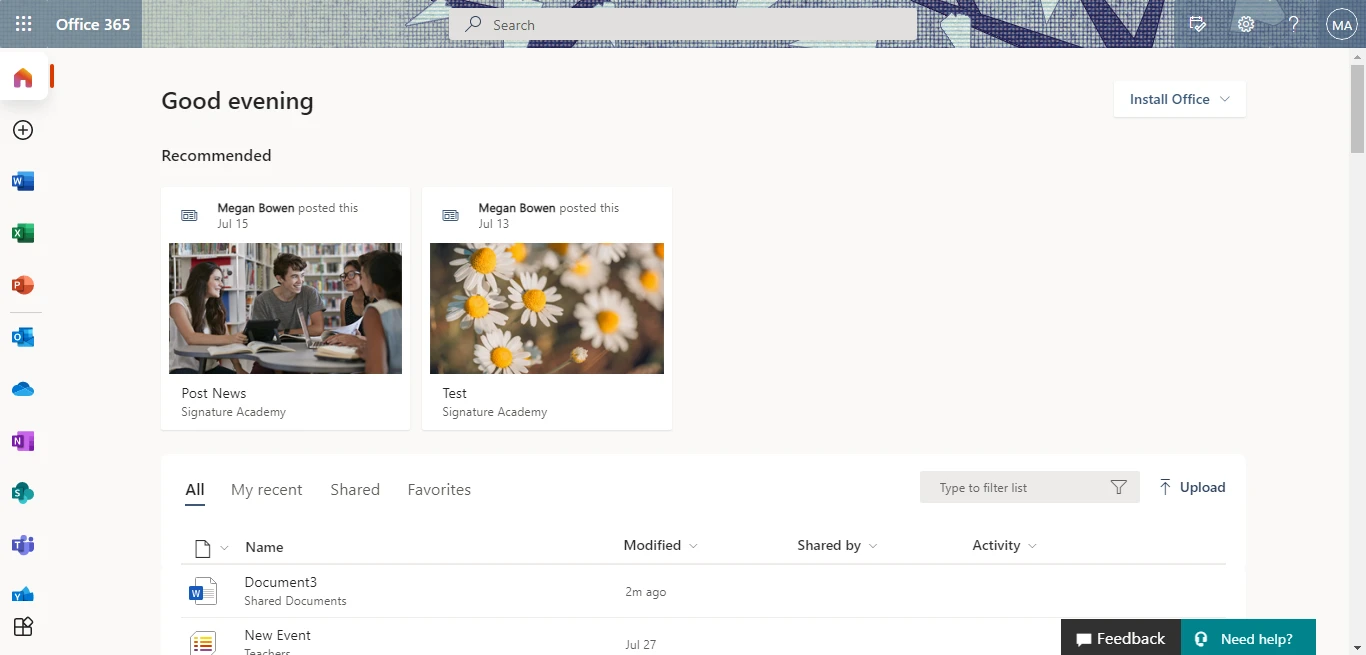
- Select the App launcher button in the top-left corner and select Admin.
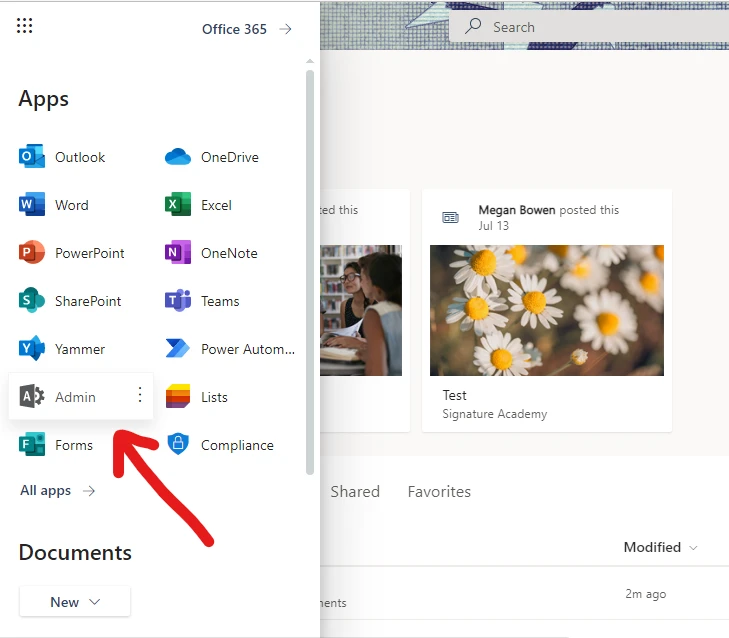
- From the Microsoft 365 admin center, click on SharePoint listed under the Admin centers section on the left side.
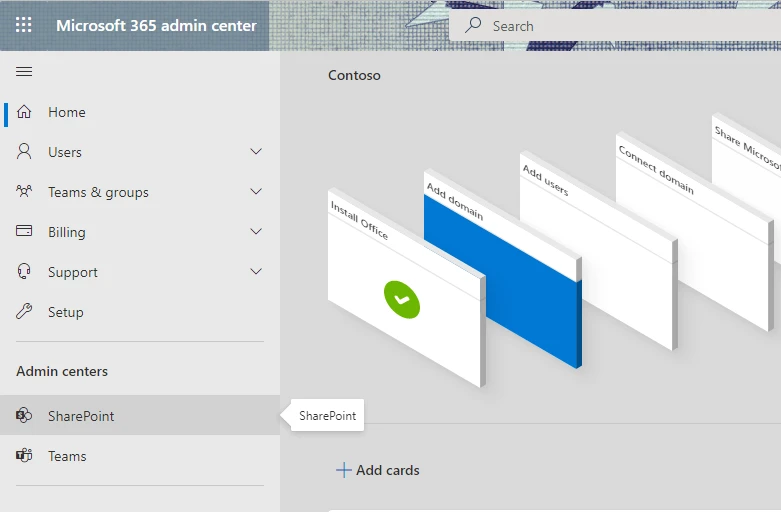
- SharePoint admin center will be open. Click on Active sites from the Sites section on the left sidebar.
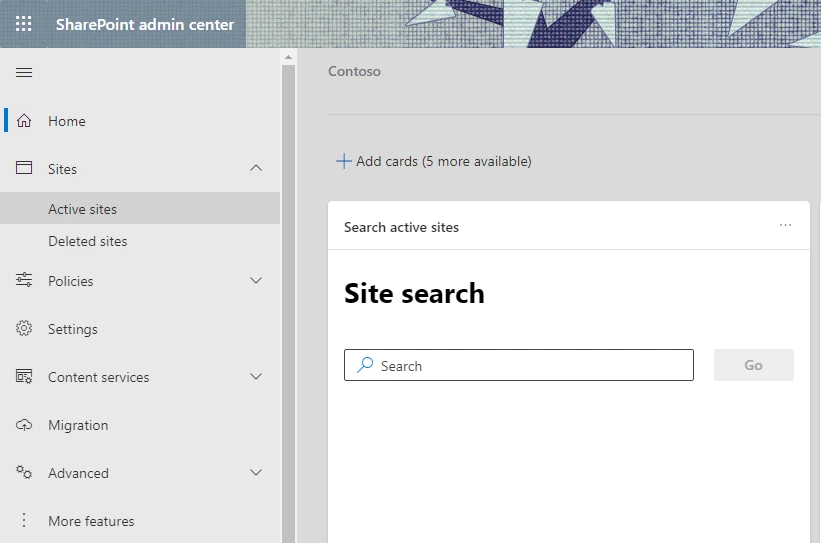
- From the Active sites page, choose the site to which you wish to change the URL.
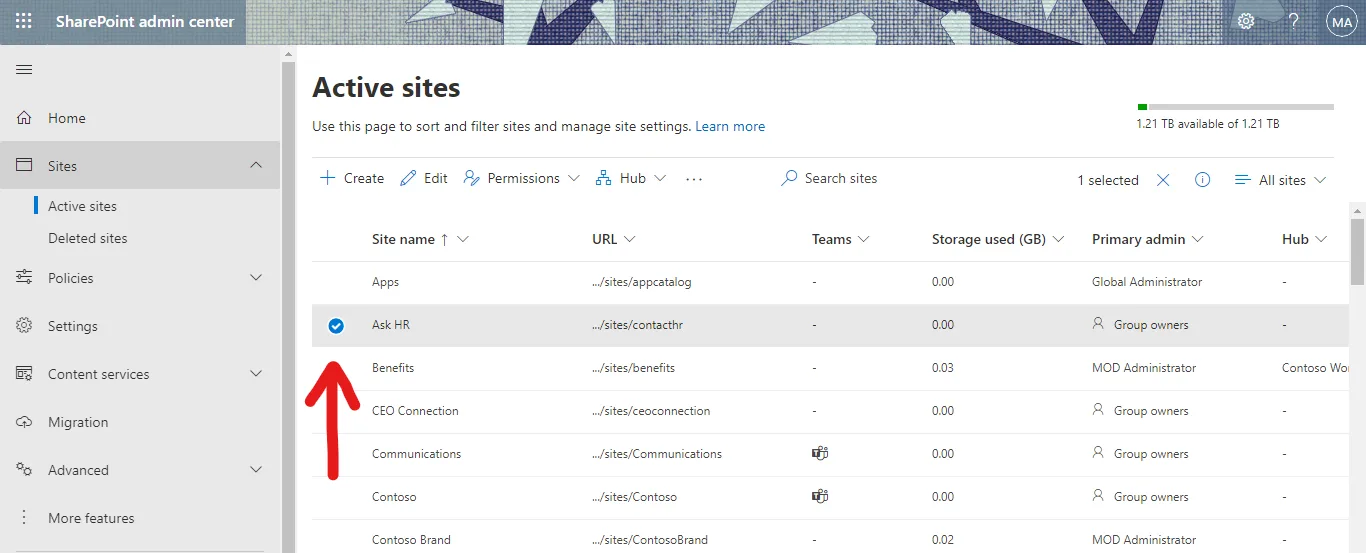
- We are about to change the URL of the site Ask HR.
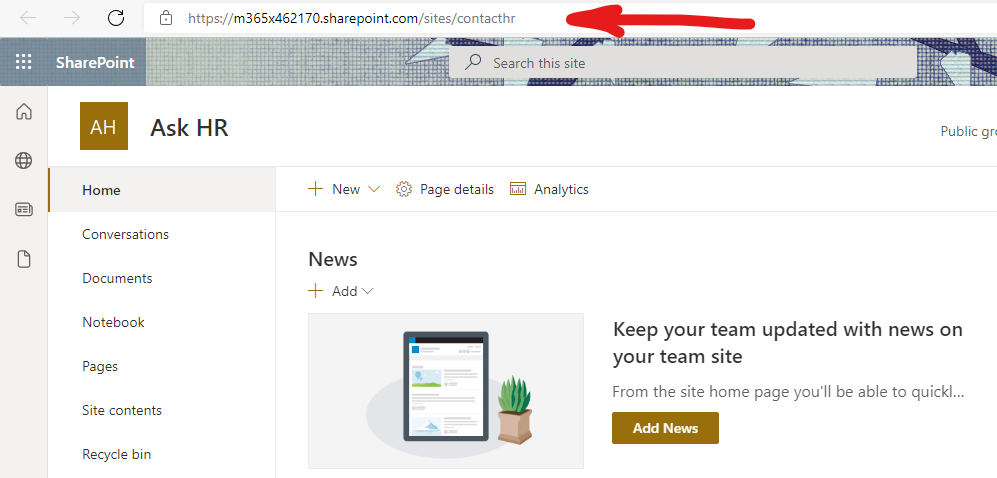
- The current URL of the site is https://m365x462170.sharepoint.com/sites/contacthr.
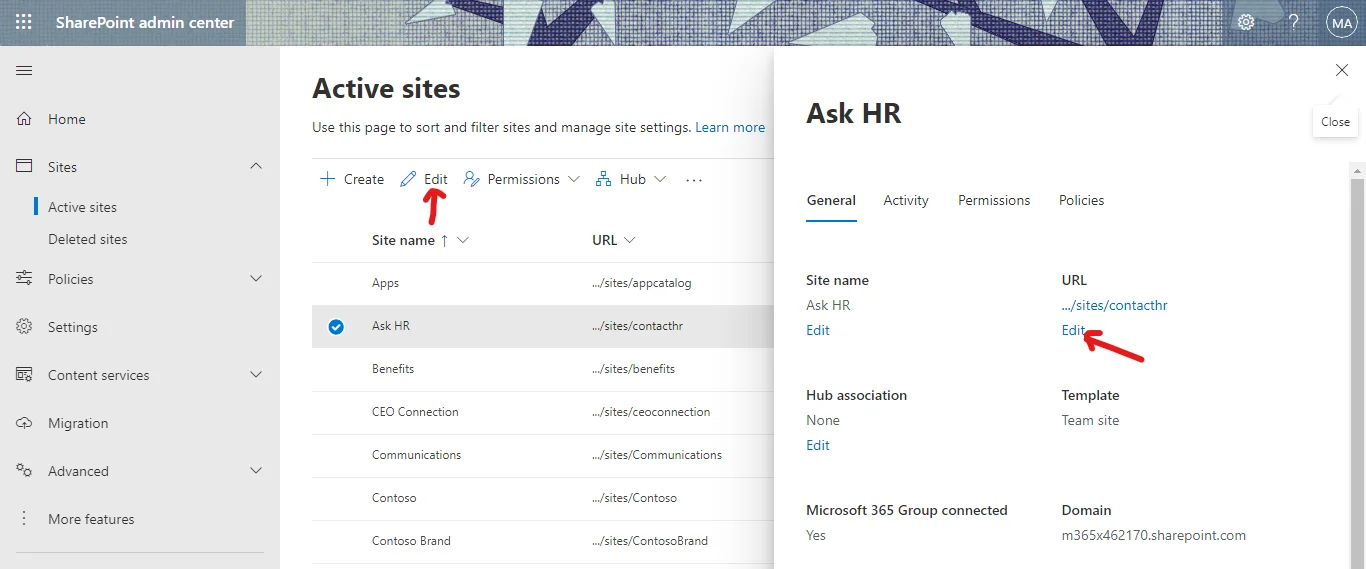
- Click on the Edit option in the top bar and from the pane that opens on the right, choose edit under the URL part.
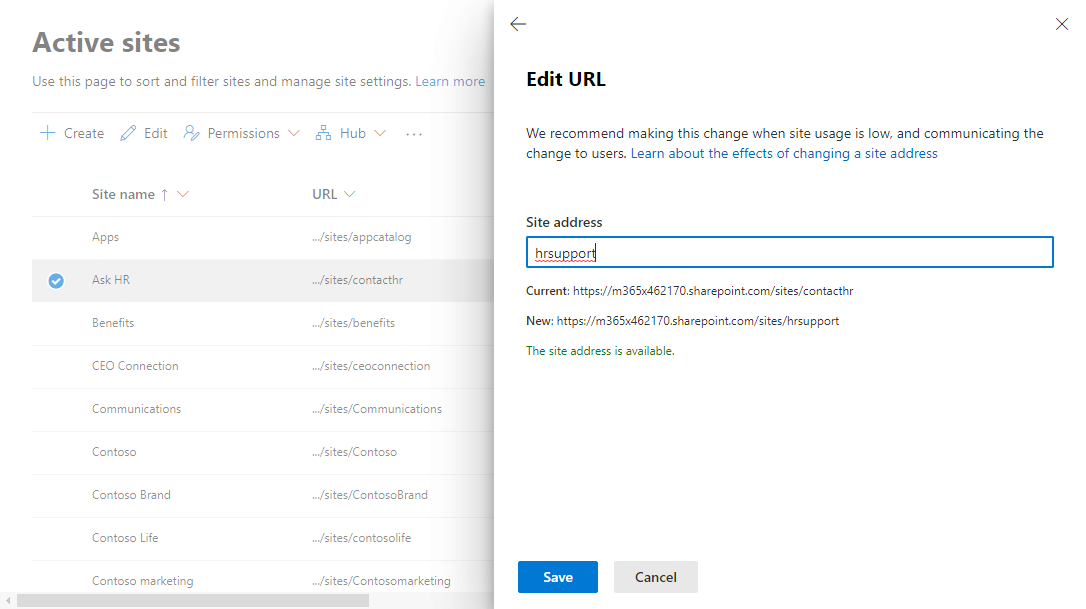
- Enter the new URL in the Edit URL pane and click on Save.
- Click on Yes to confirm.
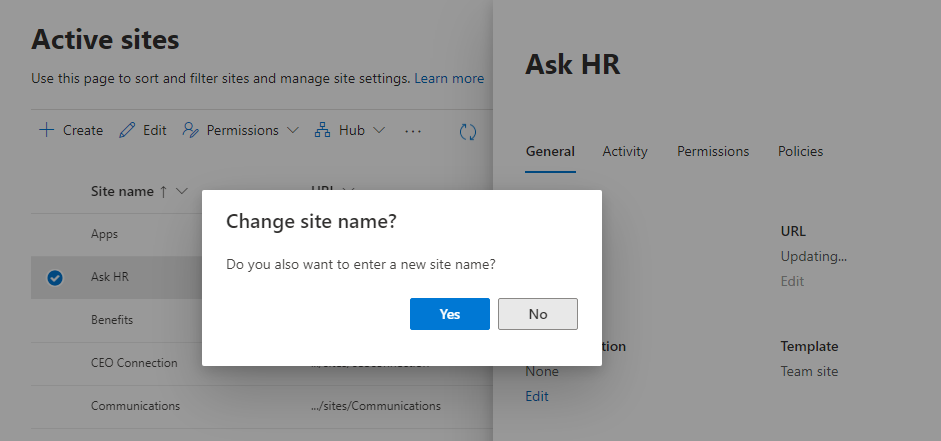
- You will be provided with the option to change the site name if required. Make changes if required.
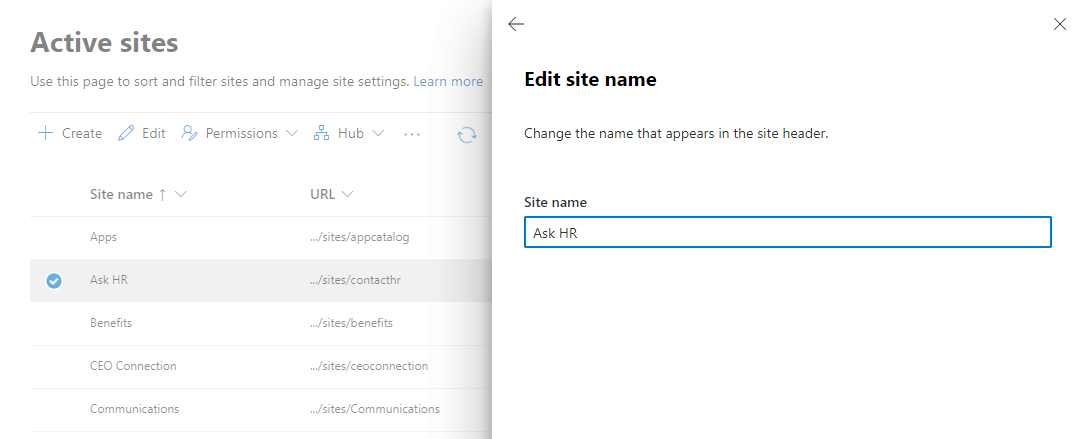
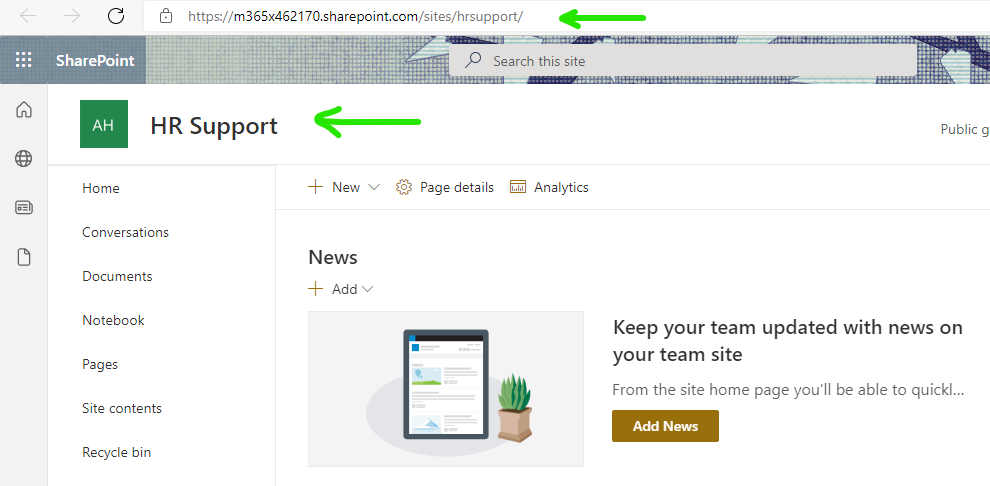
- Changes will be made within a few minutes. We have now changed the site URL to https://m365x462170.sharepoint.com/sites/hrsupport/.
-
Here are the changes we made to the site.
Now that you know how to make changes to the site address, we would like to enlighten you about the other effects of changing a SharePoint site URL. Stay tuned for a blog on this topic.