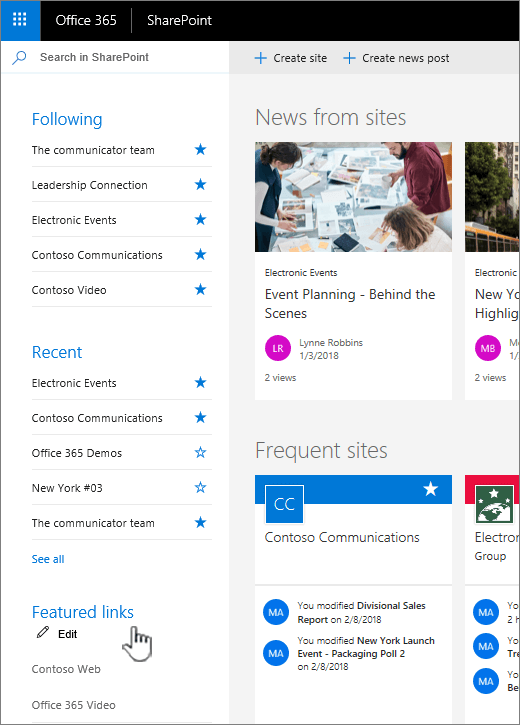
Do you wish to feature the sites and content that you want on the SharePoint home page? If you are a global or SharePoint admin in Office 365 it is possible to do so by changing the Links list on the left side.
Let's get started.
To view the SharePoint home page in Office 365:
- Sign in to Office 365.
- Select SharePoint from the list of apps.
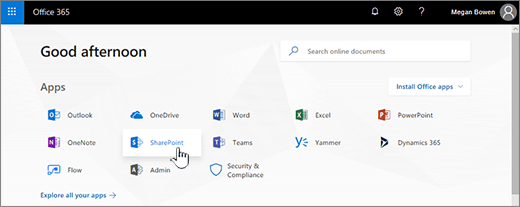
- In case you don't see the list of apps, select the app launcher icon
 in the top left corner of the page, and then select SharePoint.
.png)
- Find the Links list on the left side of the page.
How to Add a link?
- Click Edit at the top of the list.
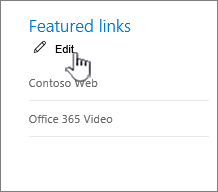
- In order to add a link, select + Add.

- Fill in the Text to display and Address in the New link dialog box.
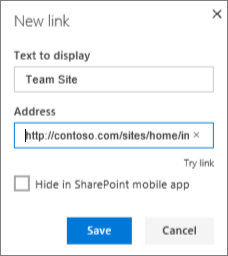
- To check the link, Click Try link
- Click Save.
PS. By default the new link will appear at the top of the list. You can drag and drop the link within the list to change where it appears.
- Click Done to leave the edit mode
How to Edit a link?
- Click Edit at the top of the list.
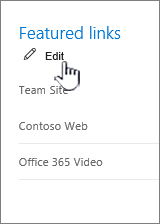
- Click the link you want to change.
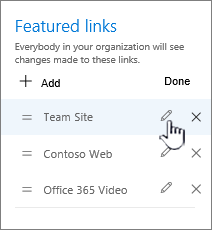
Fill in the Text to display and Address in the Edit link dialog box.
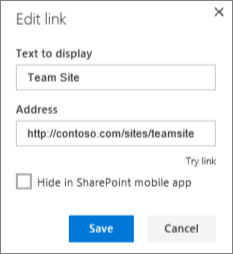
To check the link, Click Try link
- Click Save.
PS. By default the new link will appear at the top of the list. You can drag and drop the link within the list to change where it appears.
- Click Done to leave the edit mode.
How to Change The Order of Links?
- Click Edit at the top of the list.
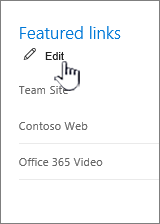
- Drag and drop the link within the list to change where it appears.
- Click Done to leave the edit mode
How to Delete a Link?
- Click Edit at the top of the list.
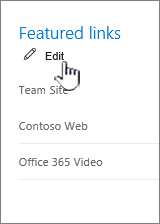
- Click X.
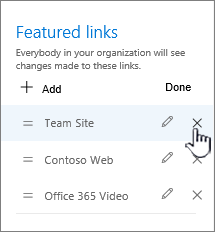
- In the confirmation dialog box, Click Delete
- Click Done to leave the edit mode
About Dock 365 Intranet Portal
Dock is a Pre-Built intranet portal for your organization. It is powered by Microsoft SharePoint & Office 365. Dock also comes with project management, contract management, and many other business productivity features. It creates sustained, connections and conversations across the organization, promoting better employee experience and organizational performance.
Click below to schedule a Free Demo.