
Check-out and check-in are terms related to document management systems including SharePoint. When it comes to planning a SharePoint Site, check-in and check-out features are essential. These features play a great role in preventing conflicts and avoiding confusion when multiple people are involved in editing the same content.
Content:-
- Advantages of SharePoint Check-In and Check-Out
- Check Out Files
- Check In Files
- Are files checked out saved automatically when a user checks them in?
- How to view who has files checked out?
- Why is it important to enable versioning?
- Can a user enable check out and versioning simultaneously?
The check-out feature comes in handy when you are editing a site or file and you want to ensure that no one else can edit it. Once you have checked out a site/file, you can edit it both online or offline. It is only when you check it back into the library that other people can see the changes you made and edit the file/site.
Advantages of SharePoint Check-In and Check-Out
1. Avoid confusion and conflicts while editing the same document
2. Control the number of document version and metadata
3. Offline availability of documents
4. Easily see who is working on the document
Check Out Files
-
Access the library where your file is saved.
-
In case you are looking at a view of the library on another page, you may have to click the title of the library first.
-
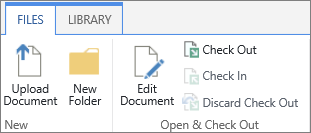
Once you have selected the file/files, that you wish to check out, click Files →click Check Out.
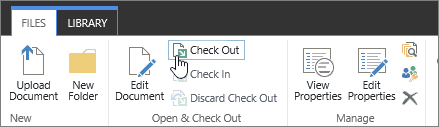
PS. The icon next to the file name is partially covered by a green, downward-pointing arrow  when the file is checked out. This helps other users understand that the particular file is checked out. Further, to see the name of the document and the name of the person who has checked out the file, point to the icon of any checked-out file.
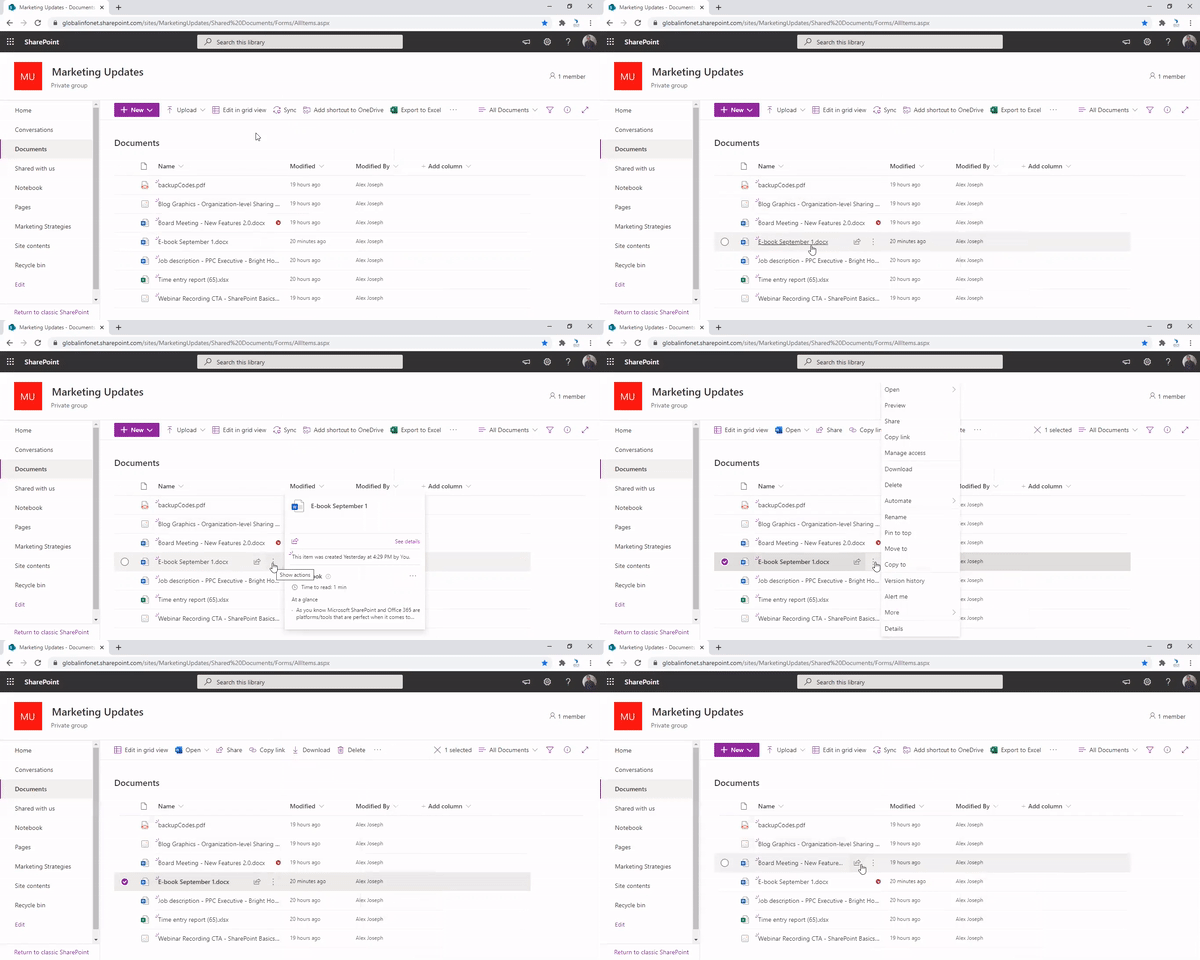
Once you have checked out a file, you can either edit it in an online application or download the file to your local drive to work offline.
Check In Files
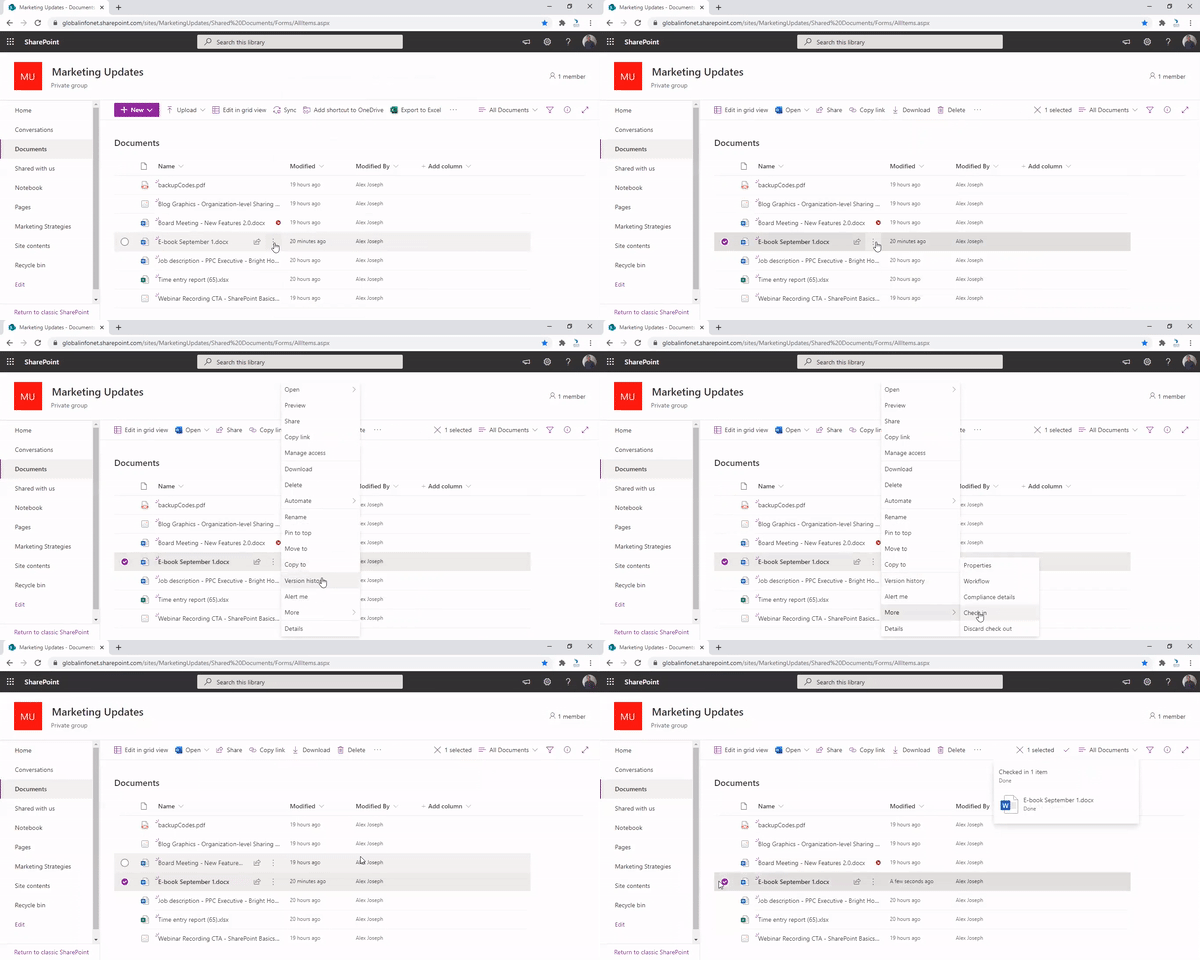
To make the files and any changes available to other people, you must check the files back into your library. In case, you have downloaded the file to work locally, you would need to upload it before checking it. in.
-
Access the library where your file is saved.
-
In case you are looking at a view of the library on another page, you may have to click the title of the library first.
-
Once you have selected the file/files, that you wish to check in, click Files →click Check In.
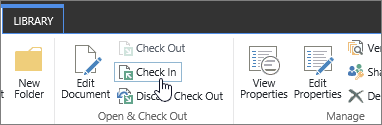
Check out, Check-in and Versions are features that let you manage files exceptionally in SharePoint document library. You can also discard check out to completely wipe out any changes you wish to undo. By doing this you can also ensure that it is not affecting the version history.
We have handpicked few popular questions that users raised regarding Check In, Check Out and Versions.
Are files checked out saved automatically when a user checks them in?
No, the file will not be automatically saved while checking in. When you check out a file, you should save all the changes made before closing it. In case if you are editing using an Office 365 app, then it saves the changes when you close the document.
How to view who has files checked out?
One simple and easy way to find out who has filed checked out is to hover over the Checked-Out icon. Another way is to add the Checked Out By column in the default view of the SharePoint document library.
Why is it important to enable versioning?
Tracking, restoring, and viewing of documents and files are important processes that every organization should consider seriously. Major and minor versioning helps when you need to handle proposals, contracts and legal files that may require lengthy iterations at times. If you lose changes due to mistakes or errors, versioning will help to go back to a previous version safely.
Can a user enable check out and versioning simultaneously?
Yes, users can enable check out and versioning simultaneously. Furthermore, if you are planning not to save any changes made, you can get that done by discarding the checkout. It will not affect the version history in that case.
Want to make it easier for your employees to manage and access all data and files easily and in the most productive manner? Learn more about SharePoint document library. It can help you organize and manage documents in your organization seamlessly.
Hope you find this blog useful. If you have any queries, please let us know in the comments below.
Have a good day.