SharePoint or global admin in Office 365 can now block or limit access to SharePoint and OneDrive content from unmanaged devices.
Block or limit access for:
- All users in the organization or only some users or security groups.
- All sites in the organization or only some site collections.
Before we get started there is one thing that you need to understand undoubtedly blocking access provides security but it comes at the cost of usability and productivity.
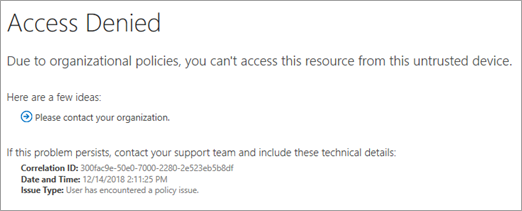
Users will see the following error once access is blocked,
With the limiting access feature, users can remain productive while addressing the risk of accidental data loss on unmanaged devices.
When you limit access:
Users on managed devices will have full access.
Users on unmanaged devices will have no ability to download, print, or sync files with browser-only access. Further, these users will not be able to access content through apps, including the Microsoft Office desktop apps. A SharePoint or global admin when limiting access can choose to allow or block editing files in the browser.
Block access using the new SharePoint admin center
- Sign in to Microsoft 365 admin center as a global or SharePoint admin
- PS.If you have Office 365 Germany, sign in at office portal. If you have Office 365 operated by 21Vianet (China), sign in here. Then select the Admin tile to open the admin center.
- Under Admin centers in the left pane select SharePoint. (You might need to select Show all to see the list of admin centers.)
- To open the new SharePoint admin center in case the classic SharePoint admin center appears, select Try it now
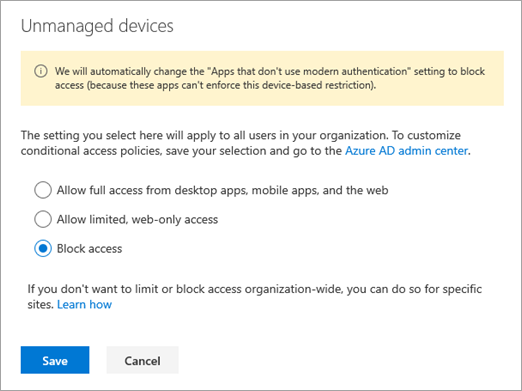
- Select Access control in the new SharePoint admin center, and then select Unmanaged devices.
- Select Block access
- Click Save
- From the Azure AD admin center, select Azure Active Directory admin center in the left pane.
- Under Security, select Conditional Access.
- Select the policy [SharePoint admin center]Use app-enforced Restrictions for browser access.
- Select Conditions, and then select Client apps. "Browser" should already be selected. Select Mobile apps and desktop clients
- Select Modern authentication clients and Other clients, and then select Done twice.
- Make sure Use app enforced restrictions appears under Session. Also, ensure that Enable policy is On.
- Select Save.
Block access using the classic SharePoint admin center
- Sign in to Microsoft 365 admin center as a global or SharePoint admin
- PS.If you have Office 365 Germany, sign in at https://portal.office.de. If you have Office 365 operated by 21Vianet (China), sign in at Microsoft online. Then select the Admin tile to open the admin center.
- Under Admin centers in the left pane select SharePoint. (You might need to select Show all to see the list of admin centers.)
- In the classic SharePoint admin center, select access control in the left pane.
- Select Block Access.
- Select OK.
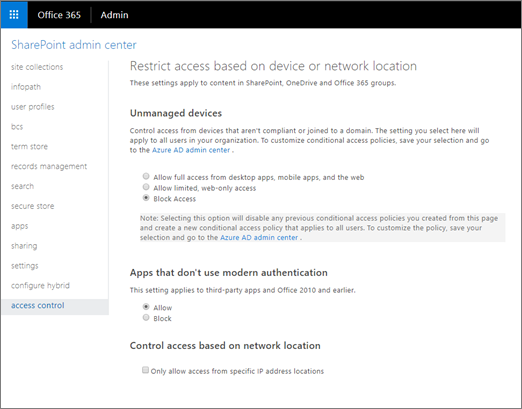
- From the Azure AD admin center, select Azure Active Directory admin center in the left pane.
- Under Security, select Conditional Access.
- Select the policy [SharePoint admin center]Use app-enforced Restrictions for browser access.
- Select Conditions, and then select Client apps. "Browser" should already be selected. Select Mobile apps and desktop clients
- Select Modern authentication clients and Other clients, and then select Done twice.
- Make sure Use app enforced restrictions appears under Session. Also, ensure that Enable policy is On.
- Select Save.
Impact on Apps
As mentioned earlier, blocking access and disabling the ability to download may impact the user experience in some apps, including some Office apps. Thus, it is recommended to test the experience by turning on the policy for some users in the organization. Also, do not forget to check the behavior in Flow and PowerApps while your policy is on.
About Dock 365 Intranet Portal
Dock is a Pre-Built intranet portal for your organization. It is powered by Microsoft SharePoint & Office 365. Dock also comes with project management, contract management, and many other business productivity features. It creates sustained, connections and conversations across the organization, promoting better employee experience and organizational performance.