
Here’s our latest blog on SharePoint Search. Let’s say the Finance Team requires a standalone search feature for sharing their audit documents (confidential documents). In SharePoint 2010, there is a provision to create search scope and added rules for including the specific content source into it.
In SharePoint 2013, the search scopes are replaced by result sources. So how do we create a result source for limiting search results only from a desired content source in Microsoft SharePoint 2016?
Read more to find out:
Before getting started, you need to configure couple of things:
1. The content source is generated for indexing specific file share with name “FileShare”. The full crawl should be completed by then.
2. A subsite created with “Basic Search Center” template to SharePoint server as dedicated search center.
Setting up Search Result Source for limiting results to Content Source
The result sources are built on 3 different levels:
a. Site Collection
b. Search Service Application
c. Site
So how can you restrict SharePoint Search for restricting results only from the desired content source?
Checkout the following steps:
1. Open Search Center Site that you have created earlier. Select the gear button -> Site Settings -> Select Result Sources (Under the Search group).
2. Click on New Result Source under Manage Result Sources page.
3. Provide a name to the Result Source and if required, give a description. This will be seen under Add Result Source page. Leave option buttons for protocol as Local SharePoint and type SharePoint Search Results. Select Launch Query Builder button.
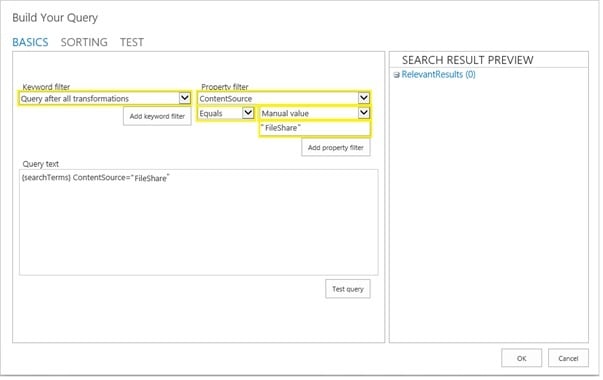
4. Now you get to see the query builder popup. Under property filter drop down, choose “Show All Managed” properties and select property filter again. Now you will be able to see a property “ContentSource”. Select that and choose Equals as a condition. Select Manual Value as value selector.
5. Fill in the value of content source name. According to our scenario, type “FileShare” and hit on the Add property filter button. Click OK and close Query Popup.
You can also manually write the query for limiting search results. Select Save to complete the result source.
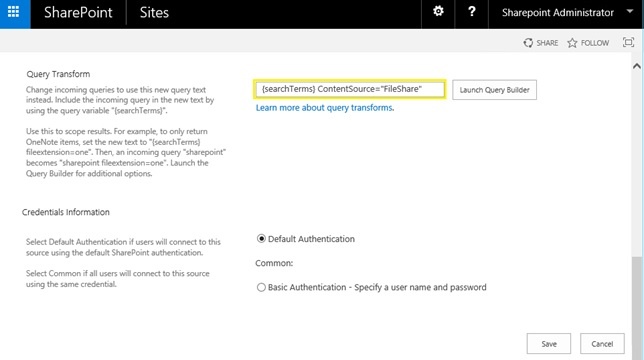
You have created Result Source now. The next step is to configure your search results page for using this result source.
Configuring Search Results Web Part for Using Result Source
The next step is to configure search results page for using result source created in the previous step.
- Move towards the Search Center Site and search results pages.
- Select the Gear button and choose Edit Page
- Select edit the Search Results Web Part and select the Change query button.
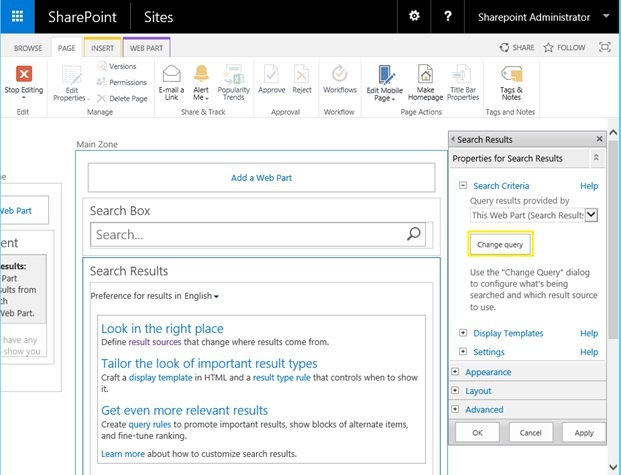
- Under Select a query – select result source you have generated. In the scenario we have created, “FileShare” is the query you need to select. This will configure the filter on search results web part. Select OK and save the changes. Click on Stop Editing this page” to enable search results page.
Tadaa! All set now! Time for some search query testing! Go ahead and search for terms and verify the search results from desired content source.