
Attention global and SharePoint admins in Office 365, this blog post can help you control user access to SharePoint and OneDrive data on un-managed devices. Idle session sign-out is an excellent feature that can be used with SharePoint and OneDrive to achieve optimum user productivity while ensuring data security irrespective of the user's location, device type or how secure their network connection is.
With the help of Idle session sign-out, you can specify a particular time at which users are warned and subsequently signed out of Office 365 after a period of browser inactivity in SharePoint and OneDrive.
Before we move forward let us understand what is considered as an activity when it comes to Office 365?
Activity is counted as requests sent to SharePoint Online, such as clicks. Moving the mouse and scrolling are not counted as activity.
Idle session sign-out experience
Once you specify a time period and a user is inactive in SharePoint and OneDrive, they will see this message:
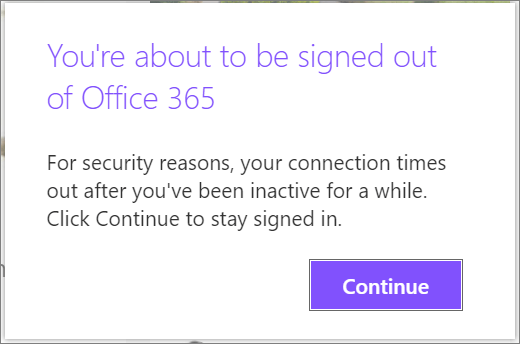
If the user doesn't click Continue, they will be automatically signed out and this screen will be displayed.
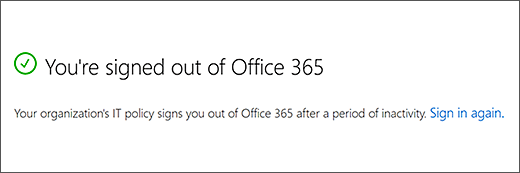
PS. Even if a user is active in another Office 365 service (such as Outlook), but inactive in SharePoint and OneDrive, they will be signed out across Office 365. Considering a different scenario, if a user has multiple tabs open in OneDrive and SharePoint sites at the same time, they will not be signed out unless they are inactive on all the sites. Further, a user will not be signed out if he/she had selected to stay signed in when they signed in.
How to Specify idle session sign-out settings in the new SharePoint admin center?
Without further ado, let us get going with the steps
- Sign in to Microsoft 365 admin center as a global or SharePoint admin.
(If you see a message that you don't have permission to access the page, you don't have Office 365 administrator permissions in your organization. If you have Office 365 Germany, sign in at office portal. If you have Office 365 operated by 21Vianet (China), sign in here . Then select the Admin tile to open the admin center.)
- In the left pane, select SharePoint under Admin centers. (You might need to select Show all to see the list of admin centers. If the classic SharePoint admin center appears, click Try it now to open the new SharePoint admin center.)
- In the left pane of the new SharePoint admin center, under Policies, select Access control.
- Select Idle session sign-out.
- Turn on Sign out inactive users automatically
- Select when you want to sign out users and how much notice you want to give them before signing them out.
- Select Save.
Viola! You are done.
About Dock 365 Intranet Portal
Dock is a Pre-Built intranet portal for your organization. It is powered by Microsoft SharePoint & Office 365. Dock also comes with project management, contract management, and many other business productivity features. It creates sustained, connections and conversations across the organization, promoting better employee experience and organizational performance.
Click below to schedule a Free Demo.