
Power BI is an amazing business analytics service that enables anyone to visualize and analyze data. At Dock, we have integrated Power BI with Dock Sales Module to provide the best experience for the Sales Team.
We have been receiving several enquiries on how to make use of their SharePoint list data to populate a nice-looking Power BI dashboard. The list consists of hundreds of records. It’s much easier to upload an excel spreadsheet to populate the data, but who’s has time to update the data frequently? So, the best way is to integrate the SharePoint list with the Power BI dashboards. Define the coordinates and the chart time. Done! You just got a fancy Sales dashboard to impress your boss!
Read our Power BI Series blogs here:
- Power BI Series – Top Questions You Must Ask Yourself – Part I
- Power BI Series – Top Questions You Must Ask Yourself – Part II
- Power BI Series – Top Questions You Must Ask Yourself – Part III
Oh wait, there’s more! You can also embed this Power BI dashboard on your SharePoint Sites as well. That’s exactly what we have done in Dock’s Sales Portal. You can add the Excel webpart by importing sales data to an excel and then importing that data to create a pie chart powered by the excel webpart. But that’s not going to help as there’s no direct sync between your SharePoint list and pie chart. Initially, when we started testing this feature way back in 2016, the Power BI web version could sync with the SharePoint document library and not the SharePoint lists. But now with lot of exciting updates, this has been made possible.
So how to get started with Power BI? All you need to do is:
- Prepare your data sets and integrate it with your desired Power BI dashboard
- Select the type of pie charts or diagrams for the data to be populated.
- Publish your Power BI report.
- Fetch the URL to the report
- Add the Power BI webpart to your SharePoint Intranet Portal
- Paste the URL of your Power BI dashboard
- Save and publish your SharePoint page.
That’s so quick and easy, isn’t it? Your SharePoint users can see the report when they visit the Sales Portal page. The only criteria for users to have access to these dashboards is that the user needs to have access to SharePoint Online and Power BI. In other words, users need to have access to Power BI for them to navigate over the Power BI UI.
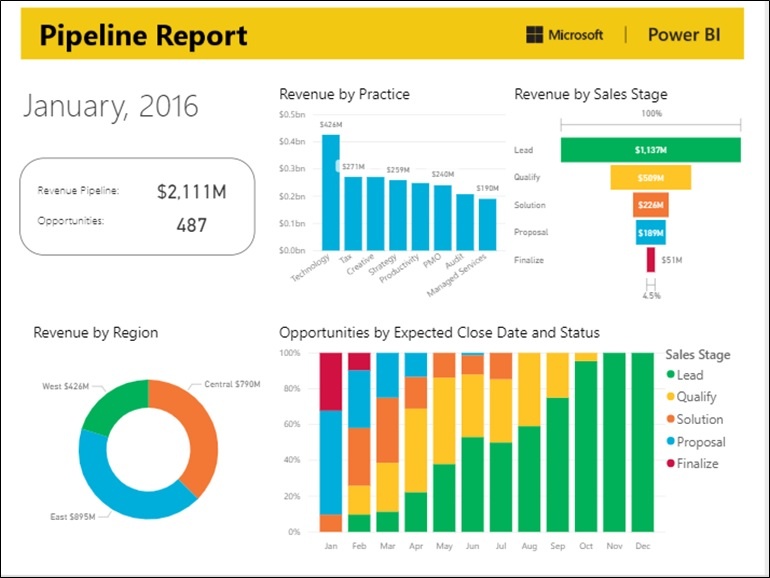
Sample Sales Pipeline Report: Courtesy: www.powerbi.com
Here’s a Sales Dashboard Analytics video by me:

The core focus of the webpart is to achieve seamless integration with Microsoft SharePoint Online to get a single sign-on experience. The web part works with the latest login features in SharePoint Online. This will enable Power BI webpart to use single sign-on so that by default, users don’t have to login separately to Power BI.
Multi-factor authentication might need the user to sign-in again, if they haven’t used a security device while signing in to Microsoft SharePoint. This means when users see the Power BI reports, all the security checks are fulfilled to the reports that includes enforcing data security via Microsoft Power BI’s row level security features. Users who view the report embedded in Microsoft SharePoint Online page will see the same data as populated on www.powerbi.com
Listen what our Business Development Executive has got to say about Sales CRM and PowerBI to analyze Sales Performance:

Microsoft has lot of addons/features that helps users to create reports fit into the requirement. Users have the option to choose which page to load, hide/unhide filter pane or navigation etc.
Have you thought about creating a Power BI Dashboard for your Sales department? If you need help, please contact our team today. Our SharePoint Experts will be there to support you!