
Okay, so you have been using SharePoint Online for a while that includes content collaboration, SharePoint department sites and workflows, access shared documents etc. Have you ever tried out the mobile app or the mobile web view yet? If your answer is no, it’s time that you experience the latest touch friendly interface than ever before!

Stay connected with your work and colleagues using your mobile phone. Download the SharePoint app for Apple iOS or Android to connect your SharePoint site instead of browsing via native browser.
What’s possible?
Use your mobile phone or tablet to:
- Find SharePoint Sites: You will be able to see a list of sites that you have been following on Microsoft SharePoint Online or promoted by the Admins.
- Changing site views: Change between the full-screen view (i.e. the PC view) and mobile view to view some of your sites and libraries in SharePoint Online. Especially for Custom CSSs embedded to your sites, it is highly recommended to use the PC View for better performance.
- Document Management: View, share documents within SharePoint and checkout the most recently used documents like MS Word, Excel, PowerPoint or PDF that were shared to you. You can also view the documents that you are following in Microsoft SharePoint Online.
- Navigation: Make sure you use the navigation links to move from a site to Microsoft OneDrive for Business or vice versa.
Let’s check out how SharePoint Online works on both Mobile Browser and Mobile App:
SharePoint Mobile Browser Interface
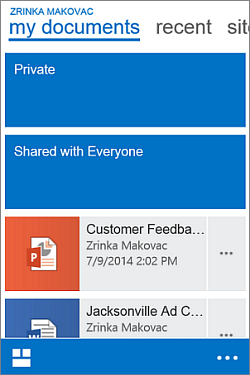
Open and browse a SharePoint site
Open a SharePoint site
- Open the web browser using your mobile device.
- In the address bar, type the website address (URL) for SharePoint Online.
- For example, mydock365 sharepoint. Your URL will include your domain name instead of mydock365
- Sign in using your work or school account.
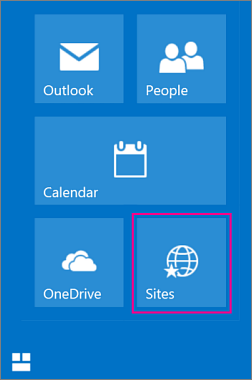
- In the lower left corner of the screen, select Go to . You might need to tap the ellipse (...) at the bottom to see the Go to
- Select Sites from the list of navigation tiles.
You'll see a list of the SharePoint sites organized under Sites I'm following and Promoted sites.
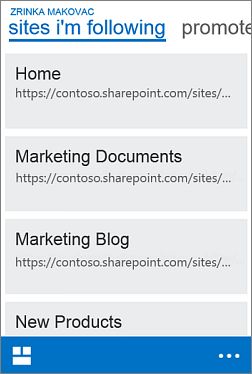
Sites I’m following is more like a bookmark of all your sites.
Browsing a SharePoint site
- Choose the site you want to view under Sites I'm following or Promoted sites on the Sites page. Document libraries and lists are organized under Apps and any subsites are organized under Subsites.
The name of the site appears at the top of the page so you can tell which site you're viewing.
- To view a site's OneNote notebook, select the tile Site Assets.
- To view files in your site, select the document library that contains the file you want.
Opening your OneDrive for Business document library
- If you are already signed in to a SharePoint site using the browser on your device, in the lower left corner of the screen, tap Go to and select OneDrive. OneDrive for Business should open.
- If you're not currently signed in to a SharePoint site, open the web browser on your device and follow these steps:
- In the address bar, type the website address (URL) for SharePoint Online.
For example, http://mydock365.sharepoint.com.
Your URL will include your domain name instead of Contoso. - Sign in using your work or school account, for example, [email protected].
- In the lower left corner of the screen, select Go to . You might need to tap the ellipse (... ) at the bottom to see the Go to
- Select OneDrivefrom the list of tiles.
- In the address bar, type the website address (URL) for SharePoint Online.
How to switch between mobile and full-screen view
You can choose to view your SharePoint sites and OneDrive for Business library in mobile view or the full-site view called PC view.
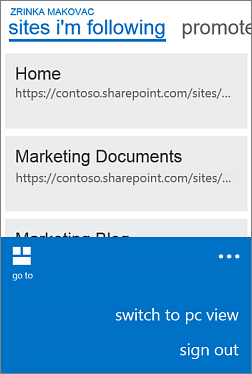
Switch from mobile view to PC view
- In a site or library, tap the More menu in the lower right corner of the screen.
- Choose Switch to PC view.
Switch from PC view to mobile view
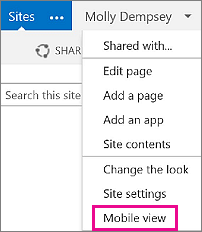
- In the SharePoint site, in the upper right corner of the screen, tap Settings .
If you don't see Settings, you might be in full screen view. Tap the Focus on Content icon in the upper right of your screen, next to Edit.
- In the Settings menu, choose Mobile view.
SharePoint Mobile App Interface
Tired of using URLs to login to your SharePoint each time? Get your Intranet with a touch using SharePoint application. Especially for the Sales Teams that are always on-the-go, the SharePoint application helps them to keep sync with the updated documents, team sites, departmental portals and the users that work together. Check out the site activities and get easy access to the popular/recent documents, view and edit the SharePoint lists available on your SharePoint Team Sites.
Sign in to your SharePoint Online interface. Add several accounts and switch between them easily.
N.B. Your company needs to have an active Office 365 subscription that includes SharePoint Online to get this started.
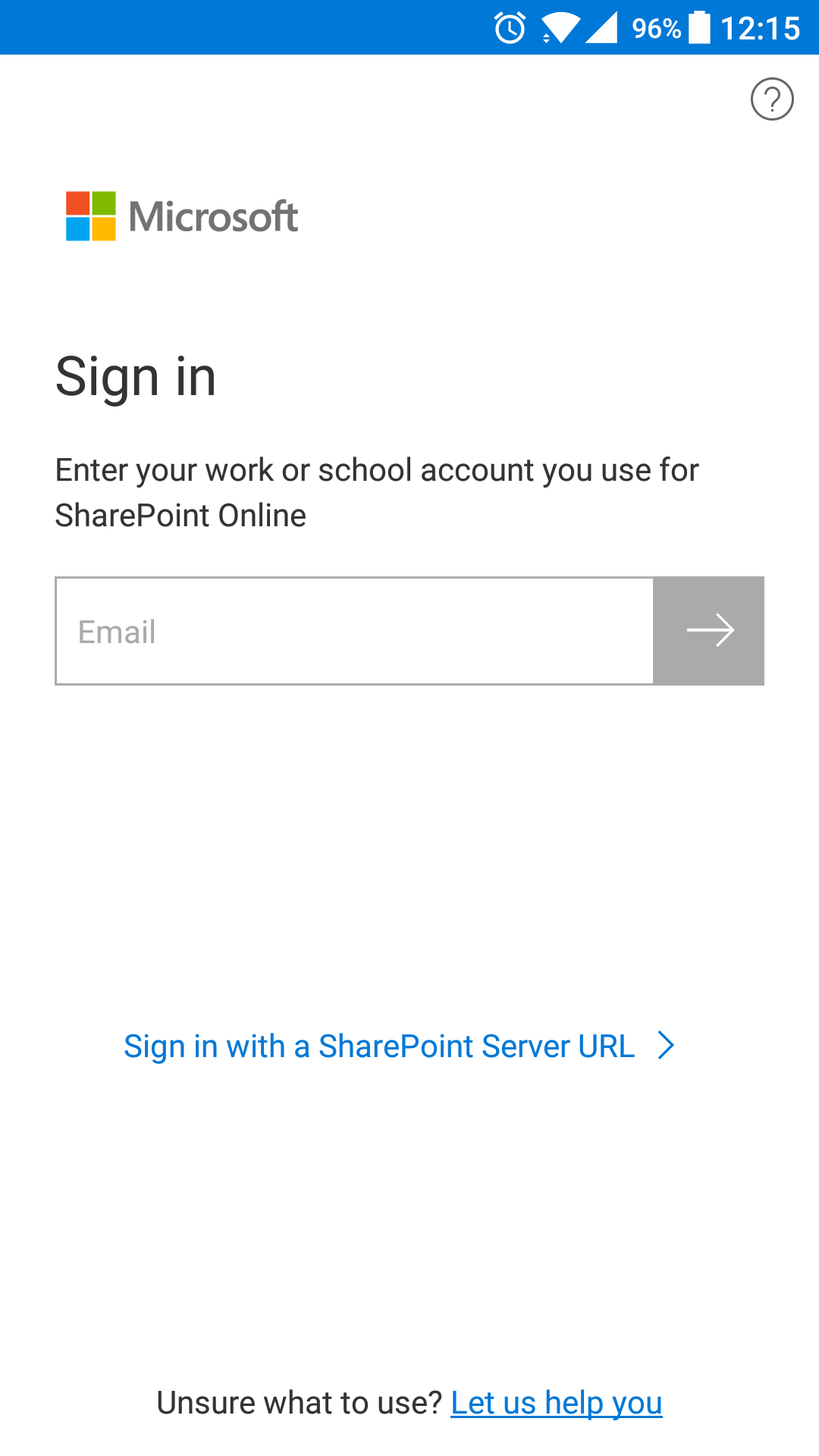
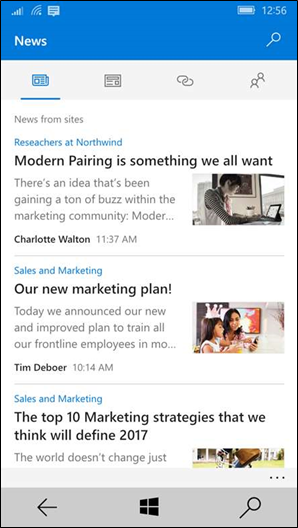
SharePoint Mobile App: Login Screen and News Feed Interface
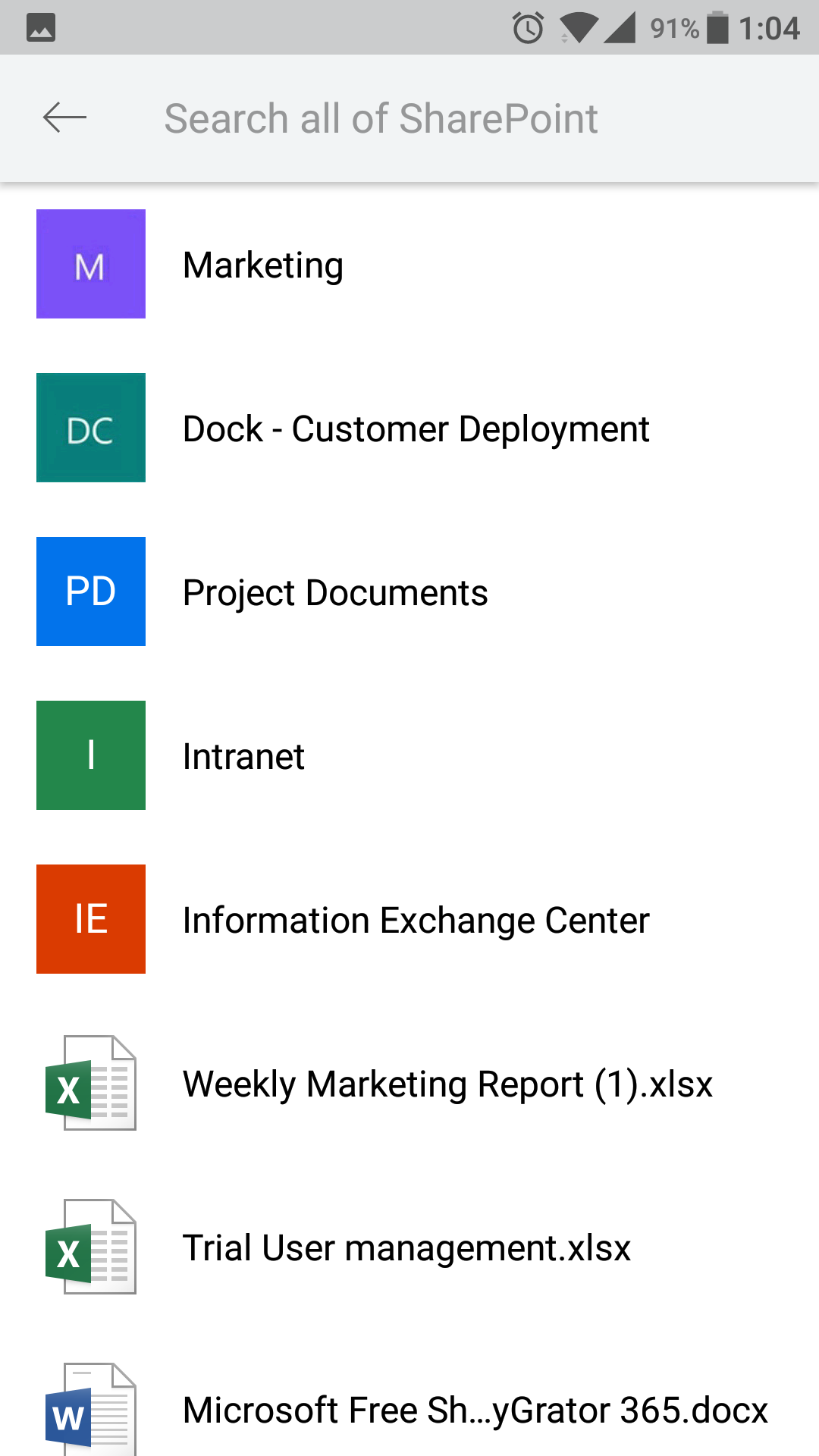
The Search interface in the SharePoint App
The Enterprise Search is available throughout the mobile application and results are organized into files, sites and people as shown above.
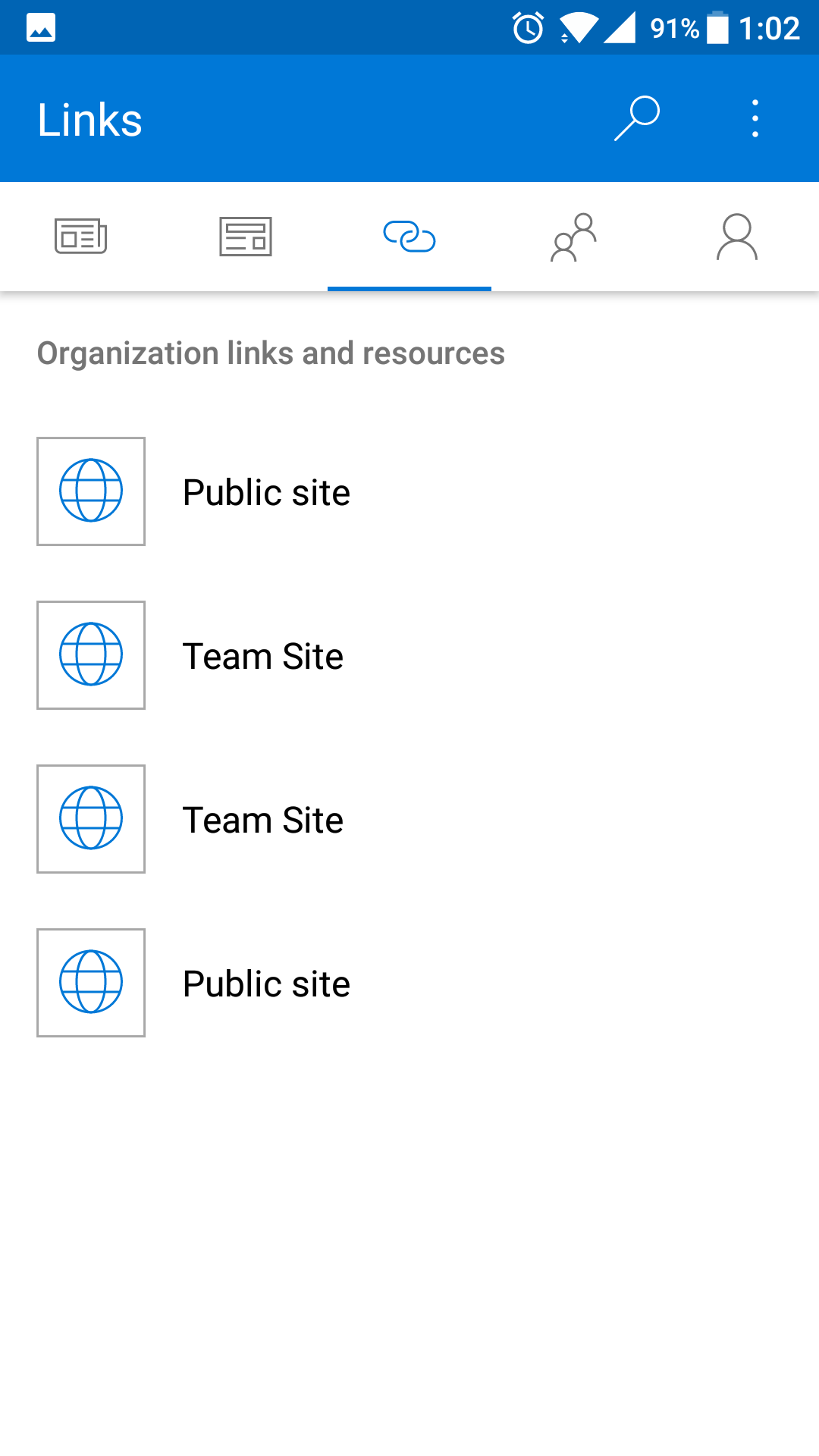
The Links Tab in the SharePoint Mobile App
You can use the Links tab as shown in the image below to look for promoted links for your company. This is handled by your SharePoint Administrator for your employees and these links will help you find information in the desired departmental sites and resources.
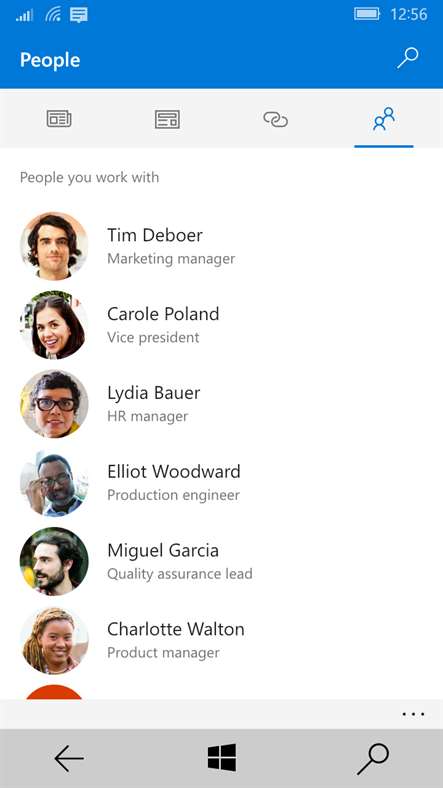
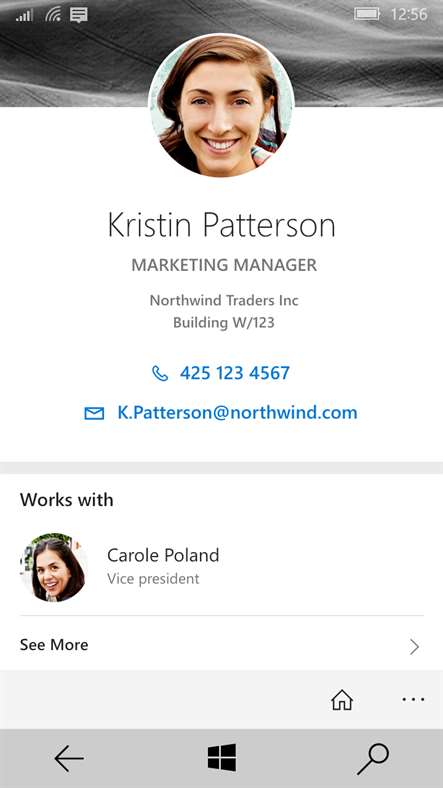
People tab in SharePoint Mobile App on the left. The user profile appears when clicked on one of the users (Right)
Search for your colleagues in the “People” tab. Select one of the users to see their contact card and see who they work with and what they are working on.
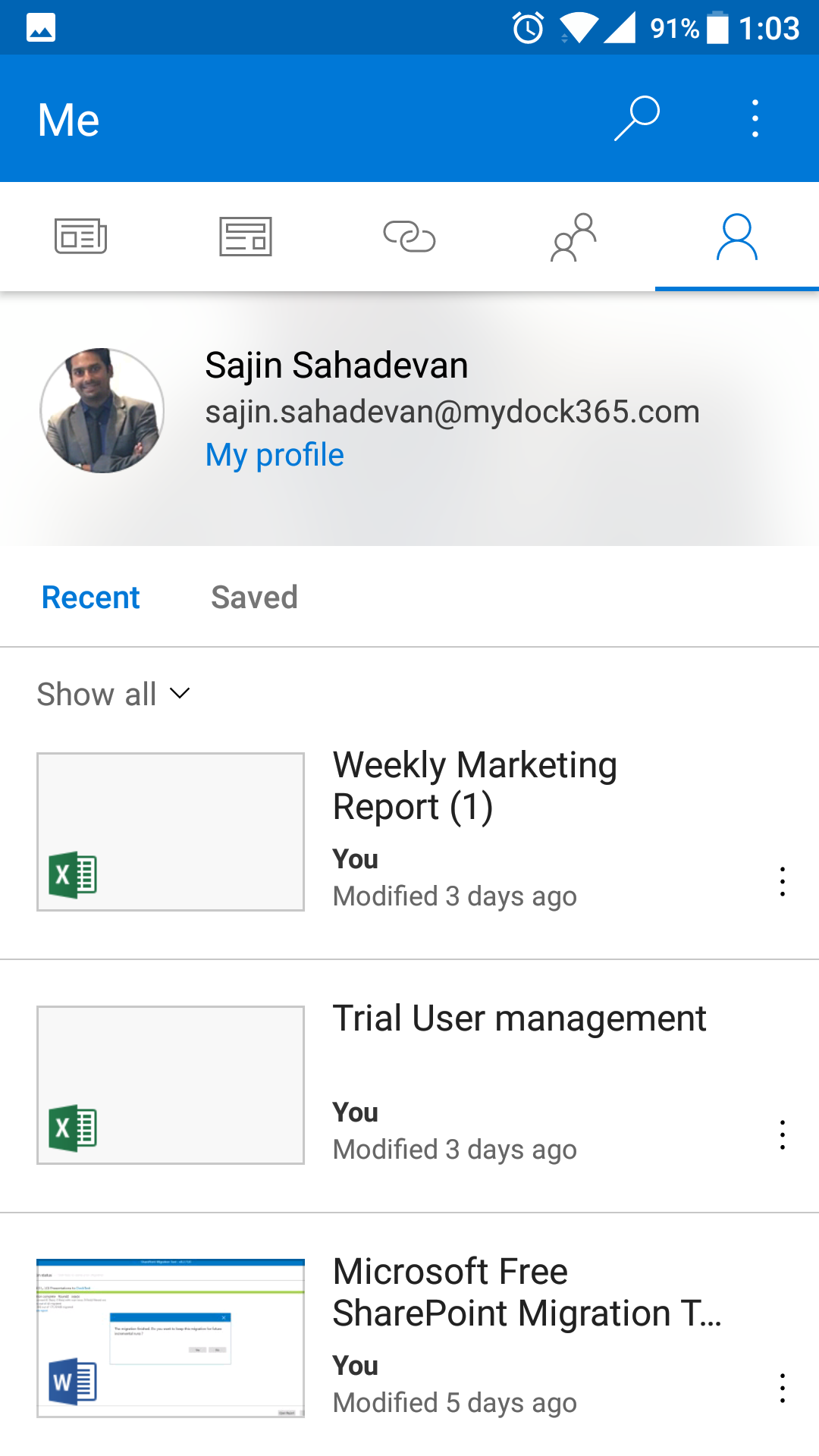
Recent Files view in the SharePoint App
See popular and recent files: You can view or share them right from your team sites; have complete access to the document libraries using the OneDrive app integration. Use Office Mobile Apps such as OneNote, Word, Excel and PowerPoint (Downloaded separately on your device) to edit the files when files are opened from the SharePoint App.
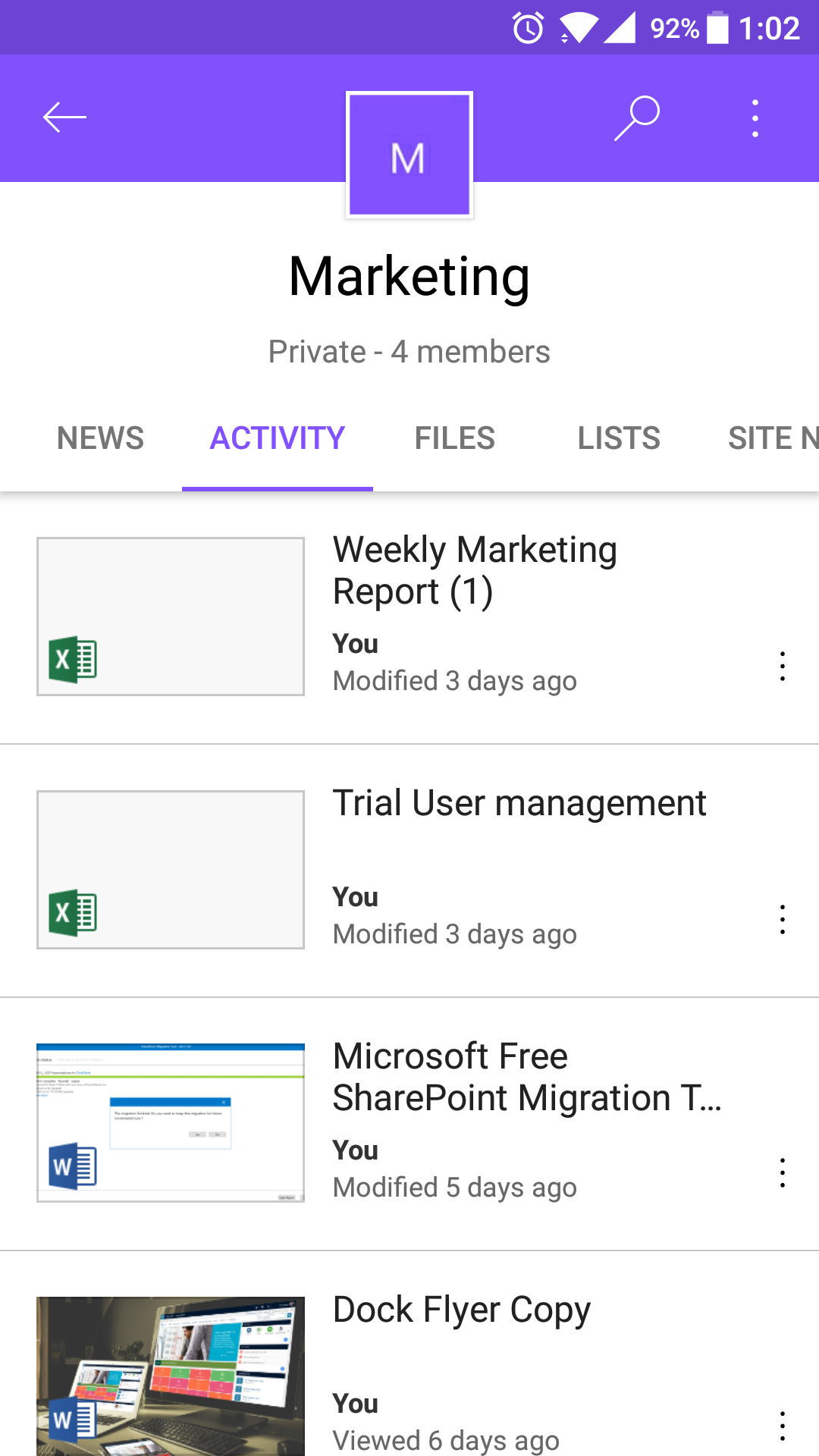
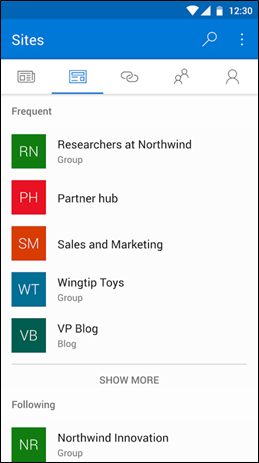
SharePoint Sites View in the SharePoint App
Easily find your SharePoint Sites: You can visit the sites tab as shown in the image above. You will be able to see the frequently visited sites and followed sites here. Click on the team site to view more information.