We have been getting lot of queries from our clients on SharePoint Modern Pages. Would you like to know what it’s all about? What difference does it make between the existing site pages? When they move around between different document libraries or lists, the latest interface pops up. It is only available on Office 365 as of now, (this upgrade may be reflected on Microsoft SharePoint 2019).
Microsoft is on its mission to revamp its SharePoint UI and features. Now you can learn more about SharePoint Modern Pages. This blog will explain on the key features and you might take a call on this resolute collaboration solution.
SharePoint in the Early 2000s
As you may know, SharePoint’s classic interface was launched in 2002. All the latest features were built on top of this interface and has stayed within the constraints of the foundation. As a SharePoint Partner, our customers keep asking for enhanced features but only under one condition, “No matter what it is, it has to look like Office 365 or SharePoint”.
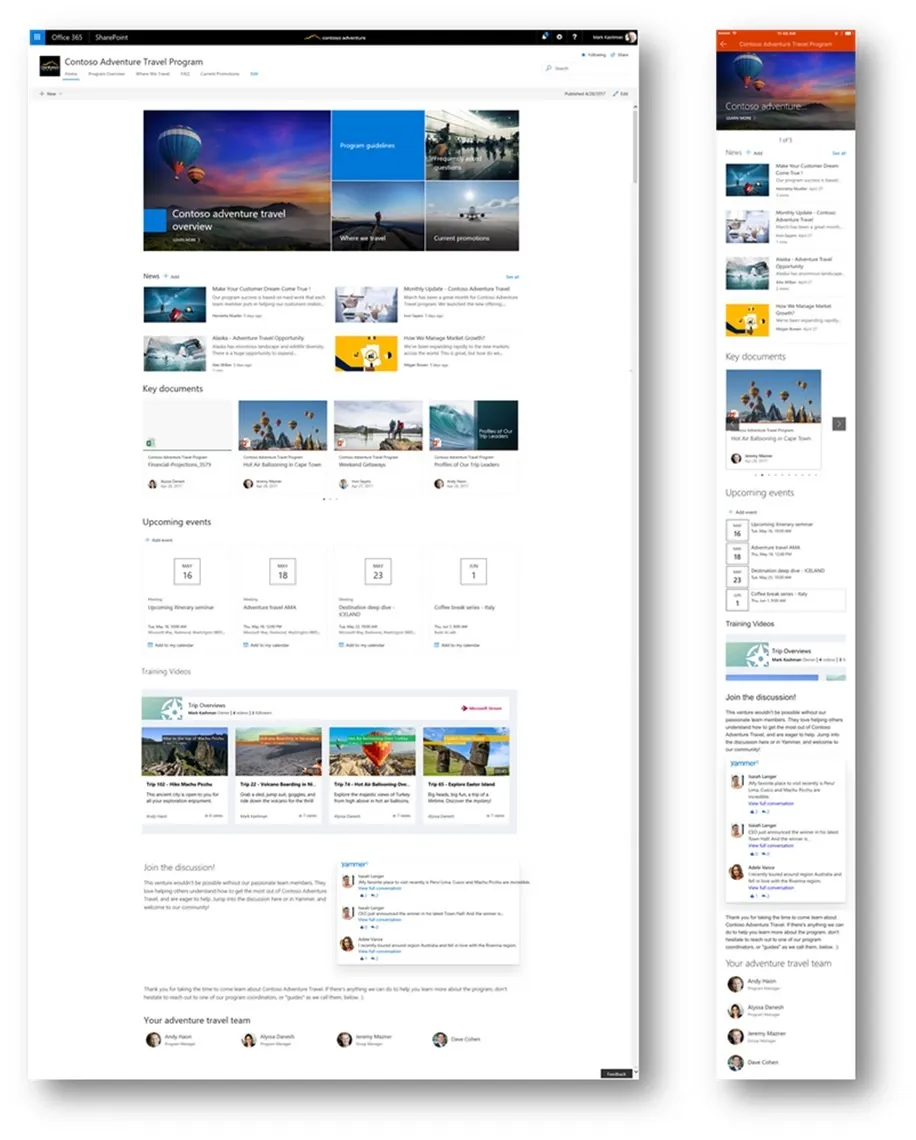
This is an example for modern sites – communication site that can be used to publish information over their intranet. It is pre-built by Microsoft, so your users can get started without any hassle. And guess what? It is mobile responsive too!
About Modern SharePoint
The Modern SharePoint comes with a next level of user experience. It has a fresh look with white backgrounds designed to work on mobile devices. Most of the earlier usability issues are eradicated to provide seamless working experience. Microsoft SharePoint Server users need to wait for the next version (Microsoft SharePoint Server 2019) to avail these features.
The "modern" experiences in Microsoft SharePoint Online are:
- List and library experiences
- Team sites
- Site pages
If you have customized features within your SharePoint, please refrain from upgrading to the latest modern experience until proper fixes are done to the custom features.
To adopt the modern experiences for your sites, follow the below recommendations:
- Readiness: Fully understand how modern pages work and the features that can benefit your organization. Also check if any of the features are not included.
- Assess: Proper assessments needs to be done on the custom features. Evaluate on how it can impact your existing features. Make sure to audit all the site pages (with customizations) and check if it works with modern experience or not. Try the SharePoint "Modern" user interface experience scanner to assess your site compatibility with modern pages.
- Planning: Plan your work needed for custom features and sites – to work properly on the modern page experience.
- Development and Testing: Confirm the required changes to your solution and test them.
- Deployment: Publish the updated features to your SharePoint Instance.
Let’s start with the Lists and Libraries. See the difference for yourself:
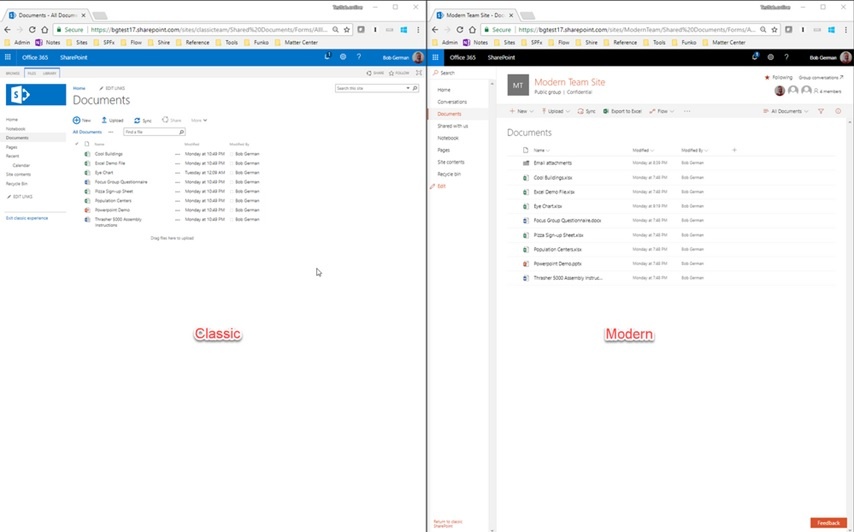
For sure, Modern pages are easier to use and features advanced filter and bulk edit functionalities. Drag and drop of files is easier in modern pages and impossible in the classic SharePoint View.
Speaking about the mobile responsiveness, checkout the screenshots of the classic and modern pages taken on iPhone X:
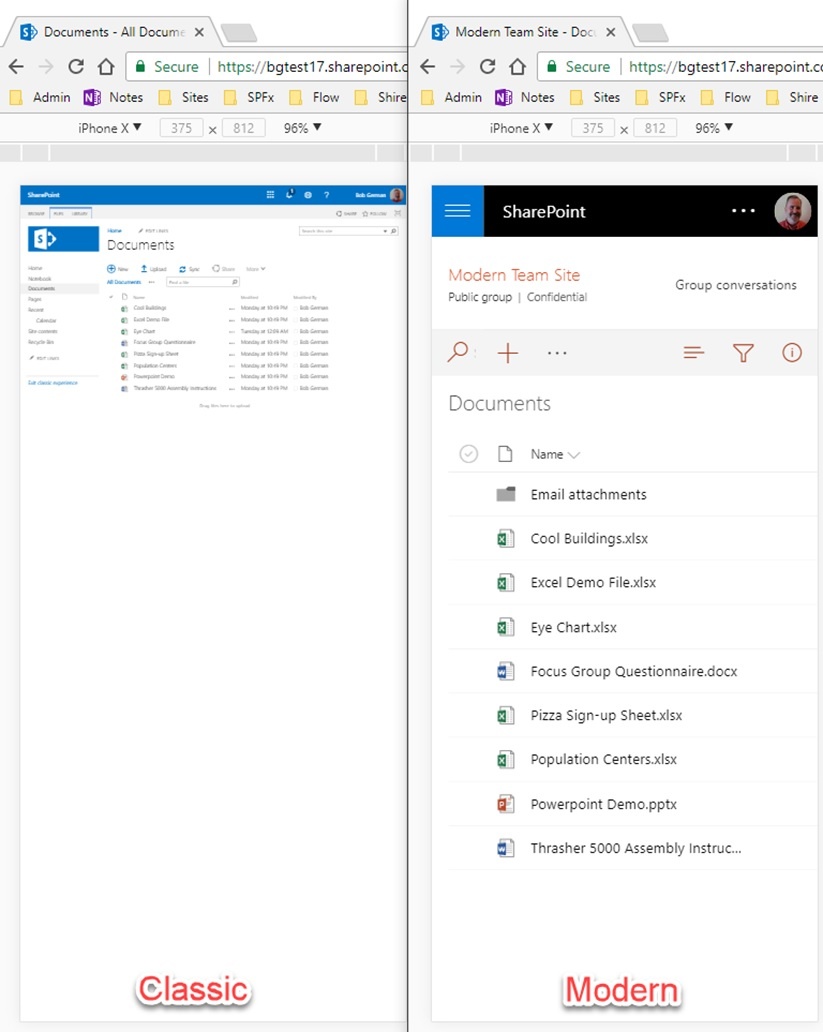
In Microsoft SharePoint Online, libraries and lists are available in modern view as default. The webpart pages are in modern view when creating a modern team site/communication site. When a new page is created, it can be set as the homepage and the site will get all the permissions and features of a complete modern team site/communication site.
Well, that’s it from my side. In my future blogs, I will be sharing the pros and cons of using SharePoint Modern Pages. So, stay tuned to the SharePoint Modern Pages Series.