Bid adieu to teamwork chaos with Microsoft Planner. A solution that comes with your Office 365 suite, the platform enables your team to easily create new plans, assign tasks, share files, update statuses and much more. No matter how big or small the project with Planner teams can effortlessly work together, collaborate on different tasks and produce excellent results.
Without further ado, let us talk about the 6 killer features you should be using in Microsoft Planner to:
- Gain greater visibility into project schedules,
- Receive notifications of upcoming deadlines,
- Easily group and filter tasks
Here is an overview of the features.
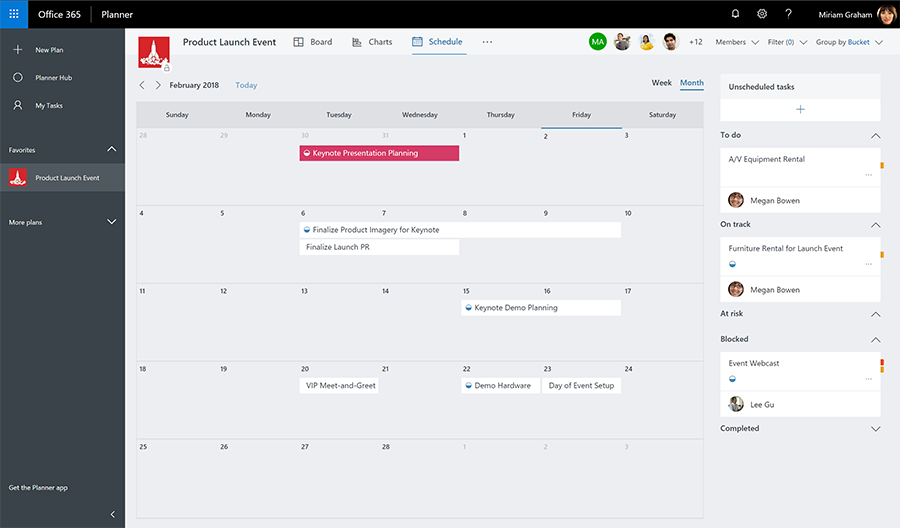
1.Schedule view—With this feature users will have a better understanding of the project status with the ability to view task schedule.Thus, enabling them to plan ahead, and meet deadlines. Further weekly and monthly task views allow drag-and-drop scheduling.
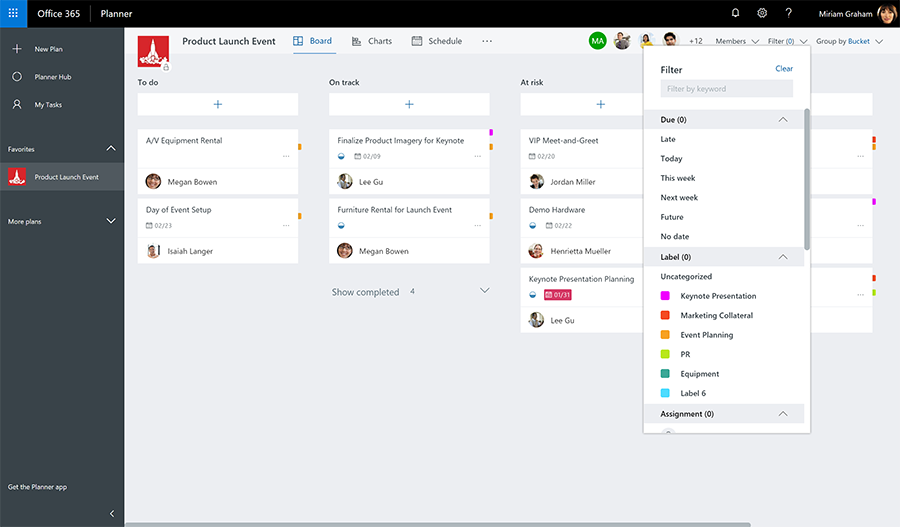
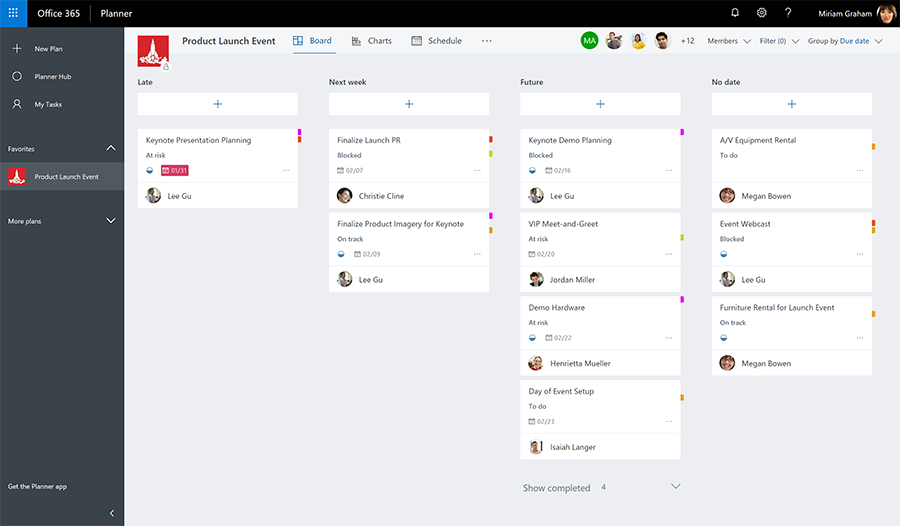
3.Group and Filter options—Get deeper insights into your tasks to help you meet key deadlines with the Group and Filter options in Planner. For e.g you can filter tasks based on due dates to get a clear picture of approaching deadlines and plan your work accordingly.
4.External (guest) user access—The new feature allows you to collaborate with not just your internal team but also with people who are not your tenants like vendors and partners. Once a guest user has been granted access he/she can interact with your plan. They can create and delete buckets and tasks, edit task fields, and edit the plan name.
5.Due date notifications—Stay on top of your approaching deadlines with this feature. A planner user will receive an email notification with a brief summary of tasks due in the coming week.
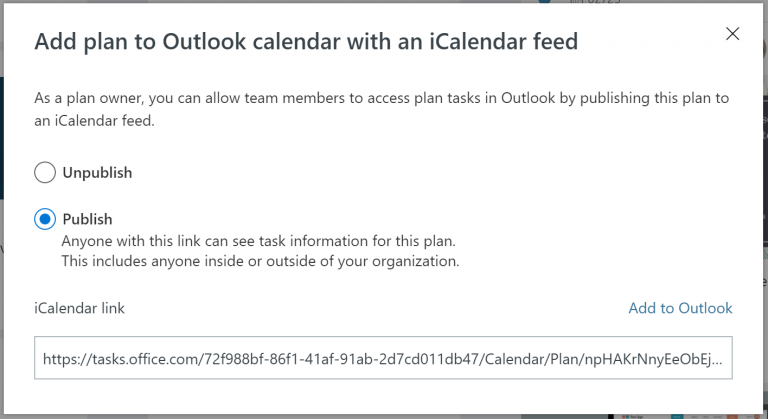
6.iCalendar format feed—The feature allows you to import Planner tasks into Outlook via an iCalendar feed. By adding your tasks to your Outlook calendar, you can make better scheduling and time-management decisions also you will never lose track of current and upcoming tasks.