
One Note is one of those Microsoft products that seems to be one dimensional when you first start using it, but it isn’t until you make use of the product that its real value starts shining through.
What are the best project management tools that integrate with outlook?
As a task and project management tool, Microsoft OneNote is one of the best tools out there and one of the best ways to integrate with other office apps is with Outlook for a project management tool. I know you're thinking, Outlook already has a simple to use task manager? While this is true, the simplicity of it is both it's redeeming quality and downfall.
You are easily able to manage tasks and align them based on the project they're associated with and write notes to go along with the functions, but the user is minimal on the features within these notes. For example, if you need to add spreadsheets, documents, meeting notes associated with these tasks and need them easily accessible you're going to be left hanging high and dry, thankfully OneNote can step in and do this for you.
Adding OneNote to Outlook
To do this from within Outlook, just click on File and then Options. Along the left navigation menu, click on the Add-Ins link.'
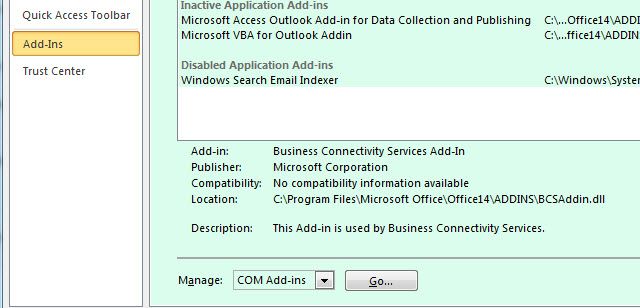
At the bottom of this page you’ll see a “Manage” field with a dropdown box. Select “COM Add-ins” and click on the Go button.
If you have OneNote installed on your computer–which you should, because OneNote is free--then you’ll see an Add-In here titled OneNote Notes about Outlook Items. Select the checkbox next to this, and then click OK.
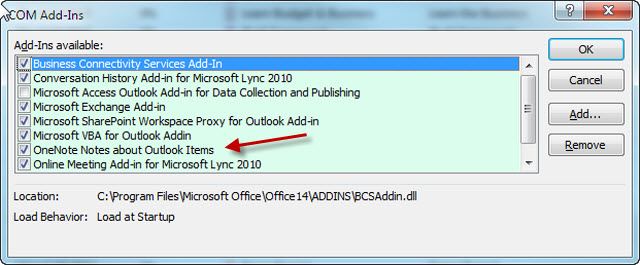
Now you’ll discover “OneNote” icons throughout Microsoft Outlook, but the one we’re most interested in is the one that now appears at the top of your Outlook Task list page.
Now that you’ve integrated Microsoft OneNote with Outlook, it’s time to put it to work to get more productive.
Setting up OneNote Integration
First, open up OneNote and create a new Notebook just dedicated to Task Management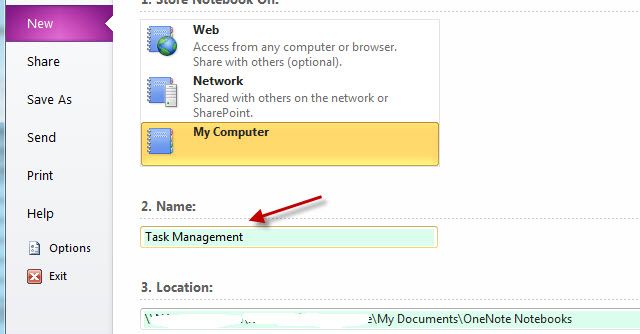
Now inside the Task Management notebook, you can create new sections for each project that you’re currently working on. Task management is the primary concern of a project management tool.
All of the tasks in your Outlook Tasks page will typically fall under one project or another. Unfortunately, in Microsoft Outlook, it’s not as easy to visually organize these tasks by project. But by adding sections in OneNote for each project, you’re creating this nice, clean visual layout that lets you organize all of your tasks visually into projects
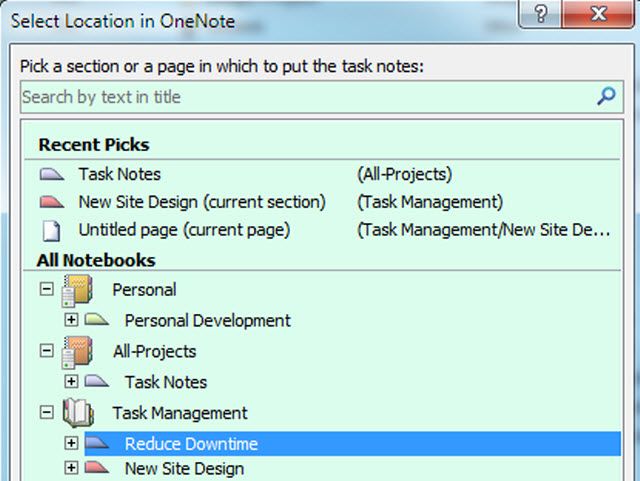
So, now that you’ve got OneNote set up with projects, you can start loading it up with Tasks as they come up. In part 2 of this series, I’ll show you how to use your OneNote integration efficiently and how to keep your records organized.