In Microsoft Teams, your business can experience a brand new collaboration and communication mode. Since transitioning to Teams, many businesses have produced higher-value outputs and improved employee engagement. SharePoint and Teams integration features have made the platform more lively and productive than ever. In this blog post, we will discuss exactly how to edit your SharePoint Pages and News Posts without leaving the Microsoft Teams platform.
Yes, you read it right! You can in fact make changes to your SharePoint Pages and News Posts within the Microsoft Teams platform.
Two key things to keep in mind:
1. How to add a SharePoint page or site to a Teams channel tab
2. How to edit the page
Let’s learn more about the significance of SharePoint Pages and News Posts before learning about how to use SharePoint in Teams.
The Significance of SharePoint Pages and News Posts
SharePoint allows you to create separate sites and pages for projects, departments, teams, and more. You can also create news posts to keep everyone in your team or company informed about events, processes, and all the latest organizational news. The rich formatting, web parts, and graphics make these pages and posts both interesting and attractive.
If your organization is setting-up an intranet portal using SharePoint and Office 365, the SharePoint Page and News Post features will be of great use to ensure announcements and status updates are available for all to see instantly. These pieces of content are accessible through desktop, mobile, and web versions, making them extremely practical for quickly sharing information.
Microsoft Teams and SharePoint integrations open new possibilities for businesses to conduct faster and more efficient business operations.
Editing Pages and News Posts in SharePoint
SharePoint makes editing Pages and News Posts incredibly simple. Oftentimes, users will make changes within the web and desktop versions of SharePoint. However, there are several reasons to consider editing Pages and News Posts in SharePoint instead. Because information and data can change, it can be helpful to edit static content pieces manually to update them. We usually go to the SharePoint platform to make such changes.
If you can make that change right from your Teams platform, then that’s fantastic right? Yes, that’s now possible. Let’s take a look at the excellence of the SharePoint and Teams integration. Here are the steps to do so:
How to Edit and Republish Pages and News Posts in Teams
To perform the following steps, you first must add a modern SharePoint Page or News Post as a tab in any of your channels in Microsoft Teams. Here is how:
- Sign in to your Microsoft Teams desktop application.
- Click on the Teams option from the left and choose the desired channel

- Click on the + icon right next to the tabs, and choose SharePoint from the list of options
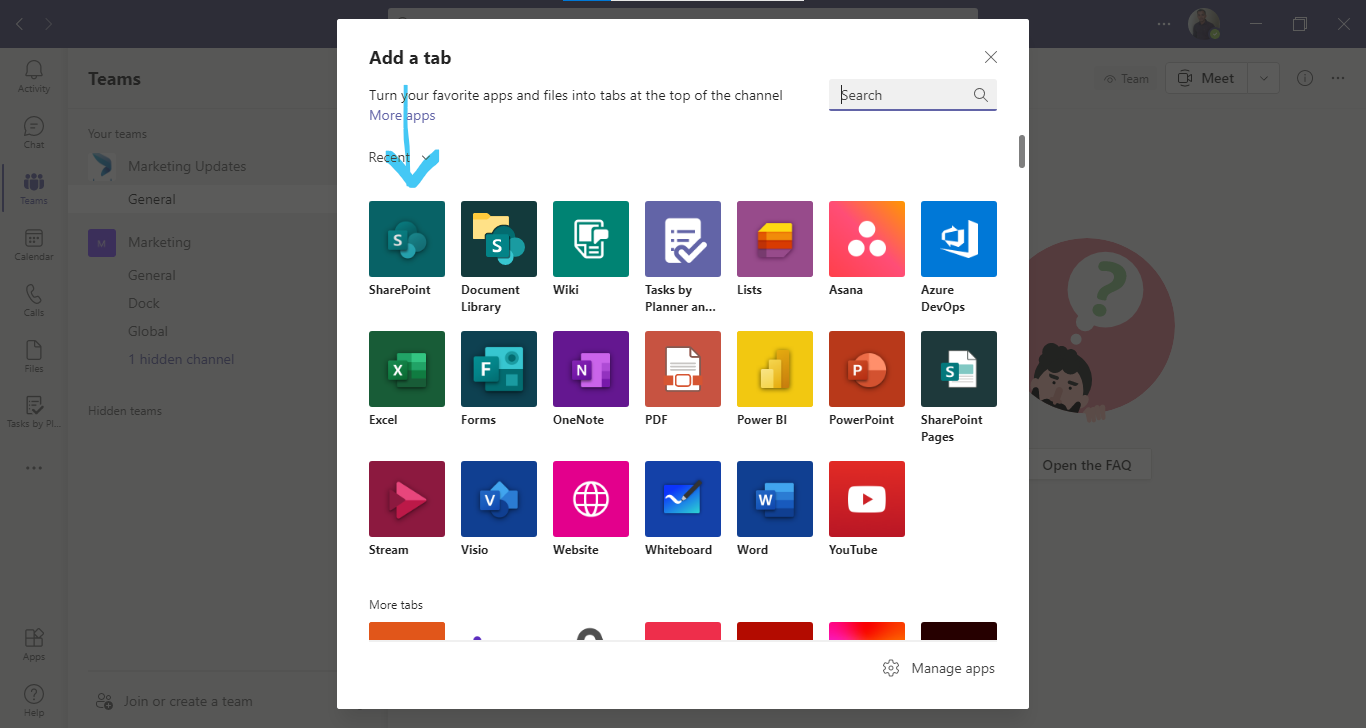
- For all sites with necessary permissions, an "Any SharePoint site" option will be displayed
- Choose the desired page and click Save

- The page will be now added as a tab to that channel

How To Edit the Page in Teams:
- Click the Edit option from the top right part of the page to turn the edit mode on

- I have changed the main banner image and the page content here
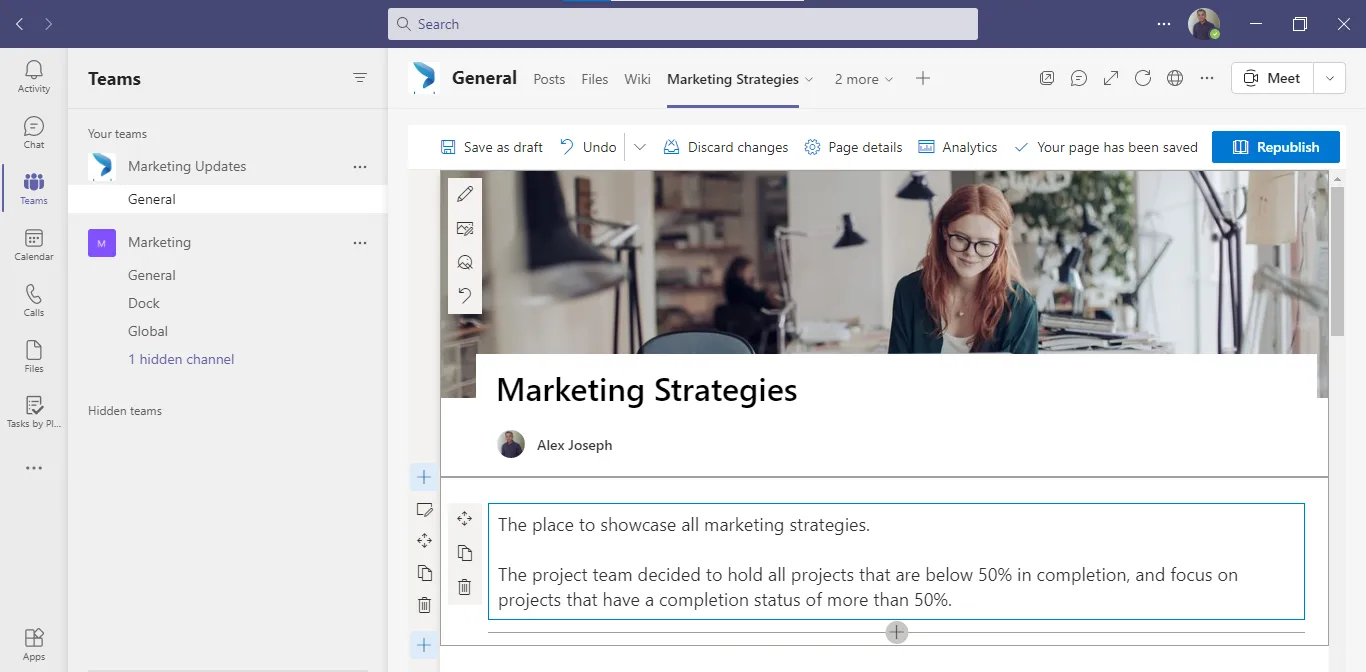
- Click on Republish once you have made changes
- The page will be now updated with all the latest changes

Similarly, you can add a SharePoint News Post as a tab to any channel and make edits by following the same steps above.
What else can you do in Teams?
We hope you have gained a basic understanding of how to access SharePoint from Teams. The main objective here is to let people stay in the Teams platform and perform required actions in SharePoint. Along with editing pages and posts, you can also edit web part configurations and settings. While accessing your SharePoint pages and posts from Teams, you can even open SharePoint links within the Teams window. Other links will be opened in the web browser.
Who can perform these actions?
To perform these actions, you need to be the Page author. Furthermore, you can also promote the news articles through email and Yammer using the available options. Utilize the full web part property pane to make all required changes, as you do in the SharePoint platform.
Try out these options and let us know about your experience in the comments below.

.webp)