
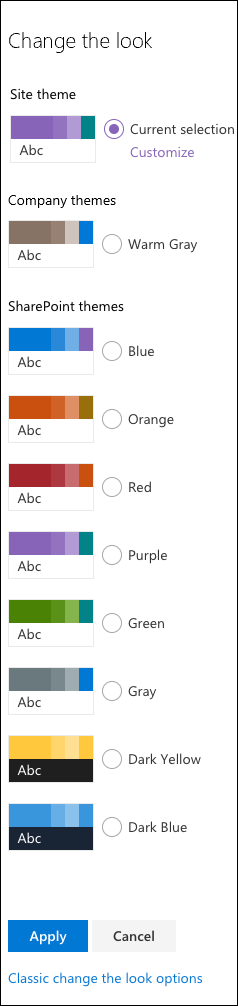
To change the look of your SharePoint site, click the Settings gear icon > Change the look > Theme. Select from default themes (Blue, Orange, Red, Purple, Green, Gray, Dark Yellow, Dark Blue) or supplementary themes (Gold, Teal, Indigo, Plum, and others). To customize colors, select a theme then click Customize, choose your main color and accent color, and click Save. For classic SharePoint sites, go to Settings > Change the look > View classic settings to also change fonts, background images, and site layout. Changes apply instantly and can be previewed before saving.
SharePoint site owners can now apply custom styles and colors to sites and thus making it easier to define and manage themes across site collections. Customize the look of your SharePoint site to reflect your brand's value. The options available to a site owner depends on the version of SharePoint being used by him/her..
What Default and Supplementary Themes Are Available in SharePoint?
Before we explore how to use a theme to change the colors of a SharePoint site. Let's take a look at the default themes.
Default themes
By default, the following predefined themes are available
- Blue
- Orange
- Red
- Purple
- Green
- Gray
- Dark Yellow (inverted theme)
- Dark Blue (inverted theme)
Supplementary Themes
In addition to the default themes, the following supplementary themes are also available.
- Light themes: Gold, Teal, Dark Blue, Indigo, Plum, Warm Gray
- Dark themes: Red, Green, Purple, Gray
How Do You Use a Theme to Change the Colors of Your SharePoint Site?
Step-by-step: Apply or customize a SharePoint theme (modern experience)
- Click the Settings gear icon (top-right corner of your SharePoint site).
- Click Change the look, then select Theme.
- Browse the available themes and click one to see a live preview.
- To apply as-is: click Save.
- To customize colors: click Customize after selecting a theme.
- Choose your main color and accent color using the color picker.
- Click Save to apply to the site, or Cancel to discard.
You now have the option to customize default SharePoint themes as and when needed.
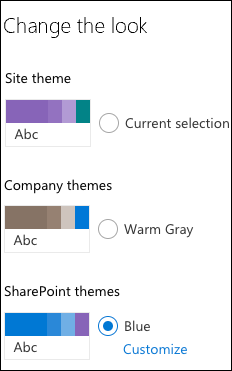
To create and upload a company theme
- Click Settings
 click Change the look > Theme.
 - Select the desired look
- You will be shown a preview of how your site will look with the selected theme
- Click Save to apply it to your site
- Click Cancel if you don't like what you see or you want to go back to the old look
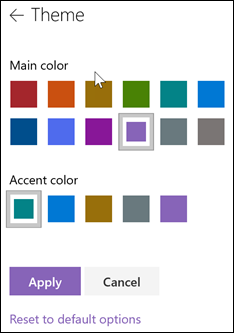
To customize the colors of default SharePoint themes
- Select the theme > click Customize
- Choose the main color and accent color you want
- Click Save to apply it to your site
How Do You Change Colors, Background, or Font in Classic SharePoint?
Step-by-step: Change look in SharePoint classic experience
- Click Settings > Change the look.
- Click View classic settings or Classic change the look options.
- Select a look from the gallery of available choices.
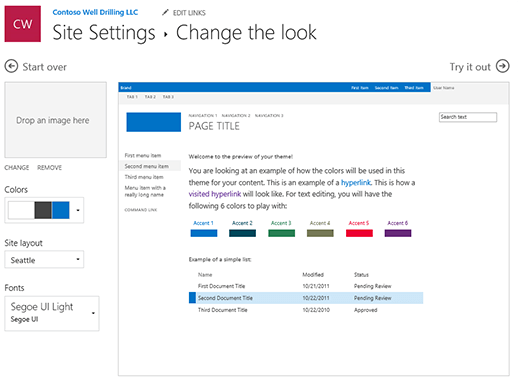
- To add or change the background image: click Change and upload an image or drag one onto the thumbnail.
- To change the site layout: click the arrow next to Site layout and select a layout (controls position of navigation, search box, etc.).
- To change fonts: click the arrow next to Fonts and select a font family.
- Click Try it out to preview, then Yes, keep it to apply or No, not quite there to go back.
- Click Settings
 and click Change the look
 - Click View classic settings or Classic change the look options
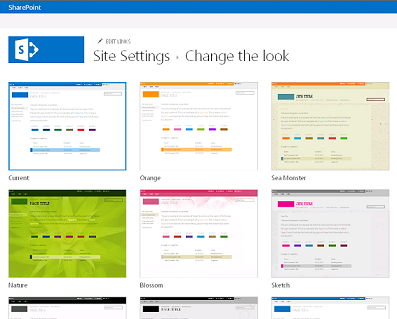
- You can choose a look from the available choices.
- To add or change the background image, click Change to upload an image or drag an image from your computer onto the thumbnail image above the Change button.
- To change the layout, click the arrow next to Site layout and select another layout, which controls the position of the navigation links, search box, and so on.
- To change the fonts, click the arrow next to Fonts and select another font
What Theming Options Are Available for SharePoint Site Collections?
SharePoint administrators can control themes at the site collection level using the SharePoint admin center or PowerShell. Key options include:
- Custom themes: Organizations can create and upload company-branded themes using the SharePoint Theme Generator tool.
- Tenant-level control: Global admins can restrict which themes are available to site owners or enable/disable custom themes across the tenant.
- JSON-based theme definitions: Advanced customizations use JSON to define exact color palettes that align with brand standards.
- Header and navigation customization: Beyond themes, SharePoint modern sites allow header layout changes (standard, compact, minimal, or extended) via Settings > Change the look > Header.
Tip for intranet deployments: If you are deploying SharePoint as an enterprise intranet (for example, with Dock 365's SharePoint Intranet Portal), consistent theming across all site collections strengthens brand identity and improves user adoption.
About Dock 365 Intranet Portal
Dock is a Pre-Built intranet portal for your organization. It is powered by Microsoft SharePoint & Office 365. Dock also comes with project management, contract management, and many other business productivity features. It creates sustained, connections and conversations across the organization, promoting better employee experience and organizational performance.