
Hiding document folders in SharePoint comes in handy when you have a complicated folder structure. For example, you may have added metadata columns for better organization of folders. If you still haven’t found a solution to this yet, check out an easy way to make your document management system efficient.
This has nothing to do with user permissions. It’s all about creating a view for hiding the folders without deleting the contents.
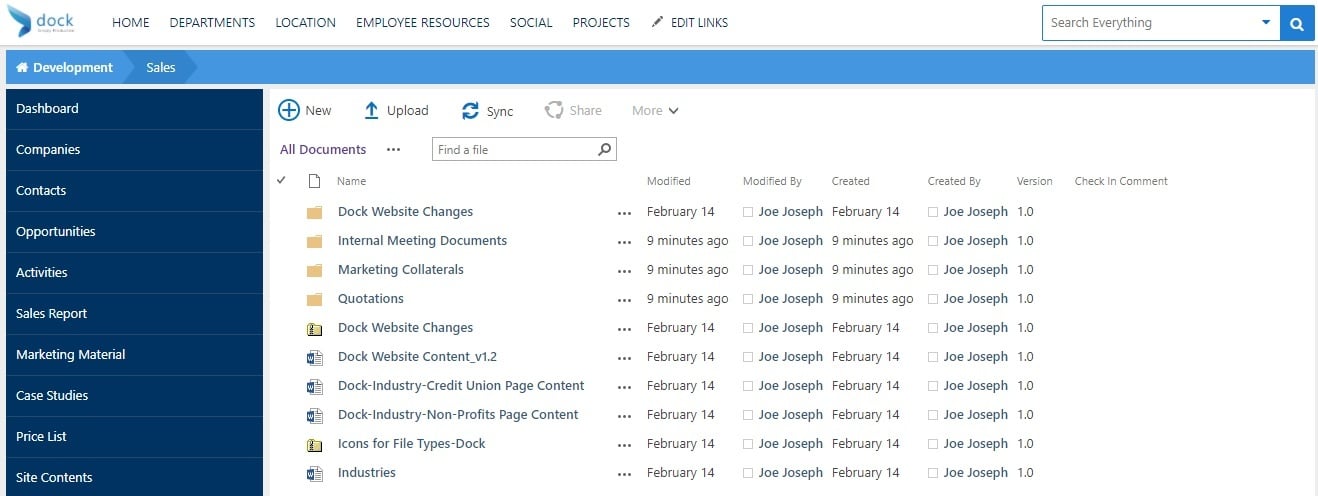
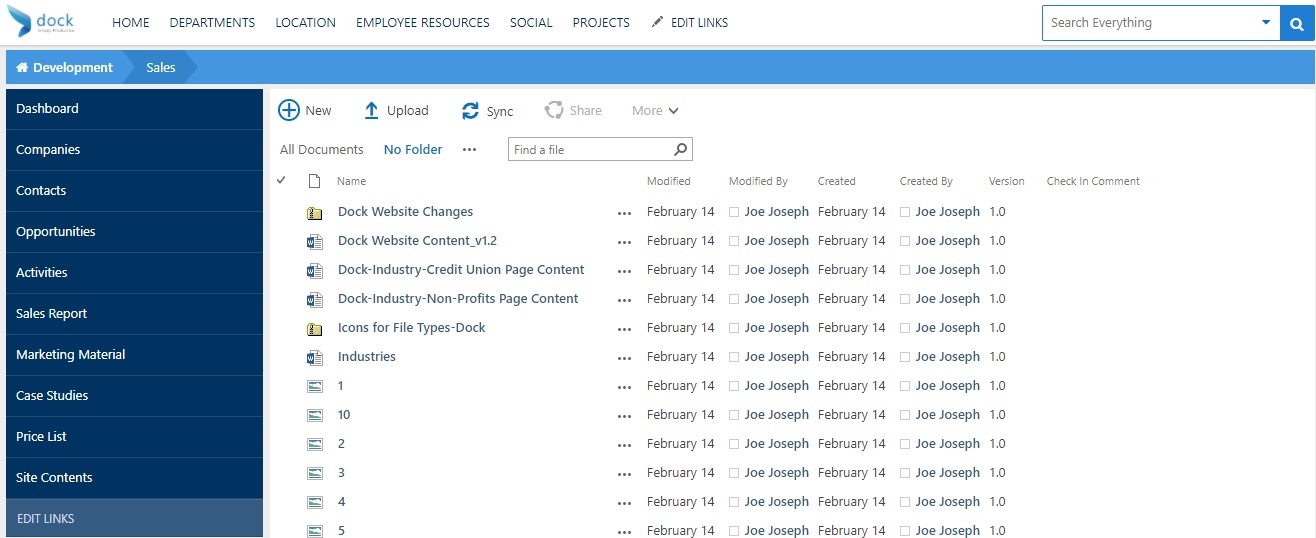
Let’s go ahead and configure the No Folders View in the Document Library.
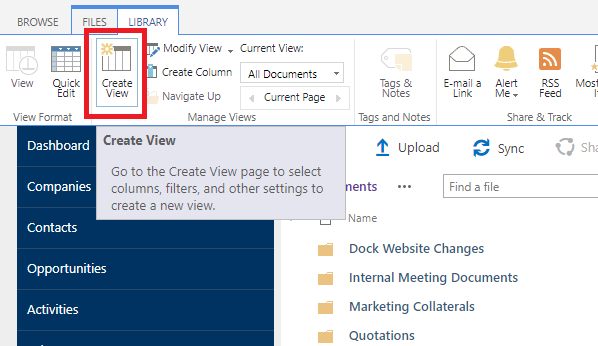
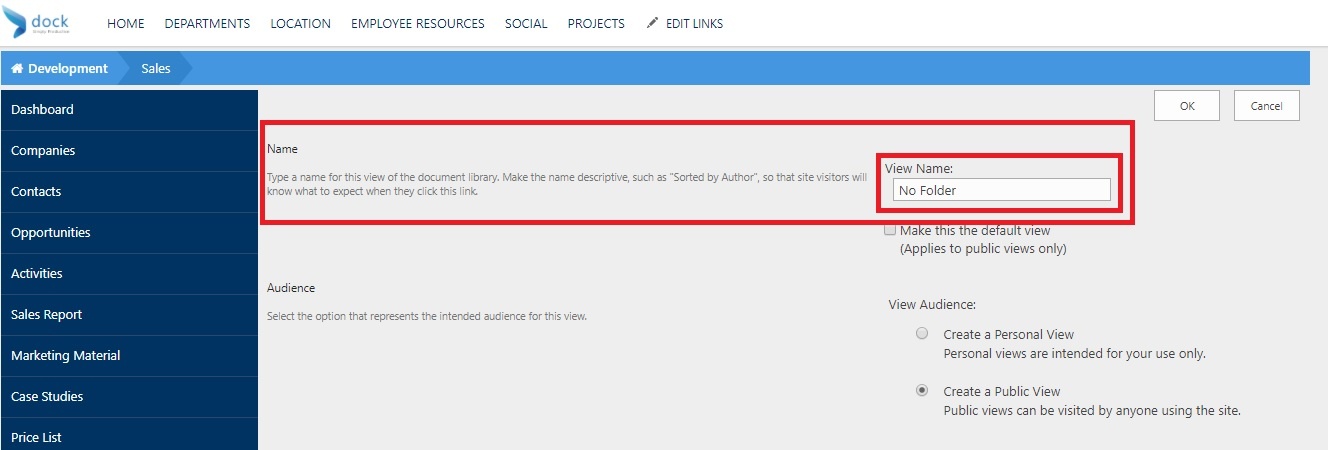
- Select Create View from the top navigation. Create a new view and call it “No Folders”.
- Scroll down a bit and you will find the “Folders” section. Select “Show all items without folders”.
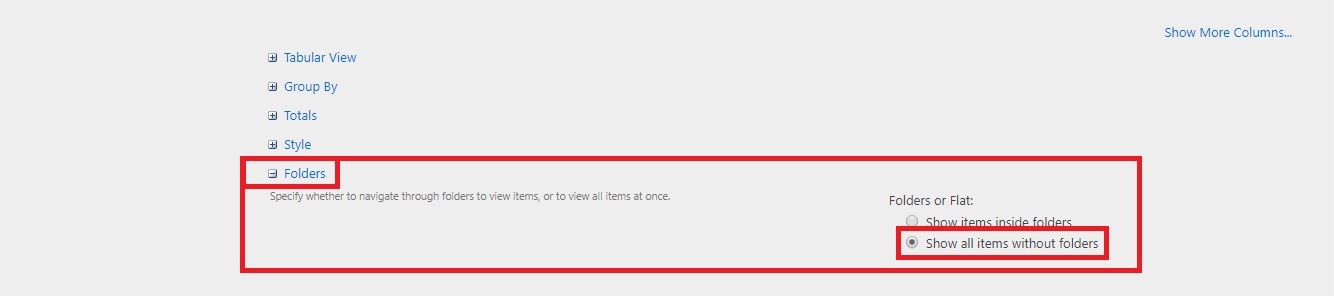
- Click on “OK”.
- You can see all the files shown without the folders.
User Scenario
This is a recommended way of doing it when you have folders migrated from your systems to SharePoint and now converted to metadata. With the hidden folders, you can benefit from metadata filtering and views, more like a regular metadata document library.
SharePoint Security for your Document Library
It is your responsibility to assure security for your documents/content. Microsoft alone cannot ensure that by encrypting your information and backed up on the cloud; data is protected.
That’s where we talk about the following features:
- Site Security
- SharePoint Governance
- External Sharing
- Offline Sync
For instance, let’s say you haven’t setup your SharePoint Site’s external sharing feature properly, you are likely to create a pathway for external parties to access your content where they don’t have to.
By allowing your colleagues to sync files to your systems using OneDrive client, you are creating the risk of exposing intellectual property that may end up in wrong people when the systems are stolen. Even when granting more permissions to the users than they require, it can put your SharePoint Sites and Document Libraries at risk (Deleting/Editing important documents).
Almost 80 percent of the employees who have Office 365 available at their workplace do not know the concept of document version history and SharePoint Sites’ Recycle Bin. This can be ensured by providing a complete end-user training making sure users understand these features well and make use it for their tasks. Well, that’s it from my side. Hope you enjoyed reading my blog on how to hide document folders in SharePoint Intranet.
.webp)