Today, in-person meetings are commonly replaced by digital collaboration experiences. The majority of meetings today are conducted via Microsoft Teams, SharePoint, and other Microsoft 365 applications. To achieve the optimal digital communication and collaboration experience, we highly recommend leveraging Microsoft Teams. Today, we'll cover 5 tips and safety techniques to support you in running secure online meetings with Microsoft Teams.
Two years ago, we published a blog that covered 6 Things You Need to Know for Meeting in Microsoft Teams, however since its publishing, Microsoft introduced many new features to the Teams platform. Today, Teams is more powerful and capable than ever, so now let's take a look at 5 tips to run secure online meetings in Teams.
1. Use Meeting Options
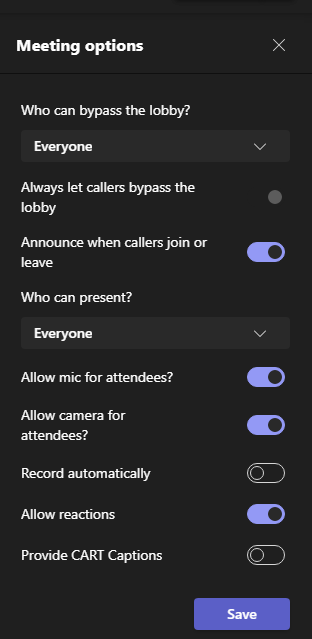
While Teams offers the ability to check the attendees list, assign presenter permissions, and record meetings, it can be difficult for users to configure these features during a meeting. However, you can configure all of these features using the Meeting options capability prior to conducting an online meeting. Simply go to your calendar meeting event and select Meeting options. From here, you can configure options like mic and camera use of attendees, automatic recording, enable/disable chats, control reactions, and much more.
2. Use In-Meeting Controls
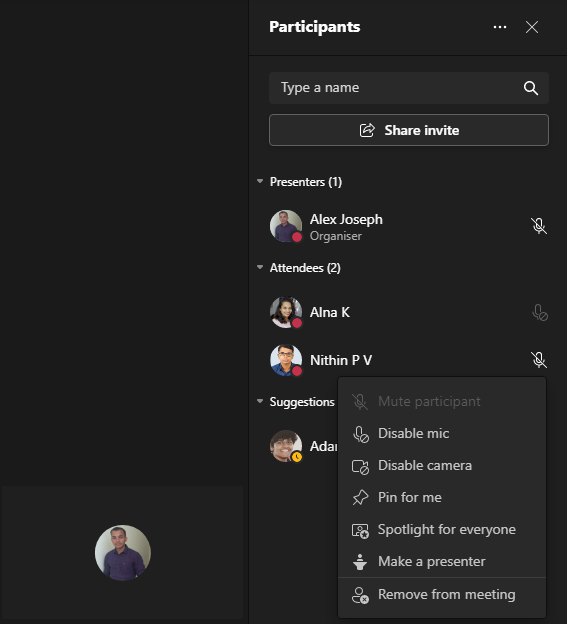
Don't let preventable disruptions like unmuted mics and unwarranted attendee video ruin the flow of your online meetings. Now, you can disable mic and video capabilities of your attendees during a meeting. In addition, you can easily remove disruptive and accidental attendees during meetings.
3. Manage Meeting Roles
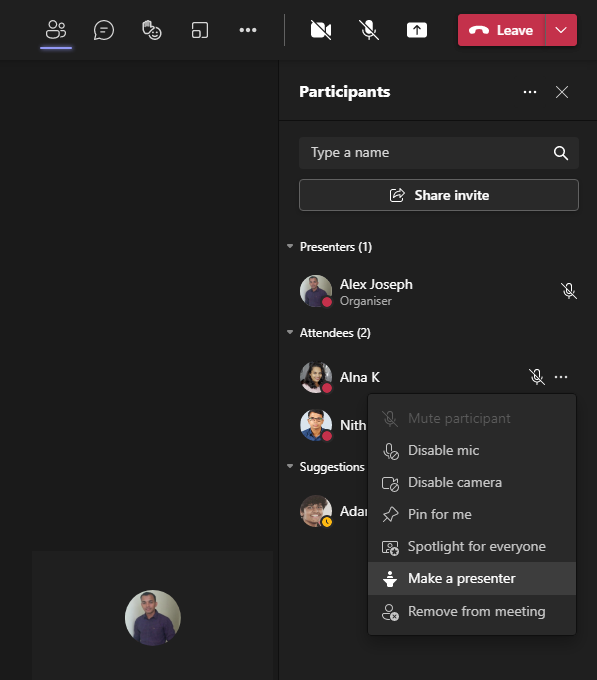
You'll likely benefit from the support of additional presenters when conducting large, organization-wide meetings. In meetings with 100+ attendees, it can prove to be challenging to mute distractions whilst leading an agenda-based discussion. In Teams online meetings, you can easily assign presenter roles by going to the additional options next to any attendee while in the meeting (as shown below). The newly assigned presenter can then mute distracting attendees as well as accept requests to join the meeting so that you can focus on leading the meeting.
4. Manage One-Time Participants
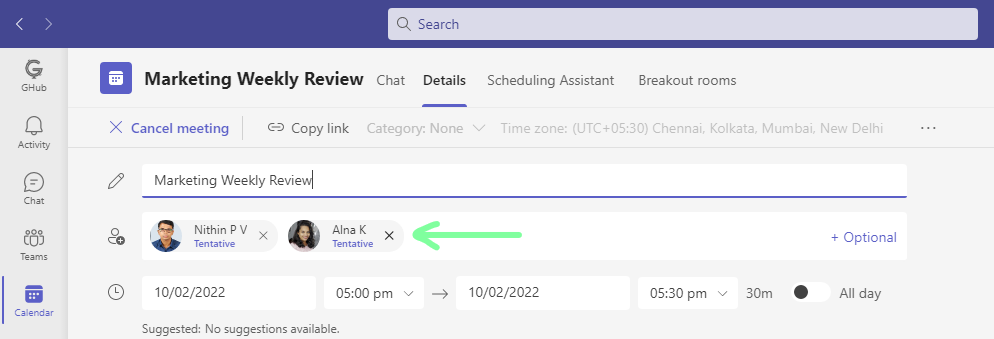
The majority of organizations hold a weekly team meeting, typically consisting of the same attendees. In some cases, guest speakers and presenters from other teams are brought in. However, it's important to remove these guests from your recurring meetings. To prevent one-time participants from having access to a meeting series, go to the Teams calendar meeting event, then to the participants list, and remove the guests. After removing them from future events, they will still have access to the meeting info and chats they participated in.
5. End Your Meetings For All Participants
Be sure that you end your meeting for all participants to prevent participants from staying in the meeting room following the formal discussion. Commonly, participants will stay in a meeting room following the meeting because they were unaware that they meeting concluded, or they may be communicating with co-workers on topics aside from the meeting's content. To end the meeting for all participants, click the drop-down button next to the Leave option and choose End meeting.
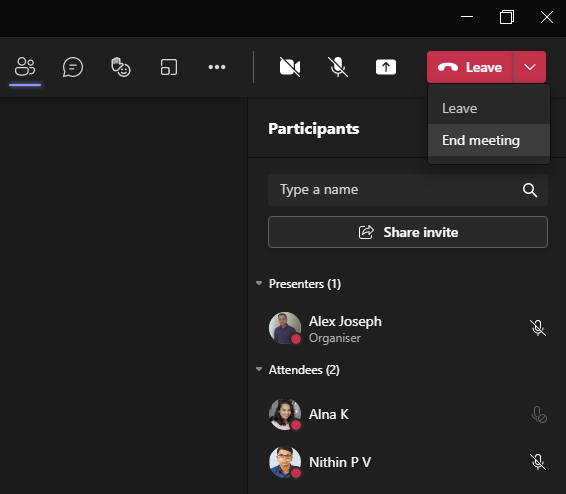
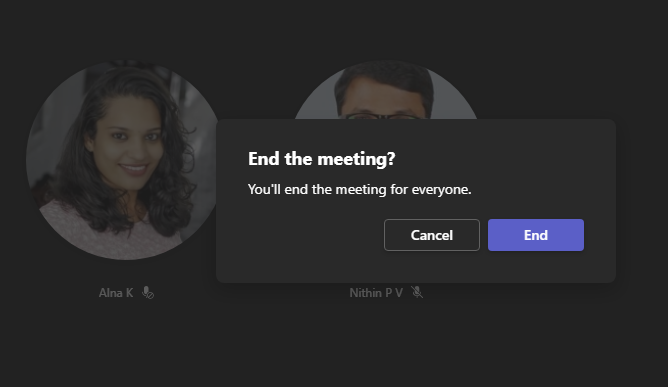
You will receive an End the meeting? confirmation window as pictured below.
Be sure to give our other blog a read, "10 Ways to Make Online Meetings with Microsoft Teams More Productive".
We hope you learned some valuable insights on how to configure a Microsoft Teams meeting.
Have a good day.