
We have certified resources on how to make the best use of SharePoint Intranet solutions.
We had a webinar yesterday on SharePoint Modern Sites – which had an overwhelming response. If you didn’t know, Microsoft SharePoint 2001 was the first version which grew as a complete collaboration suite in 17 years! It was initially developed for document management, but today, it is loaded with features that can benefit your business.
We like to jot down couple of tips that was found via training sessions with our customers.
#1. Settings
We are referring to the “Gear” button that can be found on the right-hand side top of your screen. You will be able to access the site contents and settings for that specific page.
Initially, our SharePoint Trainee thought it shows the same set of contents and settings. Even if the top navigate doesn’t change, when clicked on site contents or settings, it redirects the user to the list based on the page you have accessed from.
#2. OOB Webparts
The Site features is something that came new for SharePoint 2013 and 2016. You can find this by navigating towards Site Settings -> Site Actions -> Manage Site Features. You will gain access to a number of OOB Webparts which you can activate.
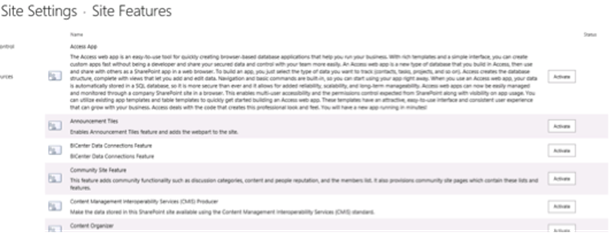
Also, if you have come across the Business Intelligence Center, it allows you to connect Business Intelligence Dashboards and data to Microsoft SharePoint. Users can change settings for various functionalities at Site Collection or Site Levels.
Not to forget about the Library Settings – It handles all the metadata and allows you to implement version history, approval workflows and also the document templates. Our recommendation is not to create more than 12 subsites below top level.
#3. Other Interesting Features
- Users have the ability to upload files that contains special characters in title (Check this out in SharePoint 2016).
- Deleted content by mistake? No problem, you always have a second change to restore it by accessing the Recycle Bin that’s present in the Site Contents area of the SharePoint Sites.
- You can change the look and feel of the SharePoint Site OOB. Change the background pictures, color schemes easily. Also, upload logos to the SharePoint Title present at the top navigation.
How we can assist you with SharePoint help?
Please do not hesitate to contact us for a quick and free SharePoint consultation. Glad to help!
About Us
As a trusted Microsoft SharePoint technology solution provider, we help customers realize their business goals and desired outcomes. By bringing together Microsoft SharePoint Portal solution as a product to maximize return on investment they made with Microsoft SharePoint.
Dock's Beginning
Dock is born out of our several years of experience in building intranet portals for large corporations. After developing the intranet portal for several years and many times, we saw a pattern where most of the intranet portal needs of the organizations where similar. We decided to package a solution which can be implemented in brief period instead of 6-8 months of development and deployment timeline. This also helped customers to have a solution in place and running shorter and without spending hundreds of thousands of dollars.
The other factor in developing the intranet solution was to make it available to a small and mid-size organization which was previously unaffordable for them. We have Dock intranet portal deployed to an organization with 10 employees to 5000 employees worldwide.
.webp)